Google/One Drive Integration
Process of syncing your Google/One Drive with PE Front Office.
-
1. Click on Google/One Drive icon on the top right of the record view page.
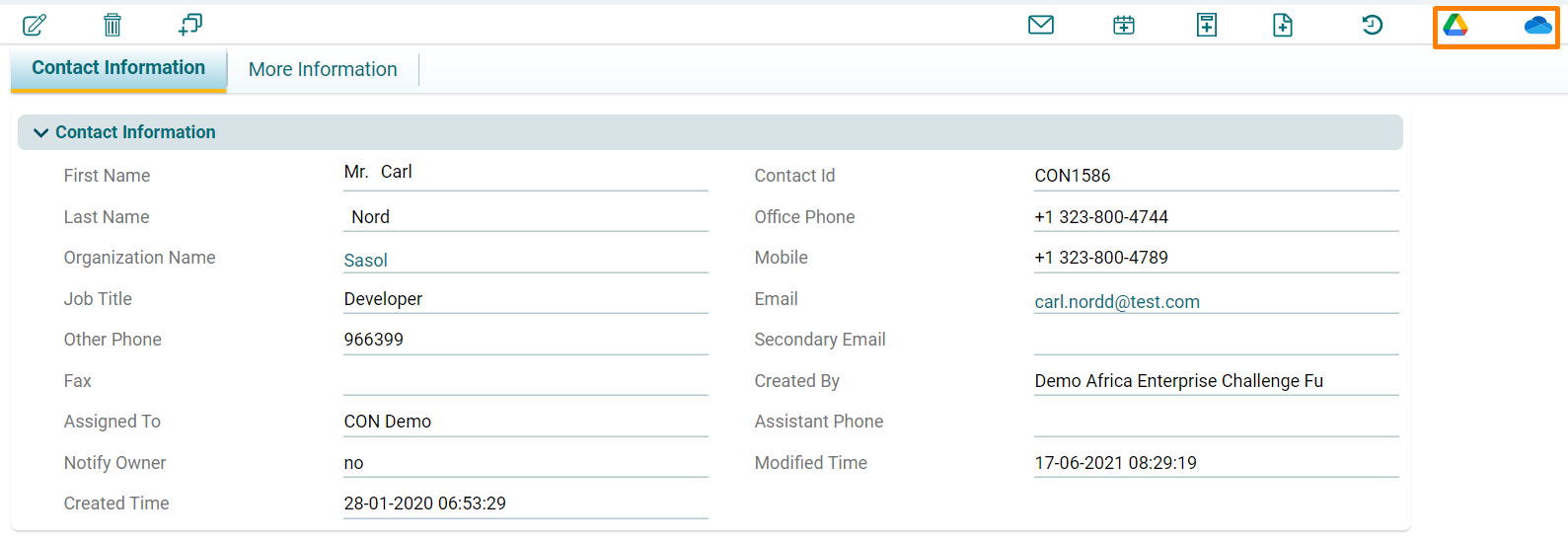
- 2. It will direct you to the syncing page.

-
3. Tick Enable Drive check box.

-
4. Click on Sign in with Google/Outlook.

- 5. Sign in with the desired account.
-
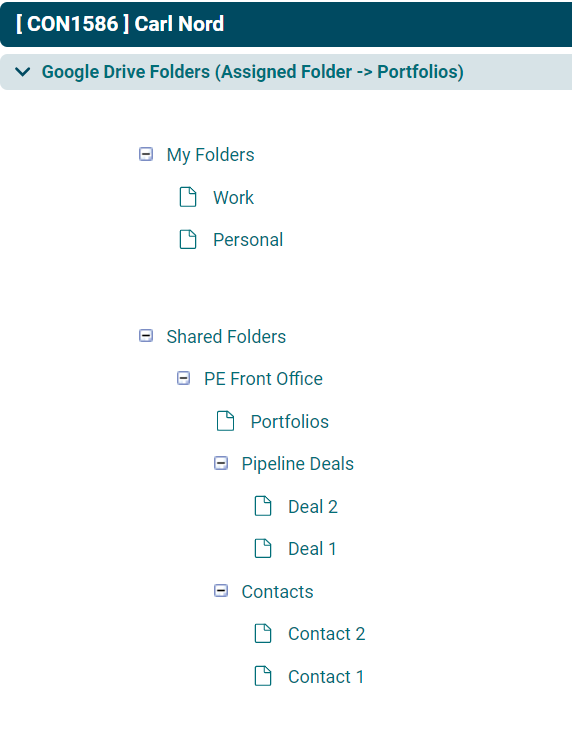
6. After signing in you will be able to see your Google Drive/One Drive folders and files by clicking on the same icon.
-
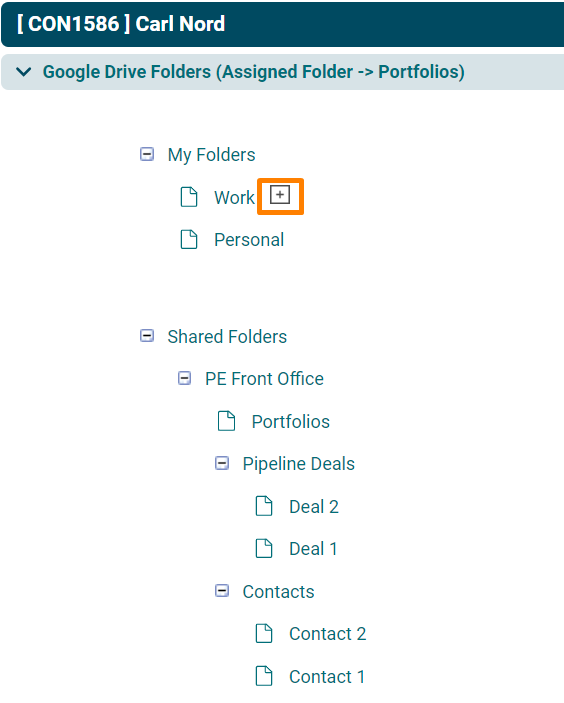
7. Folders can be assigned to the contact record by clicking on the plus icon beside the folder names.
-
8. User can view the files listed under the assigned folder.
