
Report
Once you have installed PE Front Office plugin into excel, you can view and download data without accessing PE Front Office software.
To access a report, follow the below steps:
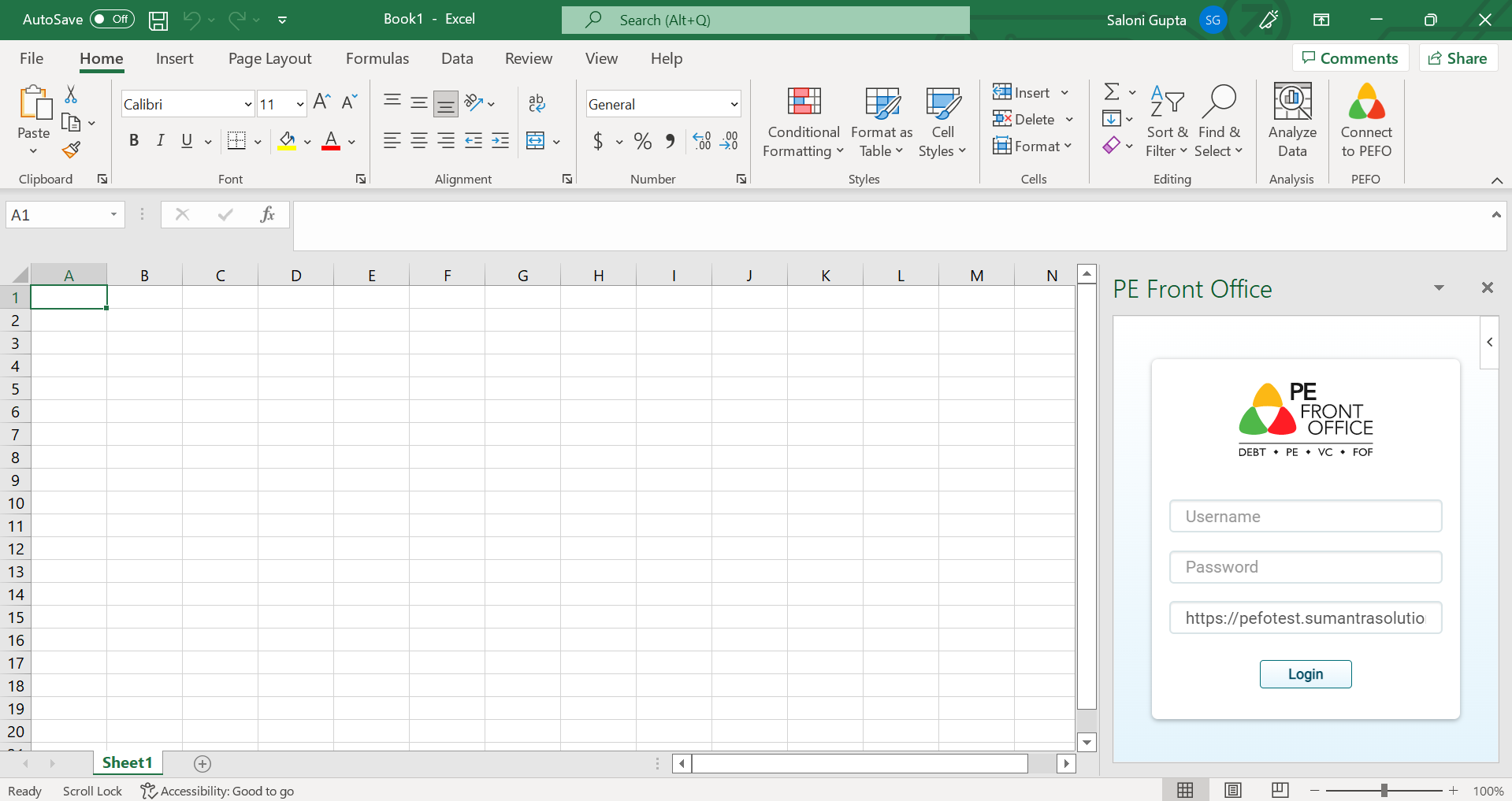
1. Log in into PE Front Office.
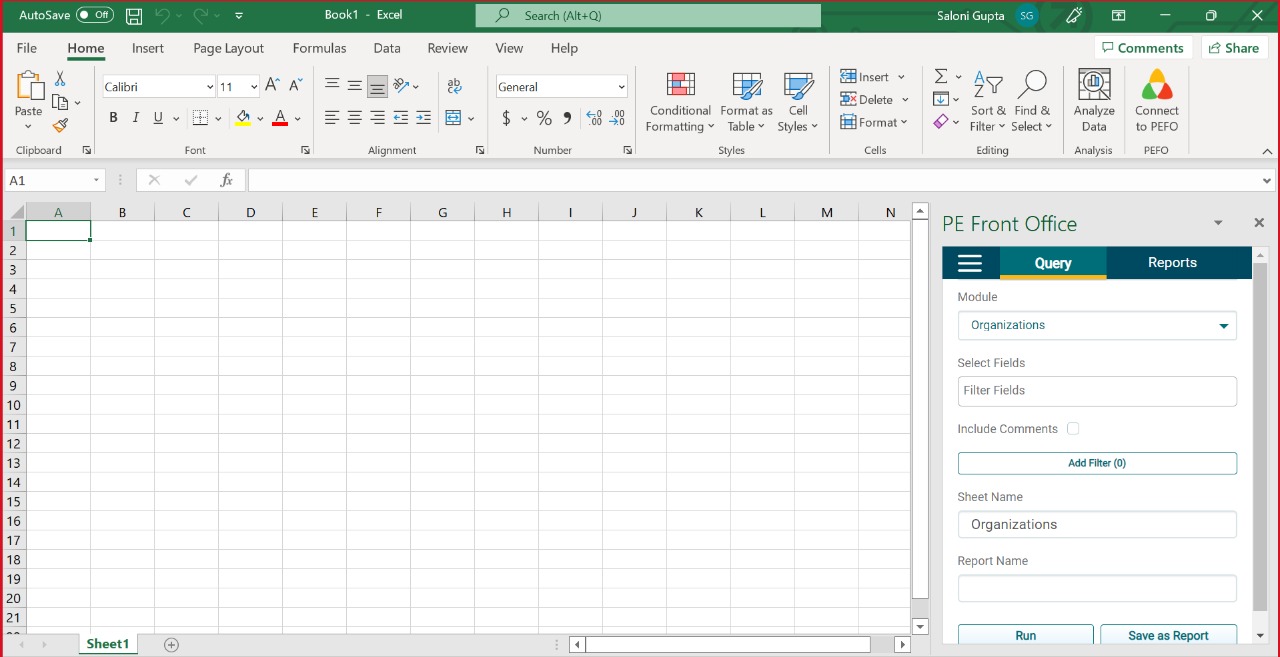
2. The Query window is the default view as you log in.
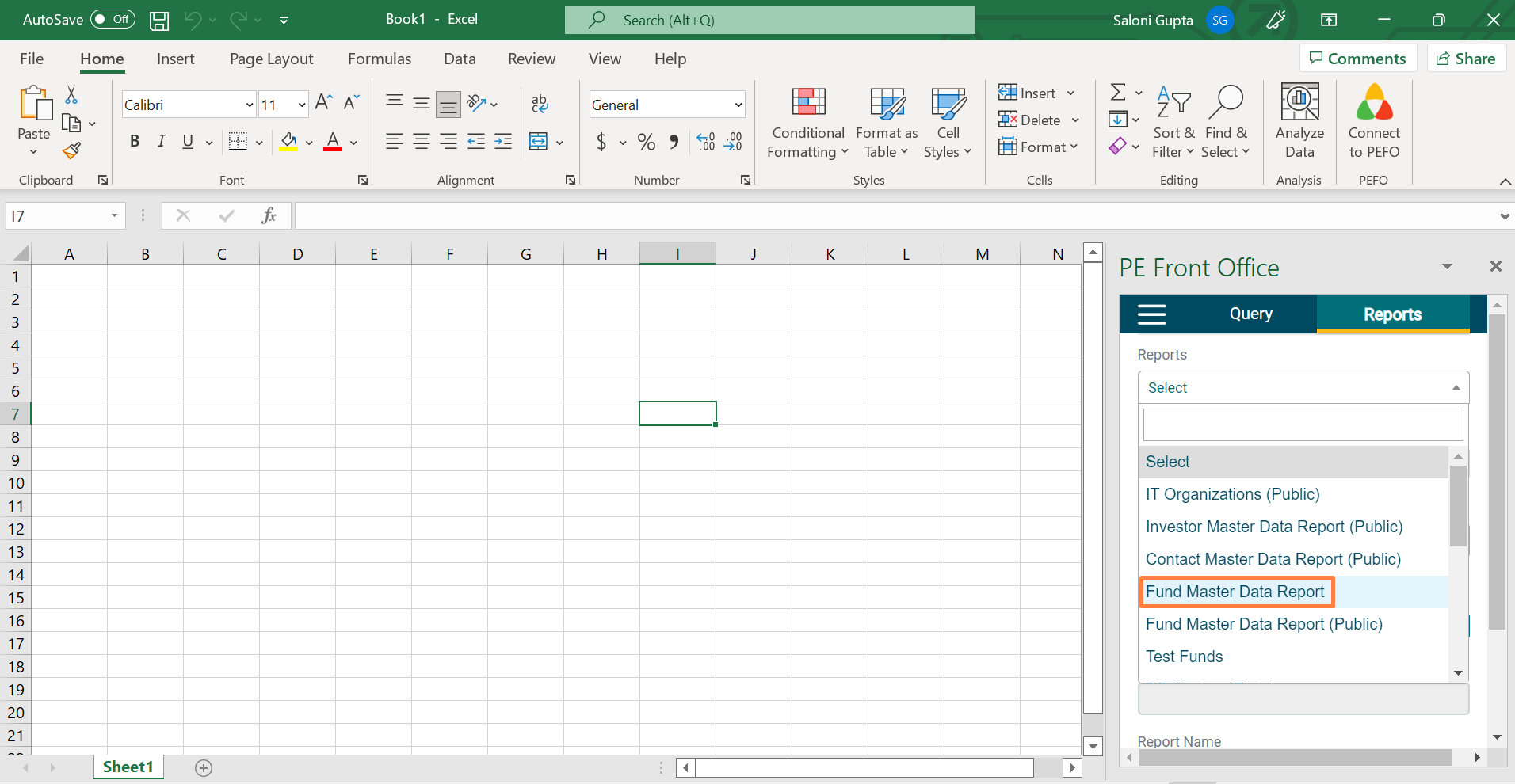
3. Click on Reports. Choose a report from the dropdown list.
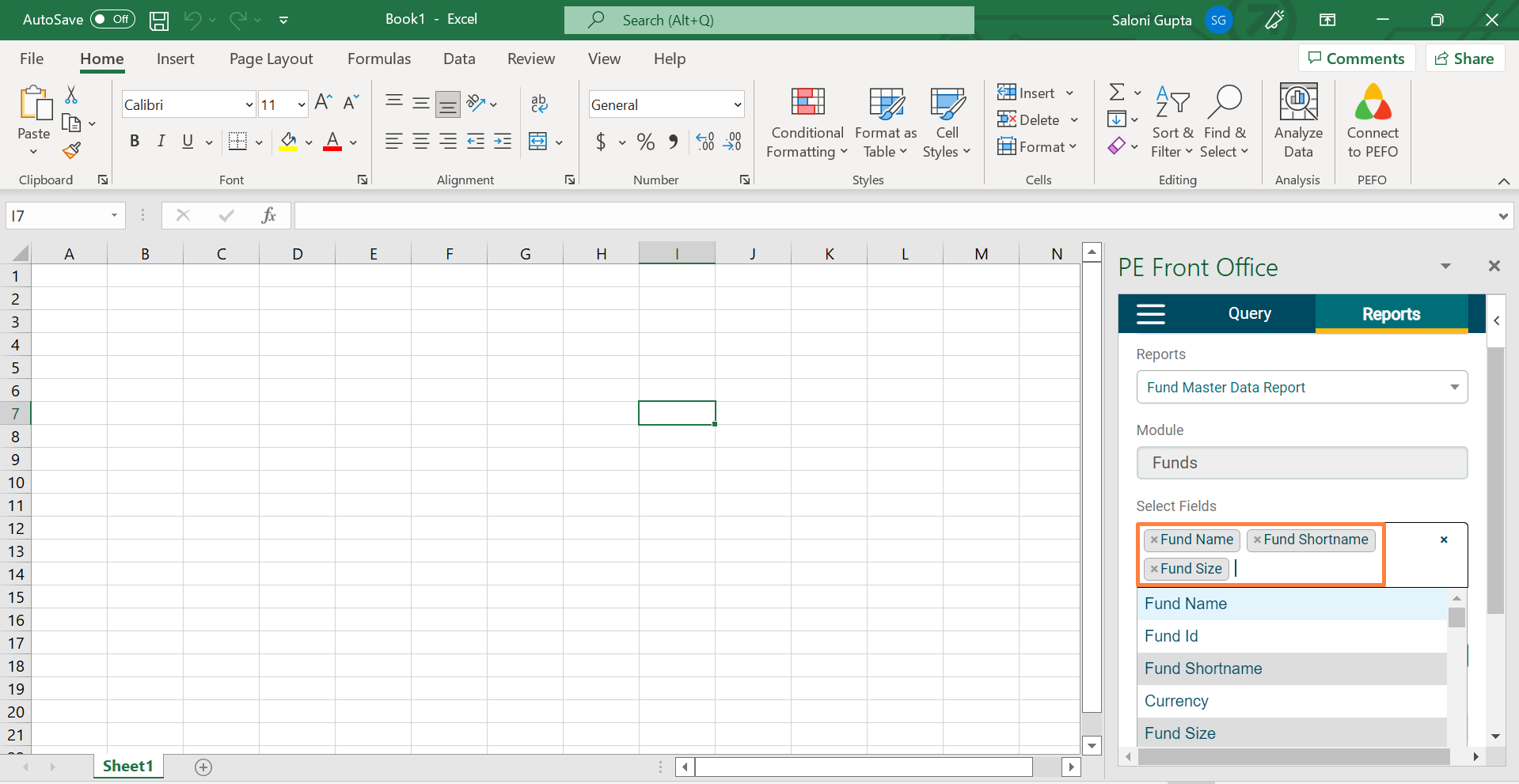
3. The module field is an auto-populated field based on the report selected. You cannot change it. Apart from the report, if you wish to add more fields, you can do so. Select fields you wish to extract data from. You can choose multiple fields.
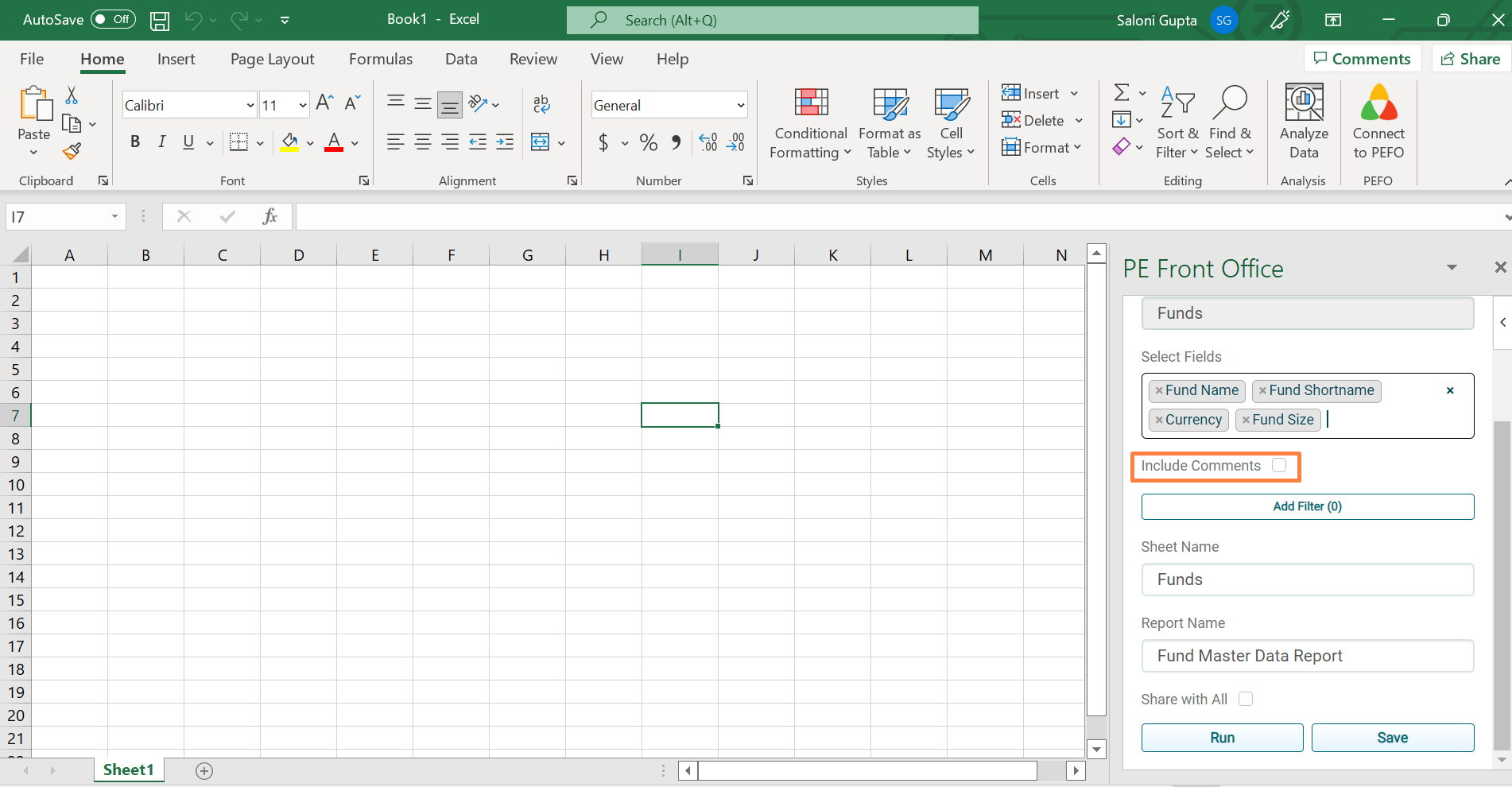
4. If you wish to include comments, check the Include Comments
checkbox.
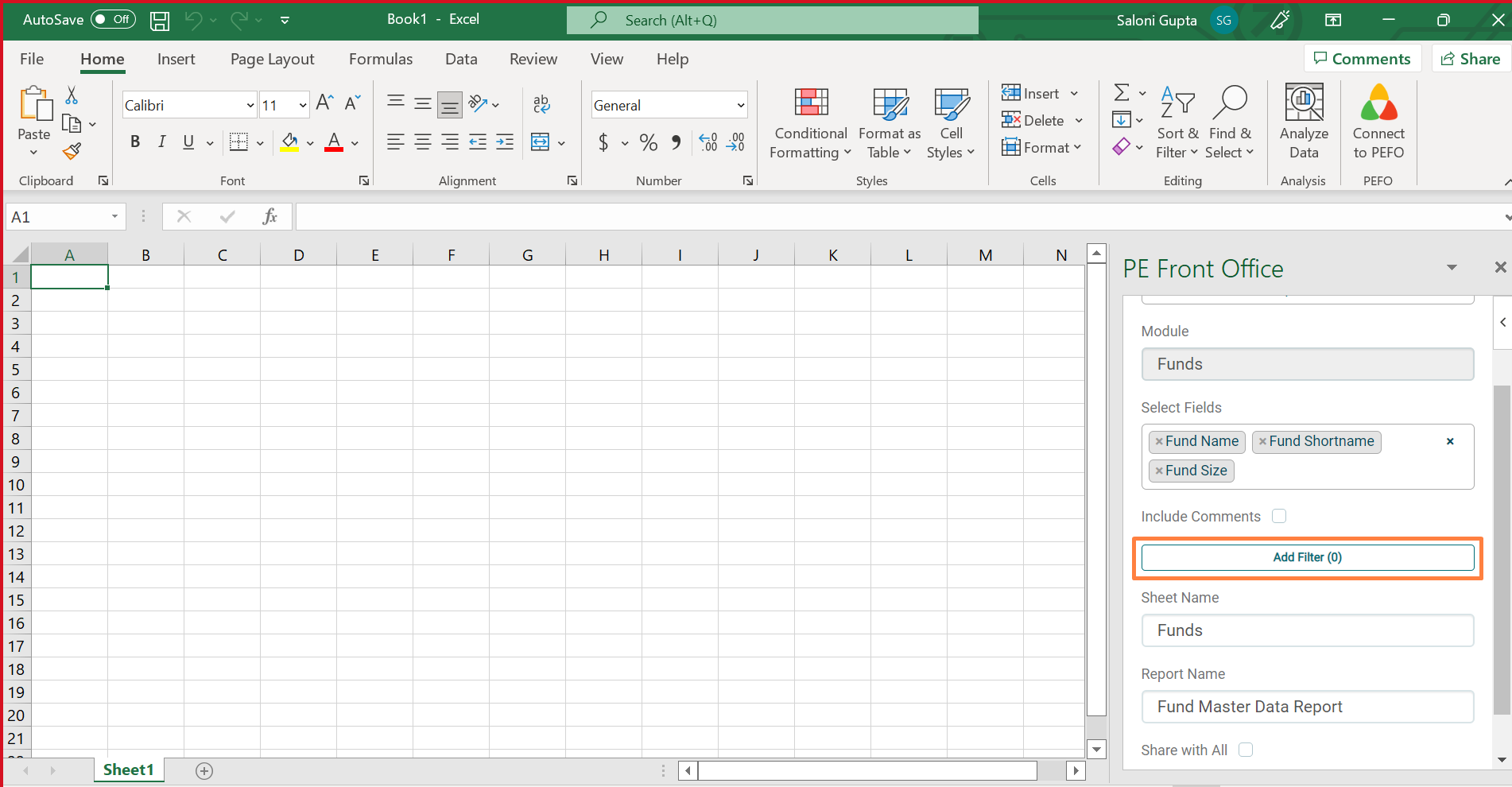
5. If you are looking for specific words or specific records containing those words, you can choose filter option. To add a filter, click on the Add Filter button. To add a filter, click on the Add Filter button.
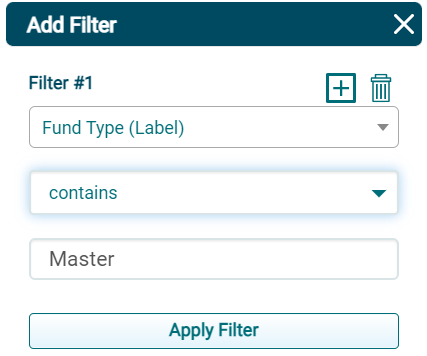
6. The Add Filter window is displayed. Choose the field on which you wish to apply the filter. Choose a filter from the dropdown and enter the value to filter. For example, if you want records whose Fund Type is Master, you can set the value and the software will populate data based on it. You can apply multiple filters on multiple fields. Click on Add icon ( ) to add filters. Click on the Apply Filter button.
7. Click Run to populate data from the additional field in the report. Click Save to save report with additional fields selected.