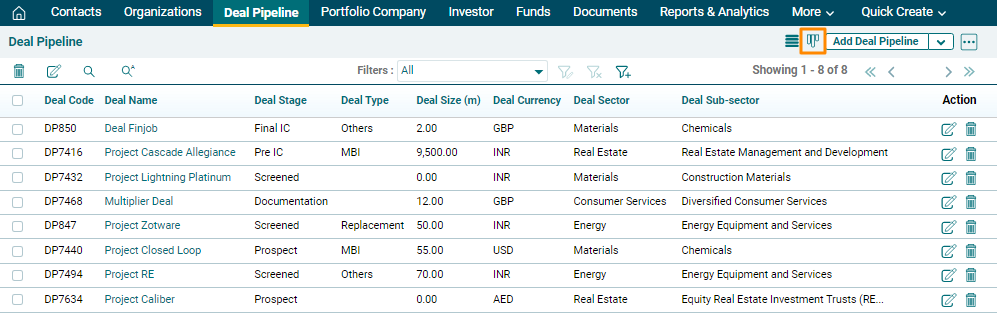
Kanban View
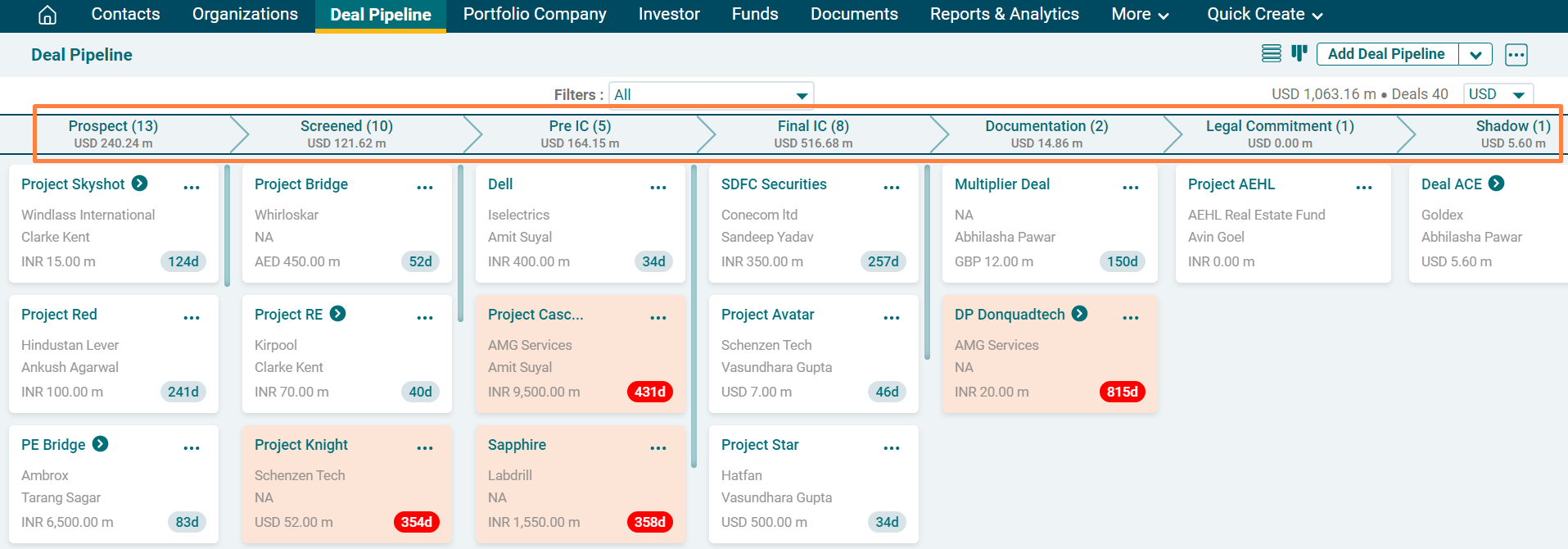
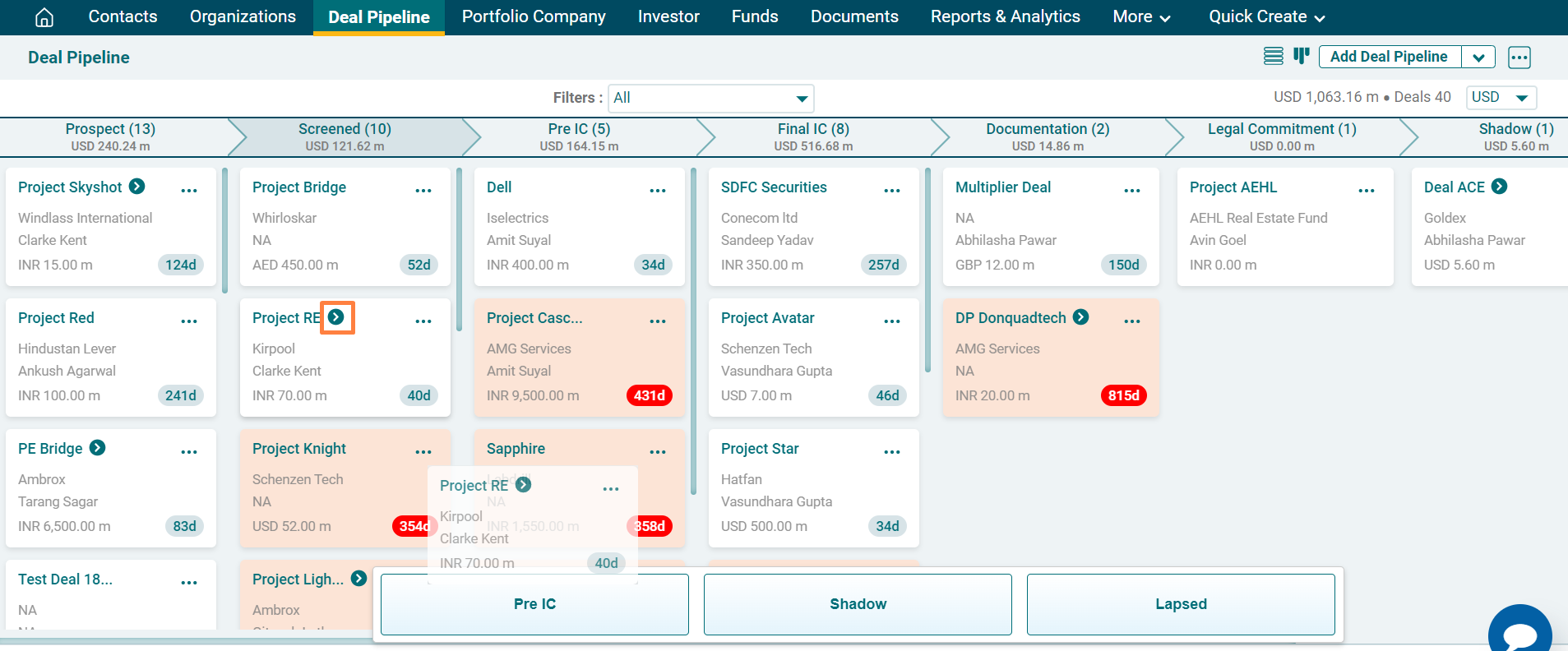
Kanban View is the default view for Deal Pipeline. In this view, all the deals are visible across various deal stages. Each deal is represented by a card under a deal stage.
The top horizontal bar displays various deal stages along with the number of deals that are currently at that stage and their total
deal size. The deals at a particular stage are listed below each stage.
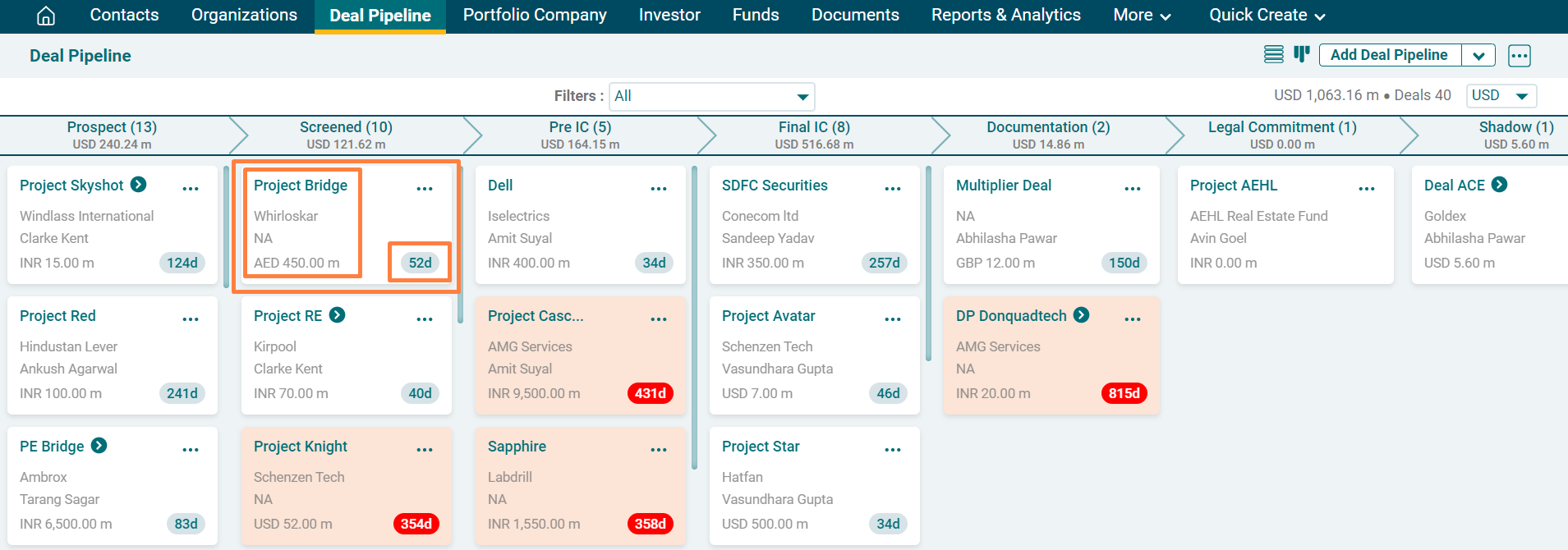
Every deal card displays the following information about the deal:
- Deal Name
- Investee Company Name
- Deal Leader Name
- Deal Currency
- Deal Size
A threshold can be defined for number of days of inactivity of a deal under a deal stage. The number of days in the bottom right corner of the box
displays how many days the deal has not been opened. If a deal has not been
opened for 300 days, the deal is highlighted in red color.
To perform various operations on kanban view, follow the steps below:
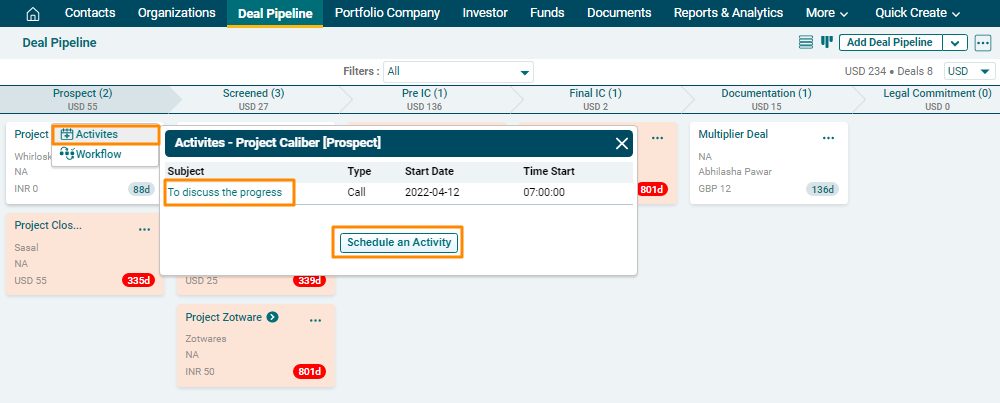
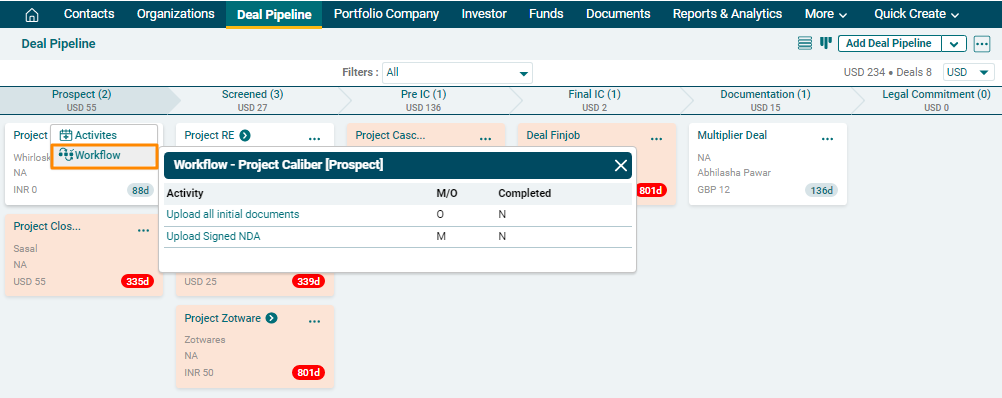
1. Click on the three dot menu in the top right corner of the box. It lists down Activities and Workflow.
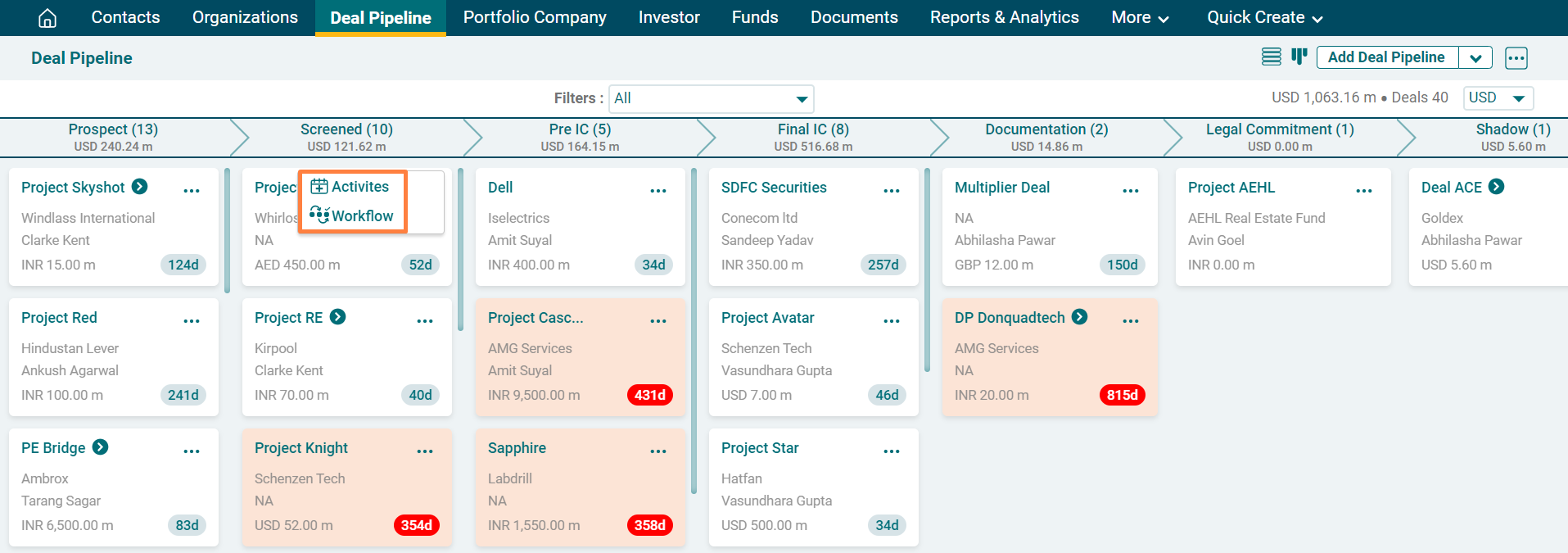
2. Click on Activities to view any activities created for a deal pipeline, i.e., an incomplete task or an upcoming event. The Activities window is displayed. Click on Schedule an Activity button to create an event or task.
3. Click on Workflow to see the workflow related to a deal pipeline.
4. Click on the arrow button to drag the deal and drop it to the next stage.
5. To view Kanban view from List View window of Deal Pipeline, click on the Kanban View icon in the top right corner.