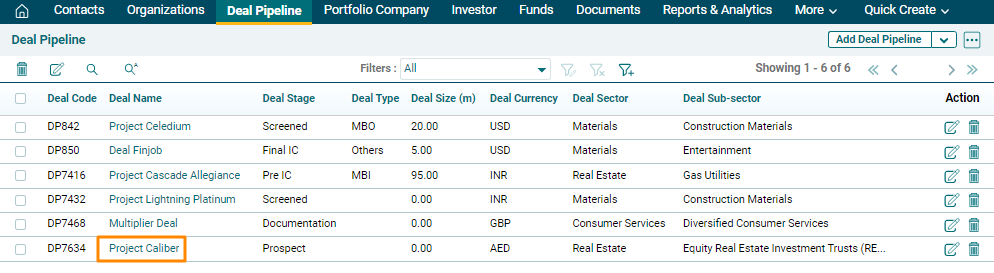
Import from Excel
To import a deal from Excel, follow the steps below:
1. Click on the Deal Pipeline in the main menu.

2. Click on the down arrow button next to Add Deal Pipeline button in the top right
corner. Click on Import from Excel.

3. The Import Deal Pipeline window is displayed. Click on Choose File button.
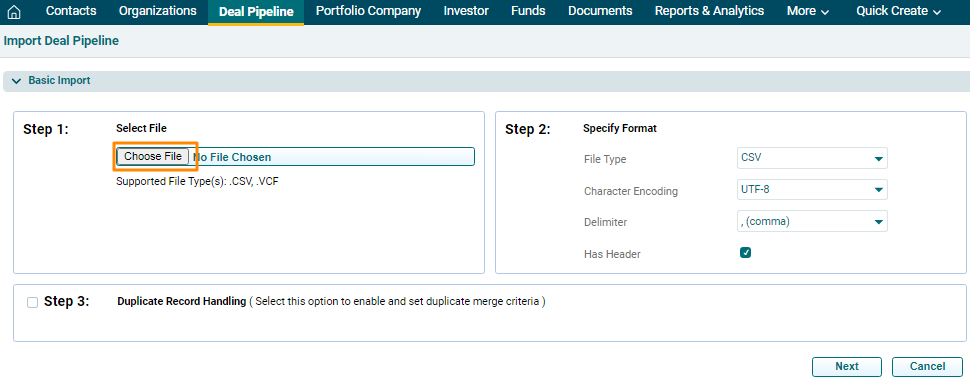
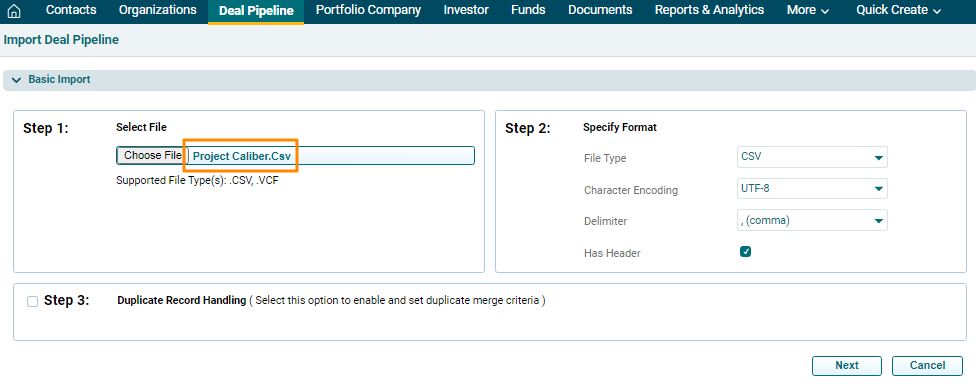
4. Once you choose the file, it will be reflected in Step
1. Based on the file chosen, Step 2 will be auto filled. In Step 3, you can
specify whether to Skip, Overwrite, or Merge the duplicate records, if any. Complete the steps and click Next.
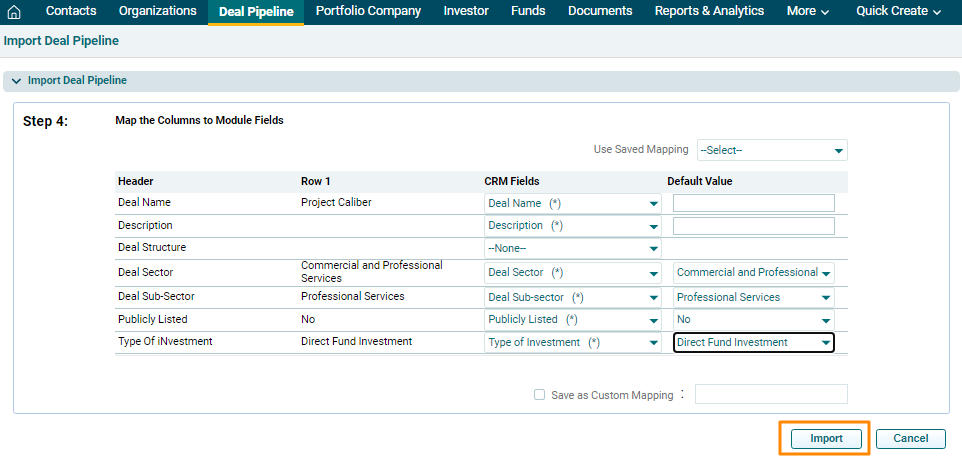
5. The imported data is displayed here. Click Import.
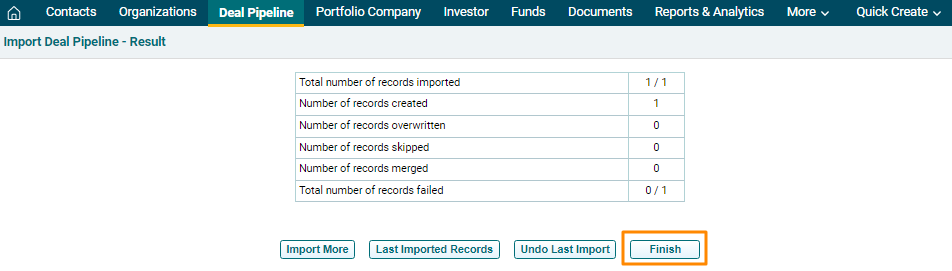
6. You will see different options here. You can Import More records, download Last imported Records, Undo Last Import, and Finish. To complete the Import, click Finish.
To view the reason for failure for imported records, click on the Last Imported Records button to download an excel.
7. The imported deal will be visible in the Deal Pipeline List View page.