• HELP CENTER

  • Getting Started
  • CRM
  • Deal Pipeline
  • Portfolio Company
  • Investee Company Portal
  • Investors
  • Investor Portal
  • Funds
  • Investee Fund Portal
  • Reports and Analytics
  • Deal Data Room
  • Help Desk
  • Document Management
  • Excel Add-in Integration
  • Email Integration
  • Implementation
  • Custom Settings
  • System Administration

Deal Pipeline

  • Deal Pipeline View
    • Kanban View
    • List View
  • Deal Setup
    • Quickly Create a Deal
    • Create/Edit a Deal
      • Create a Deal
      • Edit a Deal
      • Delete a Deal
      • Duplicate a Deal
    • Create a Deal by Email
    • Create a Deal from Mobile App
    • Create a Deal from Outlook Plugin
    • Create a Deal from PitchDeck
    • Create a Deal through Web Form
    • Import from Excel
    • Export to Excel
  • Prospect
    • Preliminary Screening
    • Detailed Application Form (DAF)
    • LICHFL AMC Input
  • Deal Summary
    • Summary Panels
    • Comments
  • Deal Stage History
  • Team
    • Investment Team
    • External Team
  • Funds/Co-Investors
    • Funds
    • Co-investors
  • Workflow
  • Notes
    • Work Plan
    • Work Done
  • Tasks
    • Task
    • Event
  • Email
  • Documents
    • Add a Document
    • Add Existing Document
    • Edit/Delete a Document
    • Download a Document
  • External Documents
    • One Drive
  • Reports & Analytics
    • Deal Details (Word)
    • Meeting Report
    • Investment Preferences
    • Pipeline Diversification Analysis
    • Pipeline Stage vs Sector Analysis
    • Deal Resourcing Report
    • Deal Funnel Report
    • Weekly Tracker Report
    • Quarterly Snapshot Report
    • Deal Summary Report
    • Dropped Deal Analysis
  • Excel Add-in


        Help Center /

        Edit A Deal

        To edit a deal in Record View, follow the below steps:

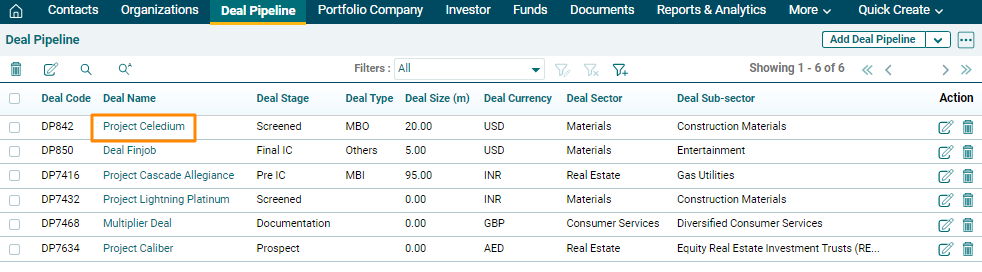
        1. Click on Deal Pipeline in the main menu.


        2. Click on the Deal Name.
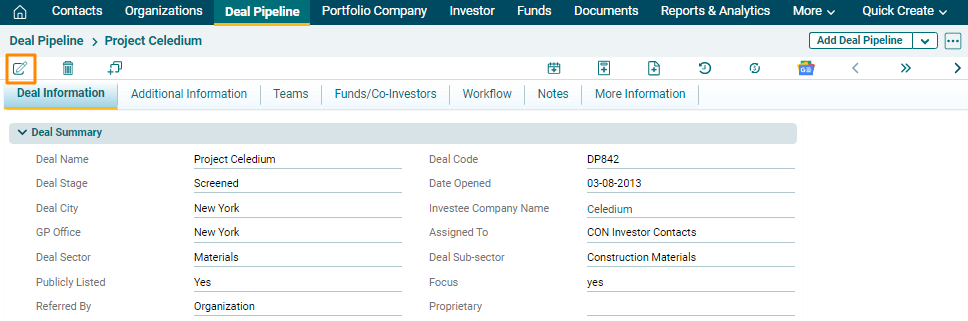
        3. Click on the Edit icon in the top left corner.  

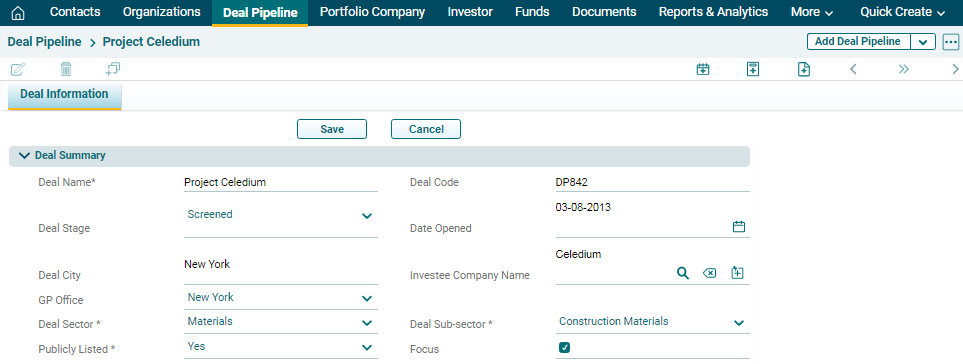
        4. Update the details and click Save.