• HELP CENTER

  • Getting Started
  • CRM
  • Deal Pipeline
  • Portfolio Company
  • Investee Company Portal
  • Investors
  • Investor Portal
  • Funds
  • Investee Fund Portal
  • Reports and Analytics
  • Deal Data Room
  • Help Desk
  • Document Management
  • Excel Add-in Integration
  • Email Integration
  • Implementation
  • Custom Settings
  • System Administration

CRM

  • Contact Setup
    • Quickly Create a Contact
    • Create/Edit a Contact
      • Create a Contact
      • Edit a Contact
      • Delete a Contact
      • Duplicate a Contact
    • Import from Excel
    • Export to Excel
  • Contact Summary
    • Summary Panels
    • Comments
  • Tasks
    • To Do
    • Event
    • Activity History
  • Help Desk
  • Email
  • Documents
    • Add a Document
    • Add Existing Document
    • Edit/Delete a Document
    • Download a Document
  • Organization Setup
    • Quickly Create an Organization
    • Create/Edit an Organization
      • Create an Organization Manually
      • Edit an Organization
      • Delete an Organization
      • Duplicate an Organization
    • Import from Excel
    • Export to Excel
  • Organization Summary
    • Summary Panels
    • Comments
  • Tasks
    • Task
    • Event
  • Help Desk
  • Email
  • Documents
    • Add a Document
    • Add Existing Document
    • Edit/Delete a Document
    • Download a Document
  • Google/One Drive Integration
Help Center /

Quick Create An Organization

To quickly create an organization, follow the below steps:

1. In Quick Create menu on the top bar, click on the New Organization. 


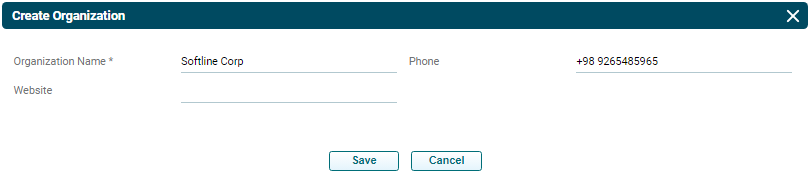
2. The Create Organization pop-up will be displayed. Update all the mandatory details marked with an asterisk and click Save.
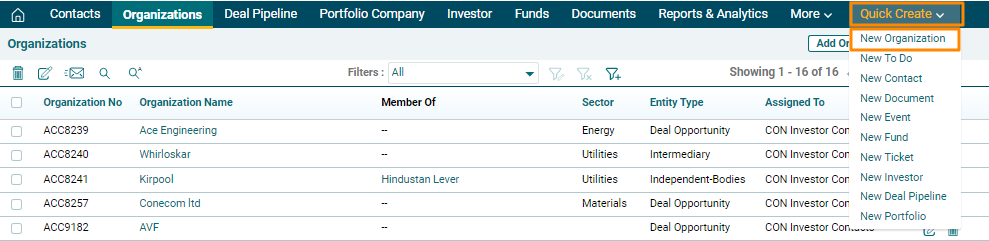

3. The organization is visible on the Organizations List View page.