Setup Contacts
To setup bulk contacts, follow the below steps:
1. Click on Contacts in the main menu.

2. Click on the three dot menu in the top right corner. Click on Generate Info Template. The Excel file will download.

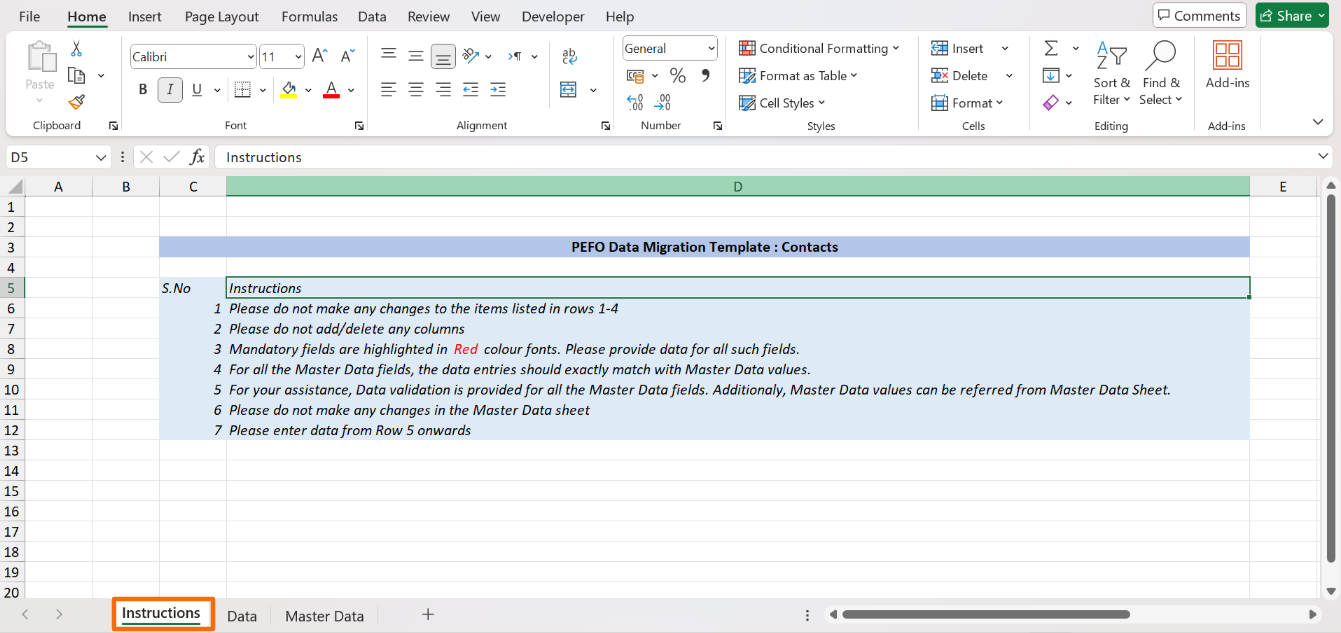
3. In the downloaded file, you can see multiple sheets- Instructions, Data, and Master Data. As the name suggests, the instructions sheet states all the related instructions.
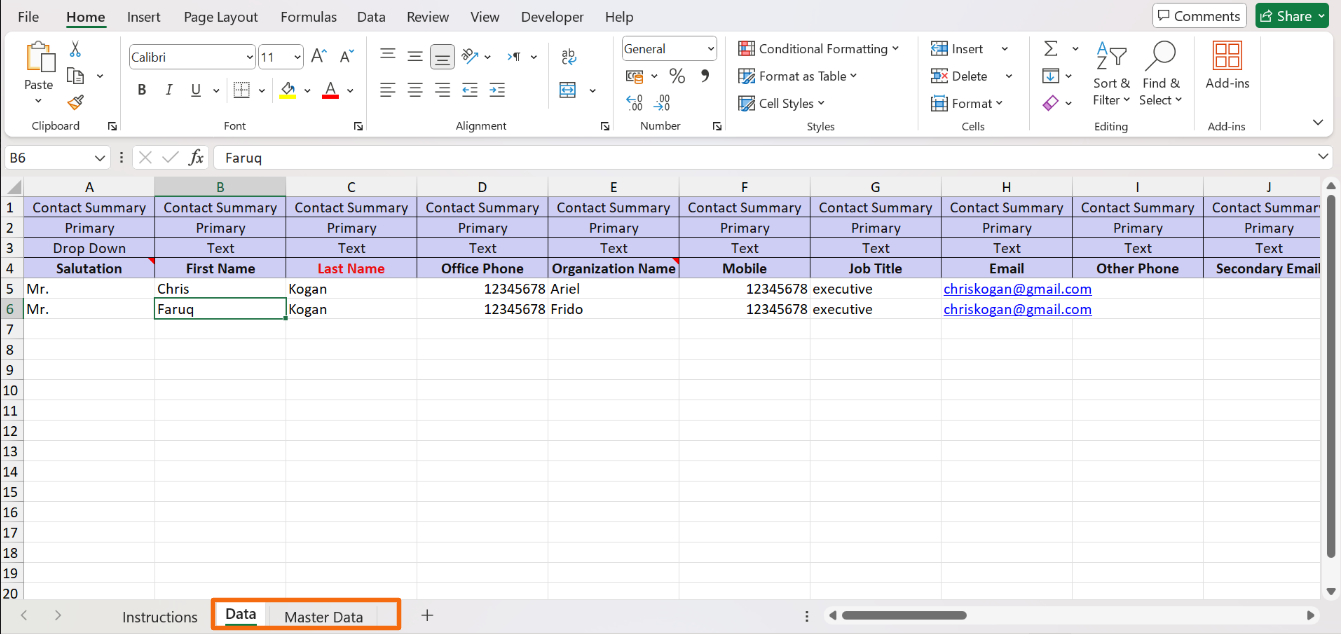
4. Input the historical data in the Data sheet. The data validation fields are linked to Master Data sheet. Input the data accordingly. Save it.
5. To import the file, click on the down arrow button beside Add Contacts button. Click on Import from Excel.

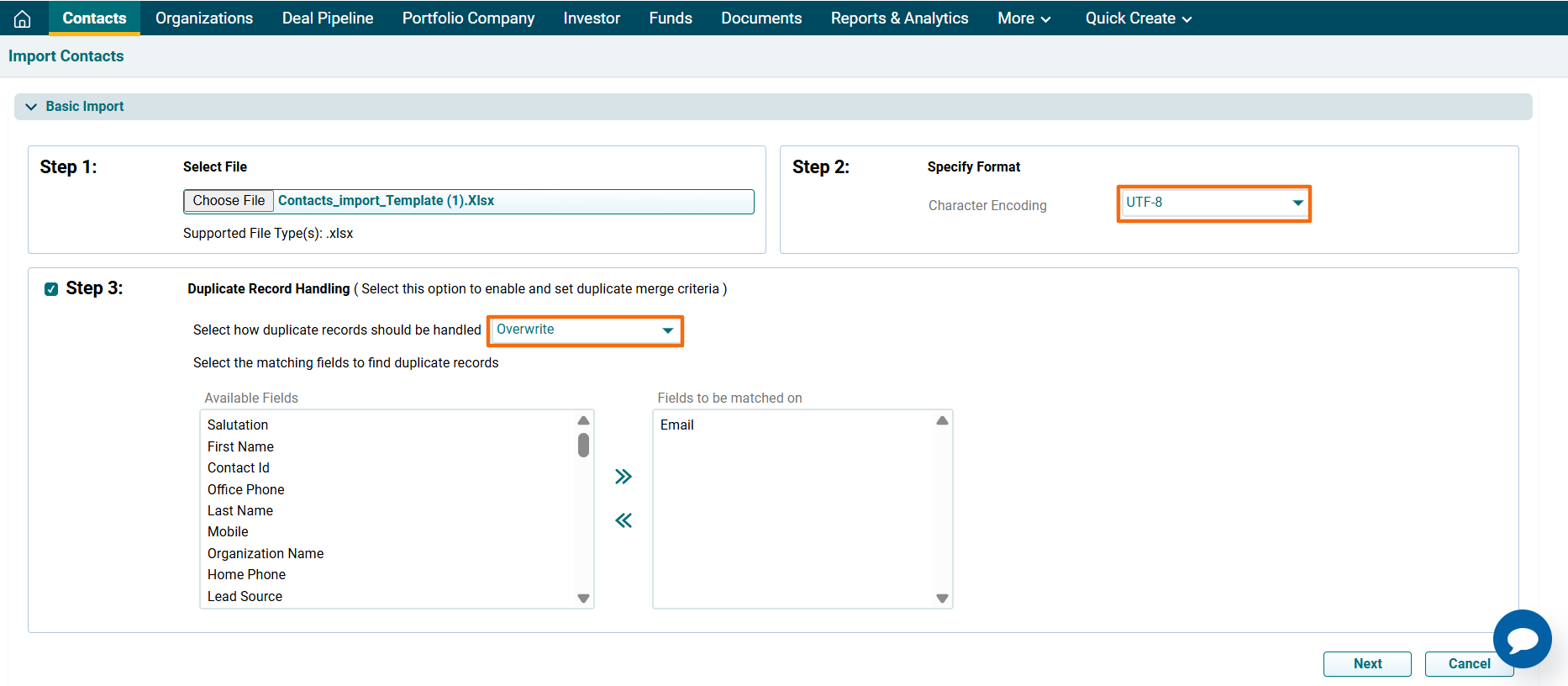
6. The import Contacts window is displayed. Click Choose File.
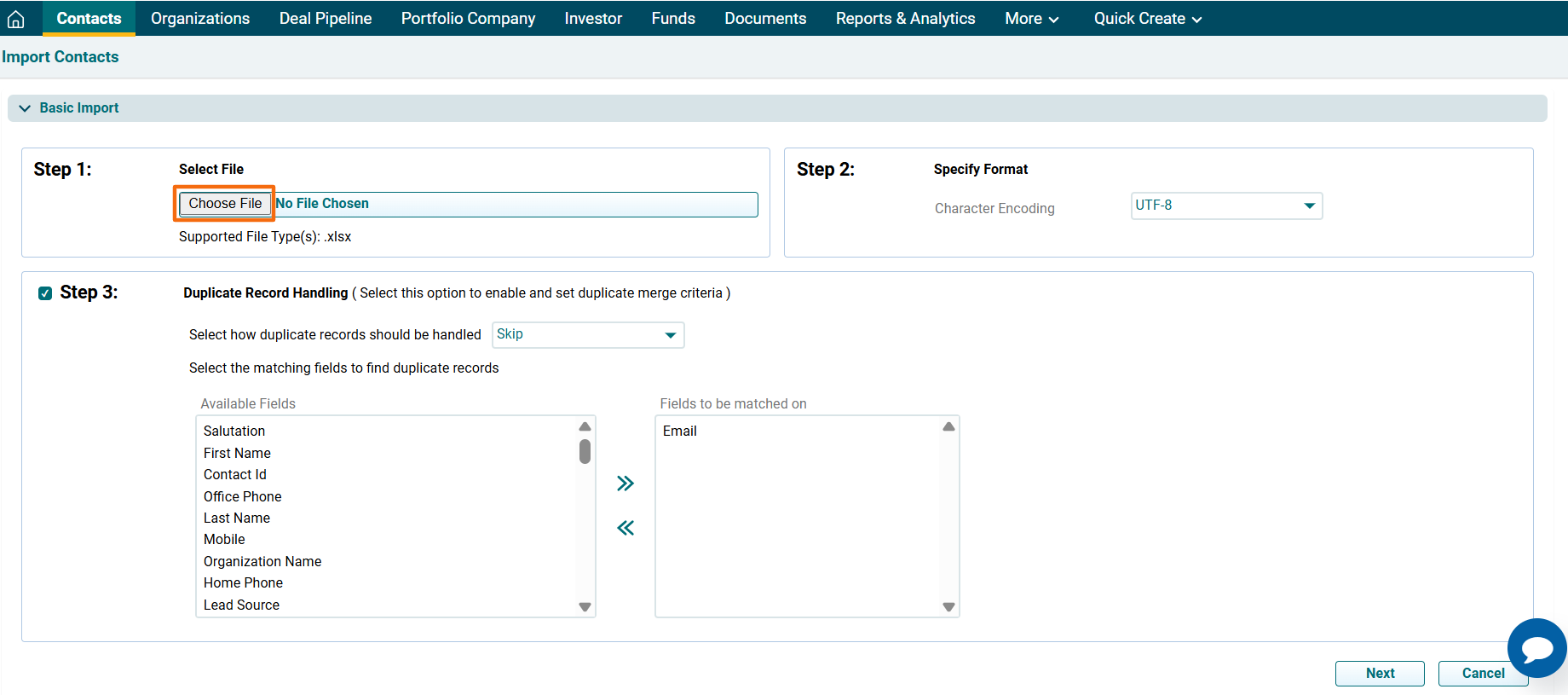
7. Specify the file type, if required. You can either specify how to deal with duplicate records from the dropdown list, i.e., Skip, Overwrite, or Merge.
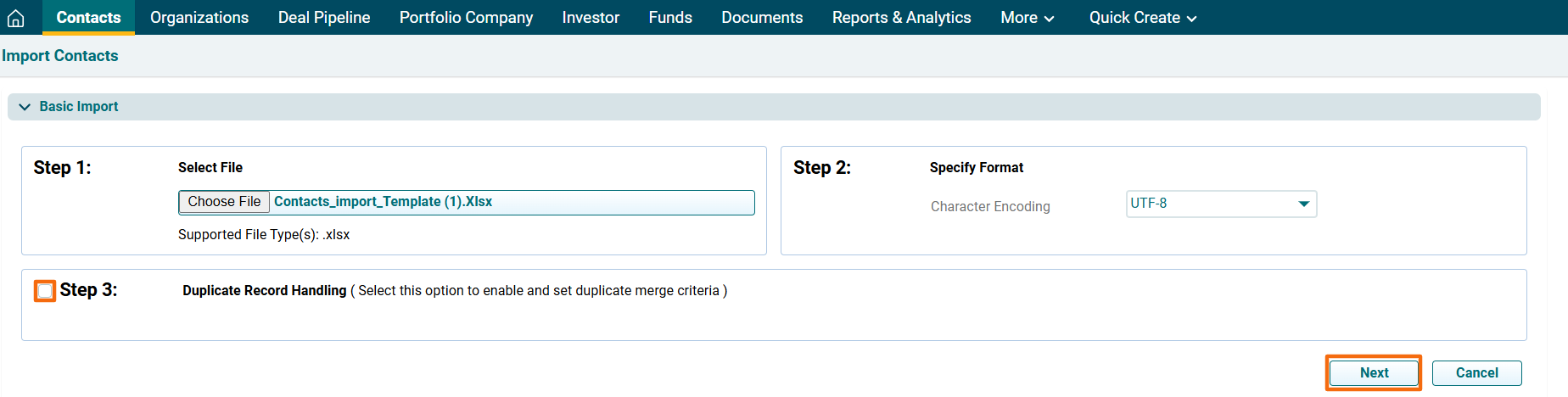
8. Click the checkbox to skip Duplicate Record Handling. Click Next.
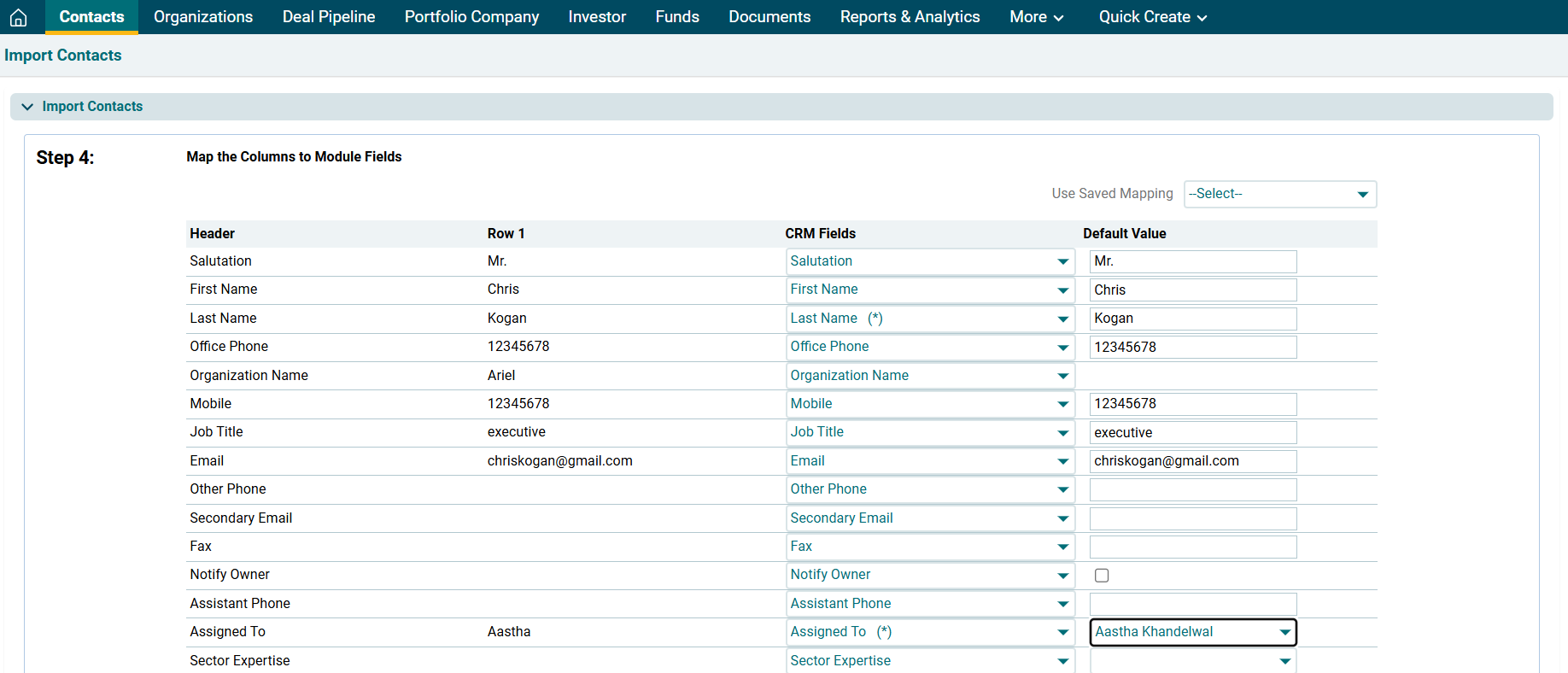
9. Map the values.
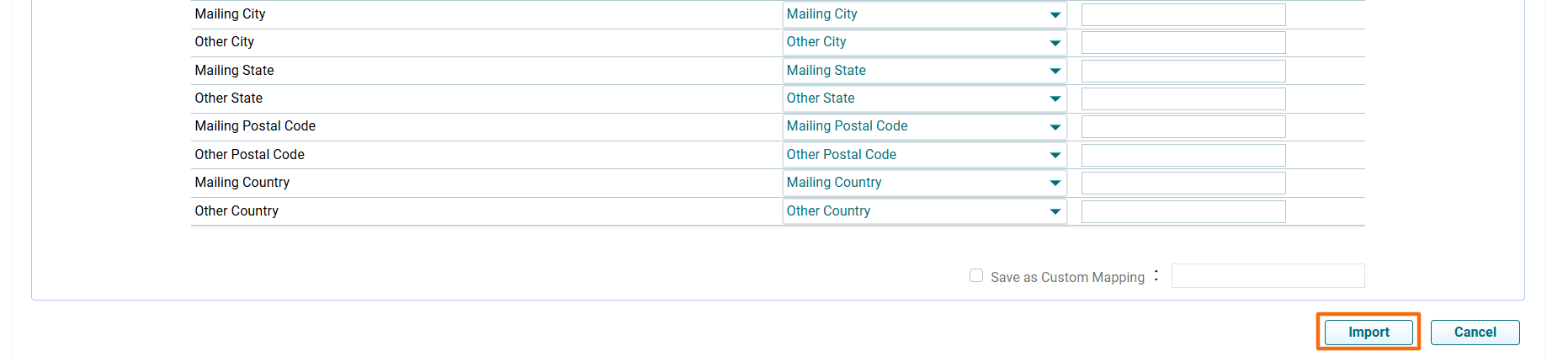
10. Click Import.
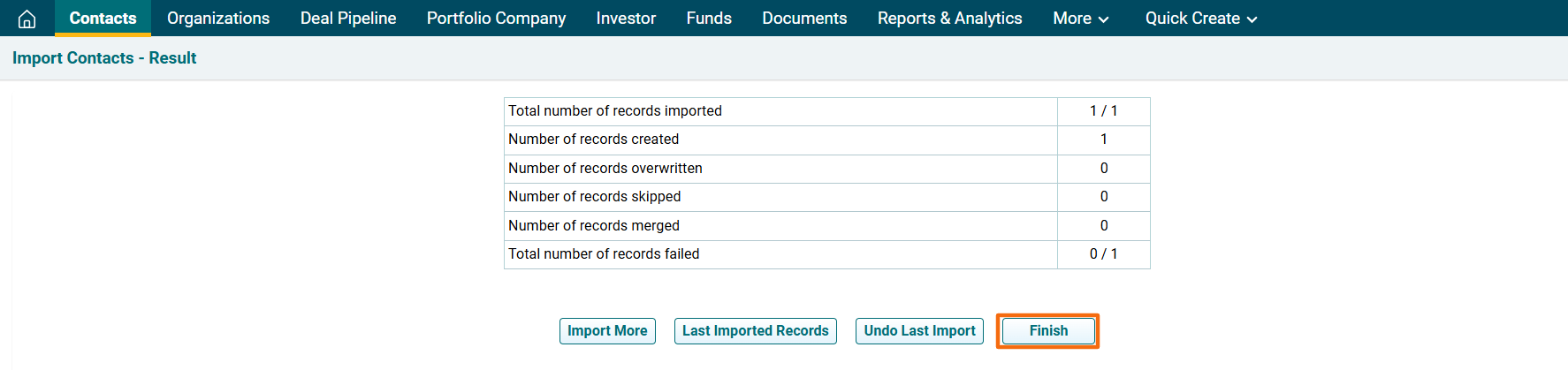
11. The Import Contacts- Result window is displayed. To view last imported records, click on Last Imported Records. The excel file will download. Check the file for the highlighted errors and fix them before importing again.
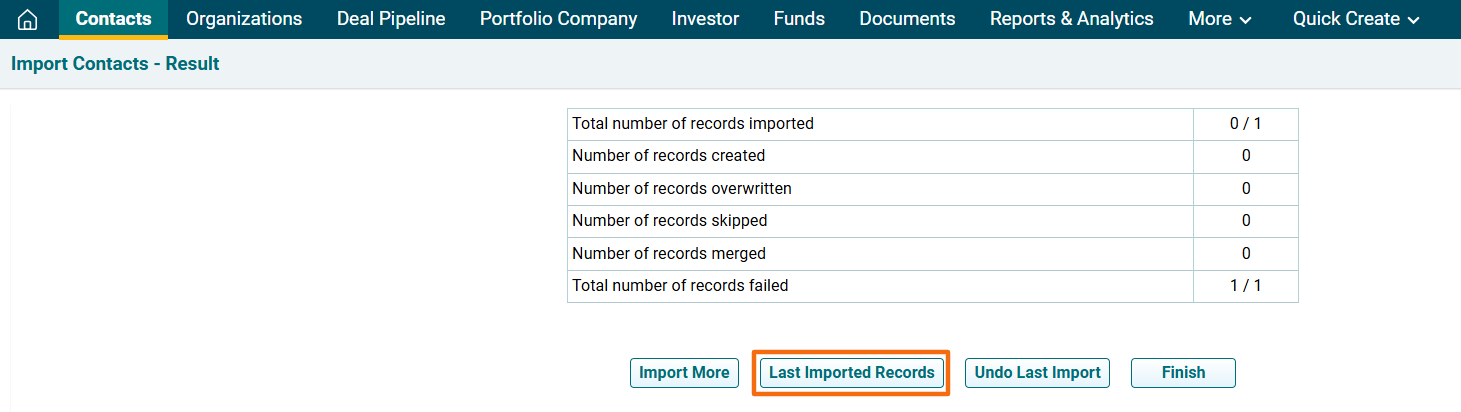
12. In case of a failed import, click on Undo Last Import.
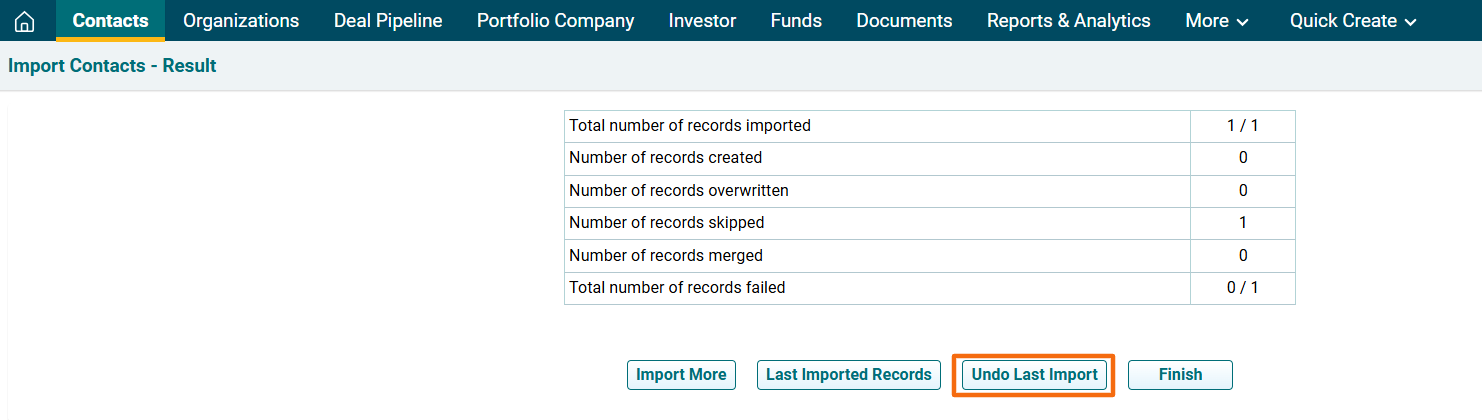
13. Click Finish.