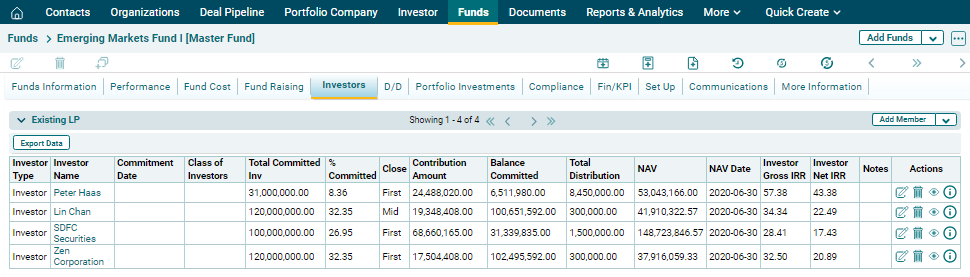
Existing LP
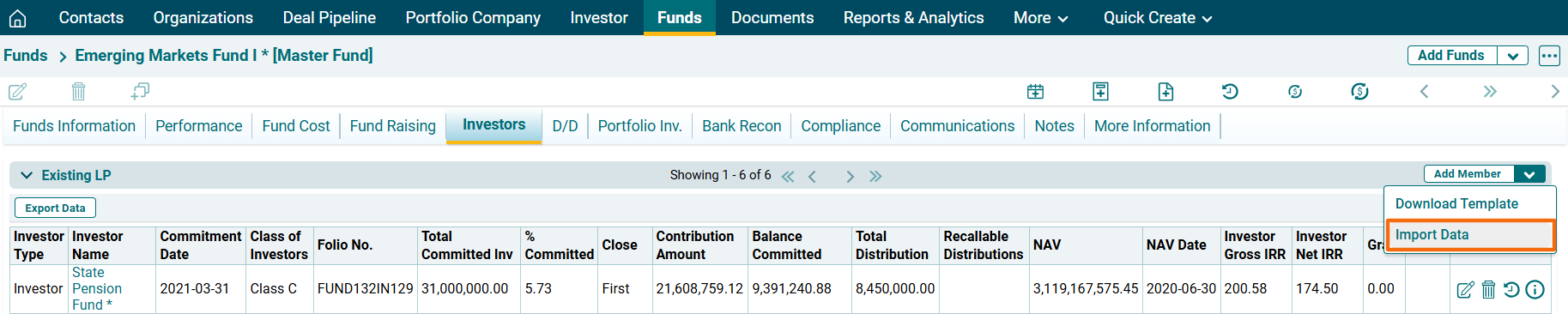
Existing LP panel captures the existing investors who have invested in the fund. Each investor can be assigned a class of investors through which drawdown/distribution calculations can be appropriated. This panel is applicable to all fund types. The details included are:
- Investor Type: Displays the investor type, i.e., Investor, or other fund types.
- Investor Name: Display the name of the investor.
- Commitment Date: Displays the date of commitment.
- Class of Investors: Displays the class of investors.
- Folio No.: Displays the folio number.
- Total Committed Inv: Total committed amount of investment by the investor in the fund.
- % Committed: Percentage of total committed investment earmarked for the selected fund.
- Close: Indicates the specific funding round of the fund (such as First Close or Final Close) during which the investor made their capital commitment.
- Contribution Amount: Displays amount of contribution.
- Balance Committed: Displays balance amount of contribution.
- Total Distribution: Displays total distribution that has been made to the investor from the fund.
- Recallable Distributions:
- NAV: Displays the net asset value of the investor.
- NAV Date: Displays the date on which NAV was calculated.
- Investor Gross IRR: It is an auto-generated field.
- Investor Net IRR: It is an auto-generated field.
- Grant: Displays any donation amount given by the investor to the Fund.
- Notes: You can enter notes regarding a fund invested if any.
To modify a member, follow the below steps:
1. Click on Add Member button in the top right corner of the
panel.
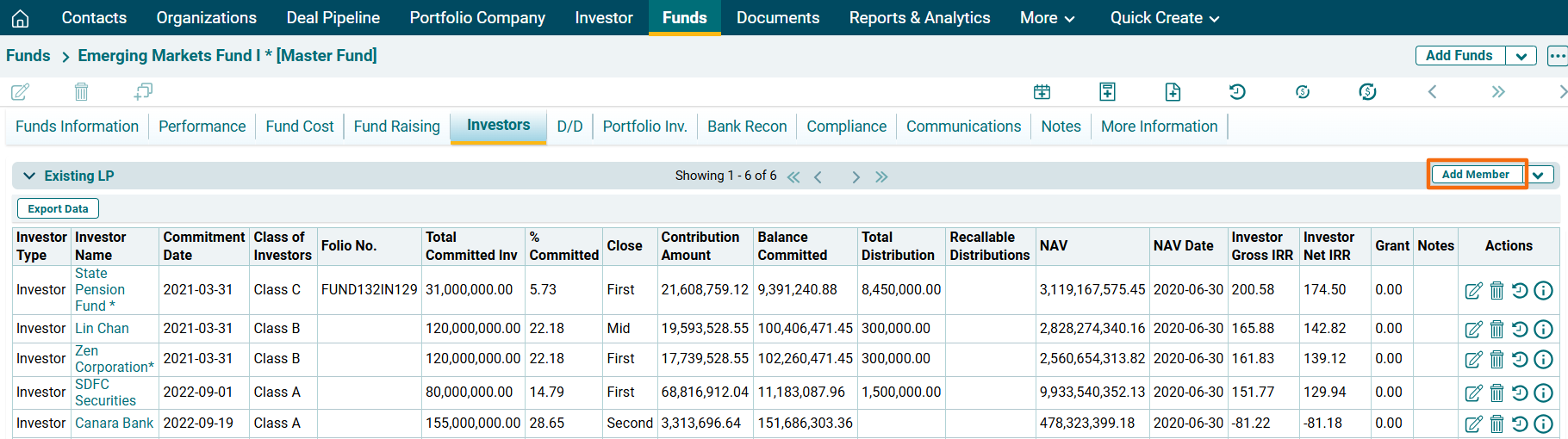
2. The fields will be activated. Update the details and click Check button from Action column to save the details.
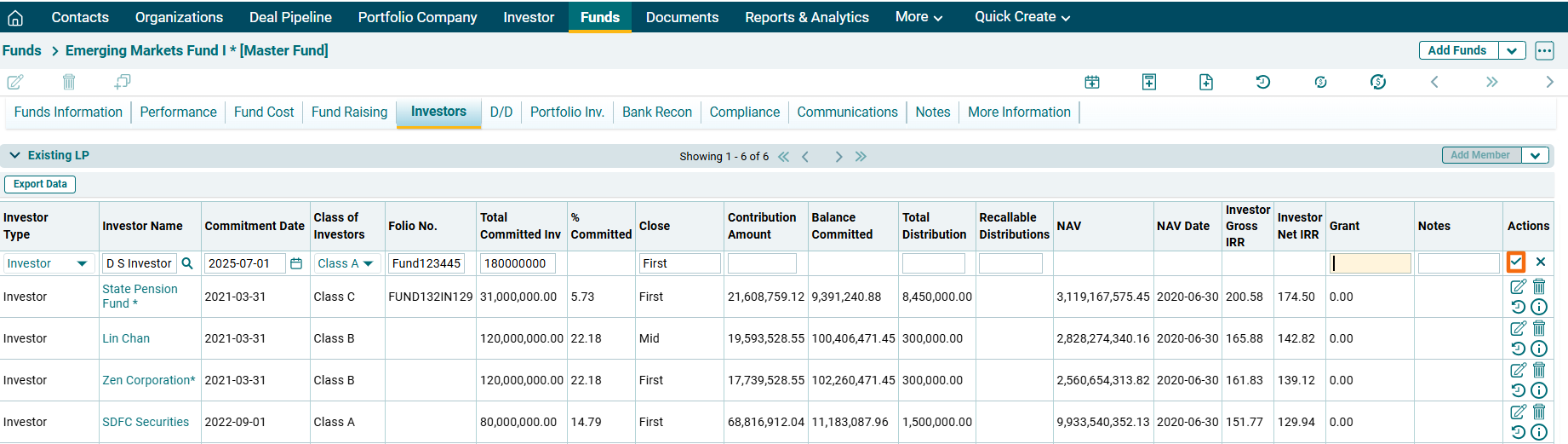
3. To edit LP member details, click on the Edit icon ( ) in the Actions
column. After making the changes, click on Check (
) in the Actions
column. After making the changes, click on Check ( )
button from Action column to save.
)
button from Action column to save.
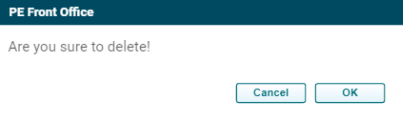
4. To delete a team
member’s details, click on the Delete icon ( ) in the Actions column. The delete
window is displayed. Click OK to delete the member details.
) in the Actions column. The delete
window is displayed. Click OK to delete the member details.
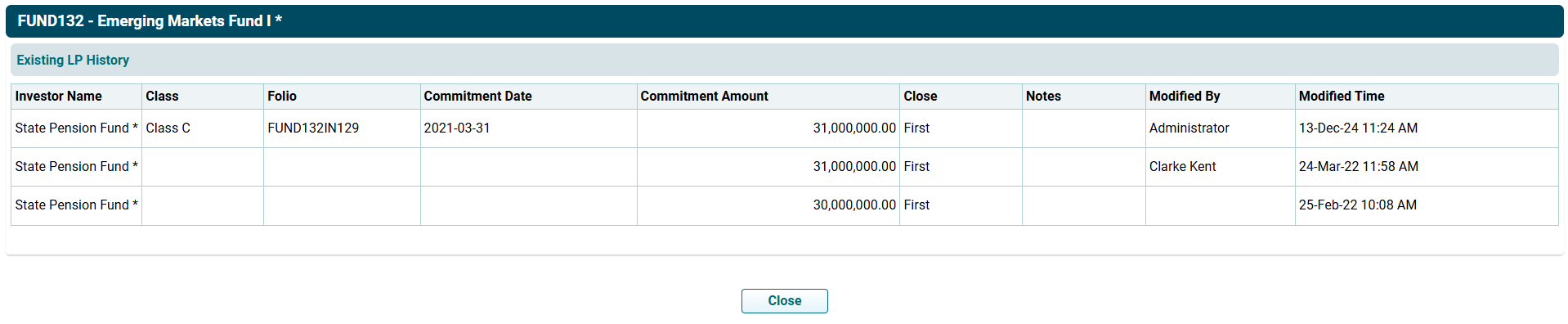
5. To view commitment history of an investor, click on Commitment History ( )
icon in the Actions Column. The Existing LP History window is displayed which
shows when were the changes made and by whom along with the details of the
investor.
)
icon in the Actions Column. The Existing LP History window is displayed which
shows when were the changes made and by whom along with the details of the
investor.
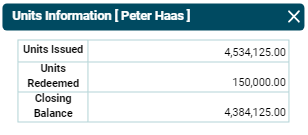
To view the number of units for an investor, click on Unit Information ( ) icon
in the Actions column. The Unit Information window is displayed which shows how
many units have been issued to the investor, how many units have been redeemed
by the investor and the current closing balance of units.
) icon
in the Actions column. The Unit Information window is displayed which shows how
many units have been issued to the investor, how many units have been redeemed
by the investor and the current closing balance of units.
Existing LP (Bulk Upload)
To upload LP details in bulk, follow the below steps:
1. Click on the
down arrow button next to Add member
button. Click on Download Template.

2. The excel file will download. Enter the details and save the file.
3. To import bulk
LP details, click on the down arrow button next to Add Member button. Click on Import Data.
4. Click the Choose File button.

5. Choose the Existing
LP template. Click Upload.

6. The Existing LP details will populate based on the uploaded template.