
Target LP Workflow
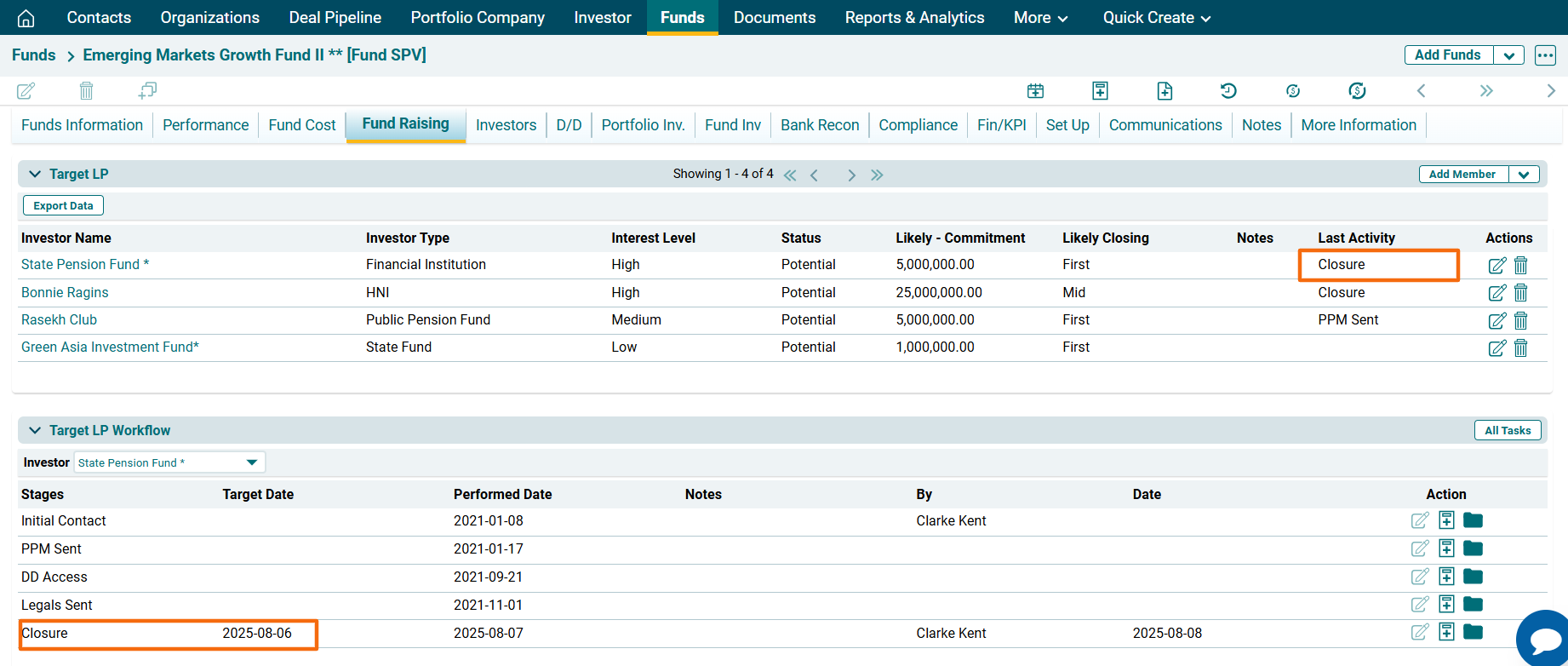
Target LP Workflow panel allows you to capture the workflow related to potential investors’ investment in a fund. This panel is applicable to Master Fund, Feeder Fund, Fund SPV, and Fund of Funds.
To edit a workflow, follow the below steps:
1. Select the investor for which you are updating the workflow.
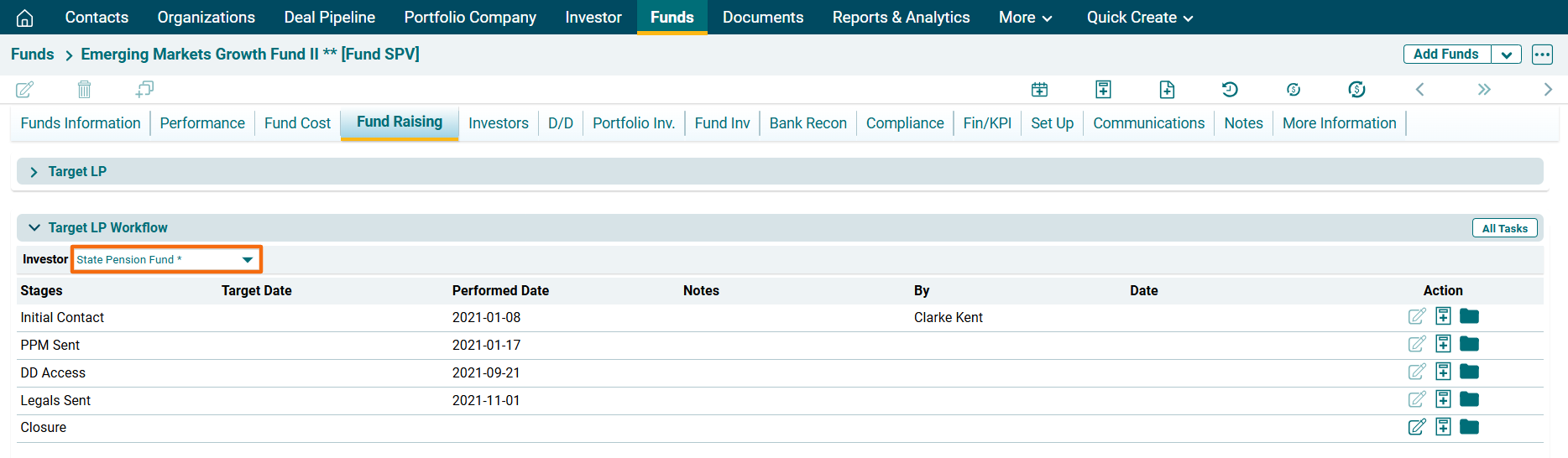
2. Click on Edit ( ) button in the Actions column to edit a stage.
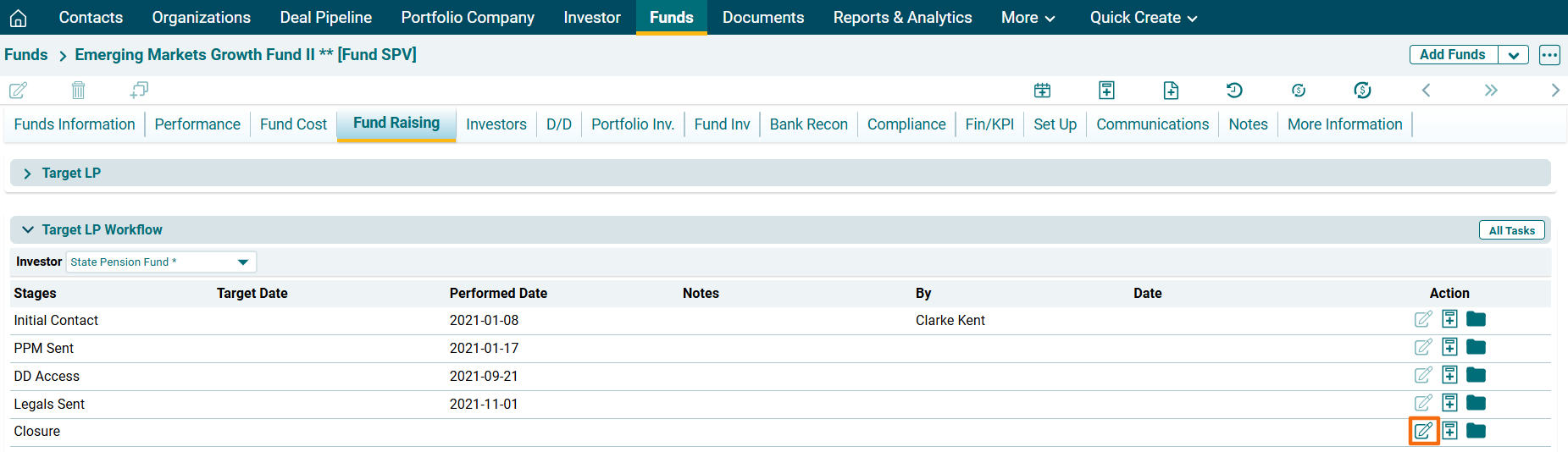
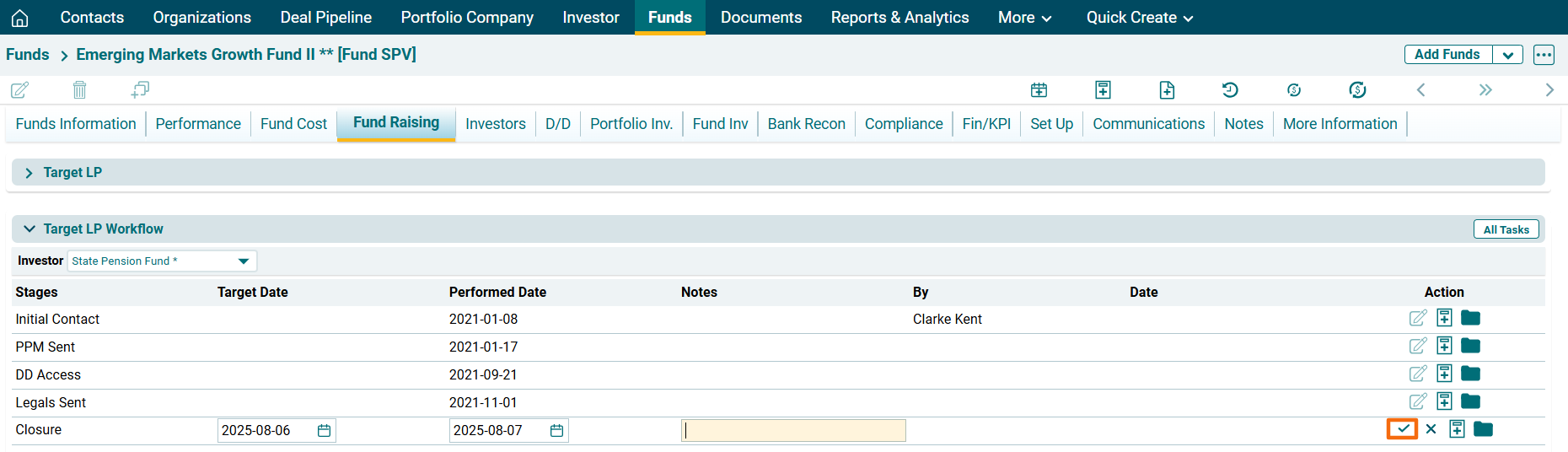
3. The fields will be activated. Specify the following:
- Target Date: Target date to complete the task.
- Performed Date: The date the which the task was performed.
- Notes: Any notes related to the task.
4. Click check button ( ) to save the details.
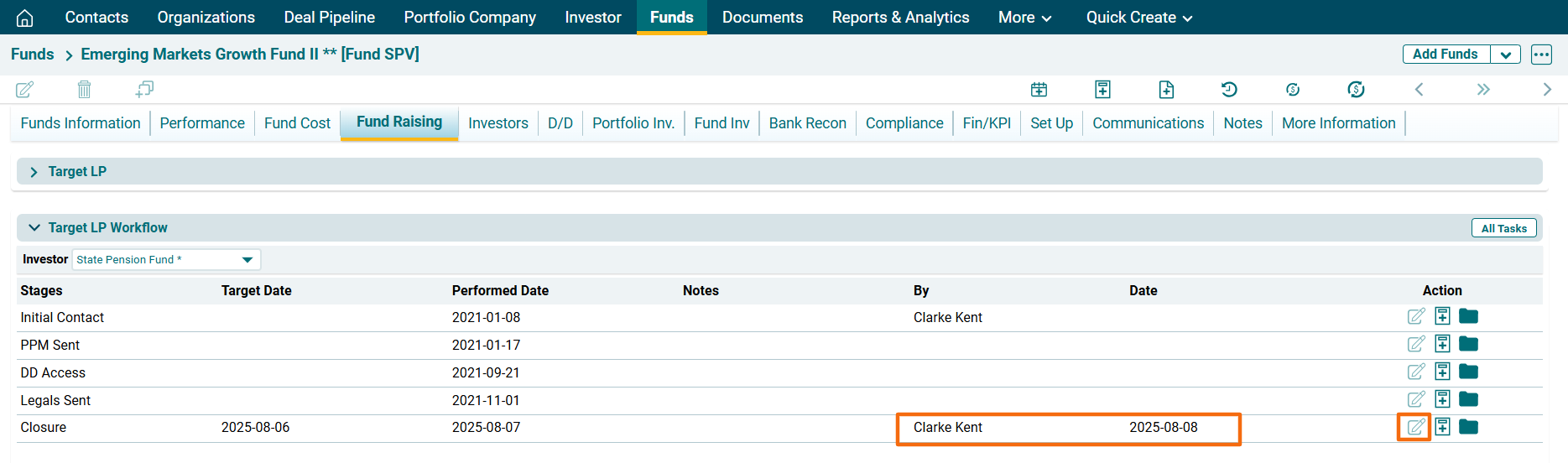
5. The remaining fields will be auto populated once saved. Once a task has been performed and updated, the Edit button is no longer available.
6. Based on the stage completed, the Last Activity column in
the Target LP panel will be populated.
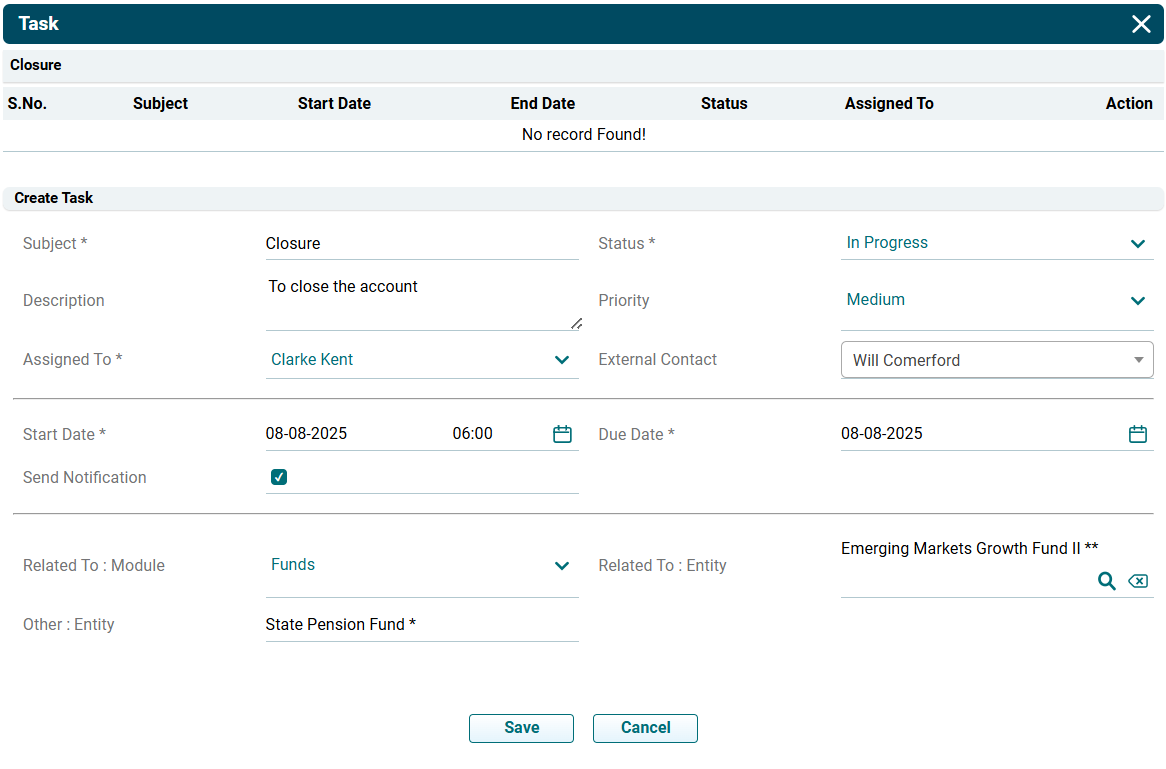
 ) in the Actions Column. The Task window is displayed. Specify the following details:
- Subject: Input the task name.
- Status: Select the status of the task if it has started, is in progress, completed, planned, etc.
- Description: Specify the description of the task.
- Priority: Select the priority of the task if it is a high-priority, low-priority or medium-priority task.
- Assigned to: Task gets assigned to the user automatically.
- External Contact: Specify the external contacts from the dropdown list.
- Start Date: Choose start date of the task.
- Due Date: Choose due date of the task.
- Send Notification: Check the checkbox if notifications are to be sent.
- Related To (Module): Task gets related to the module automatically.
- Related To (Entity): Task gets related to the entity automatically.
- Other (Entity): Task gets related to the fund automatically.
2. Click Save.
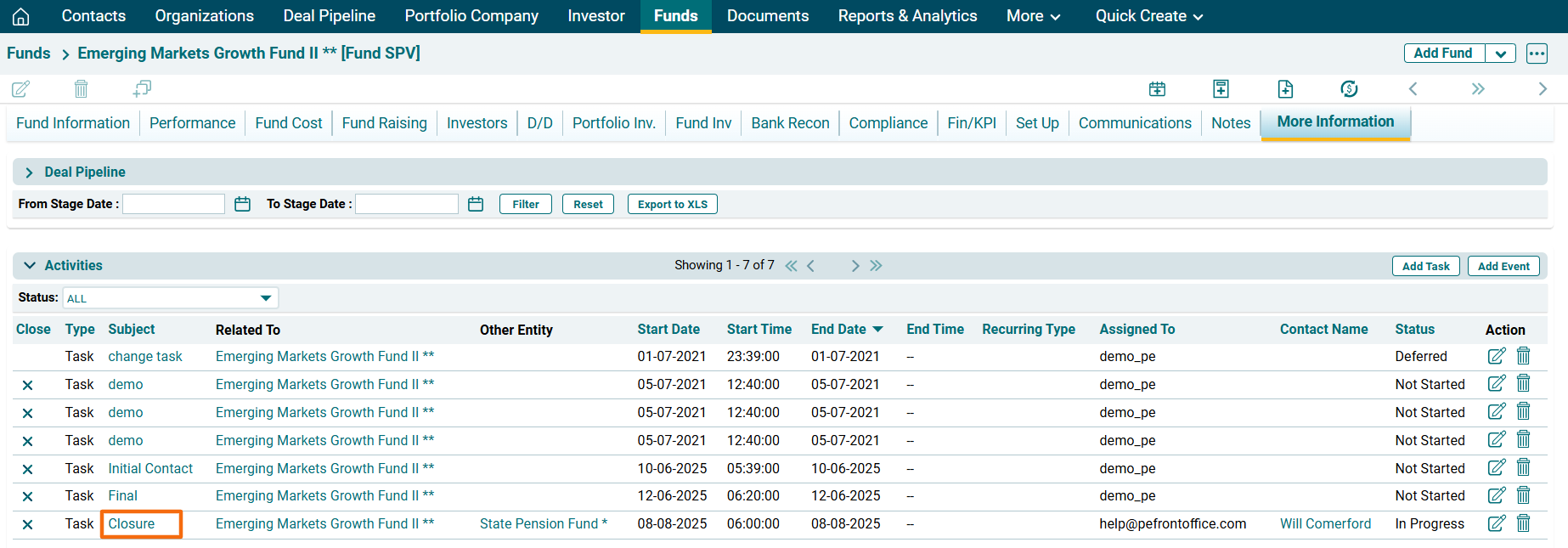
3. It gets populated in More Information>Activities.
4. To view Task history, click on All Tasks button in the top right corner of the panel.
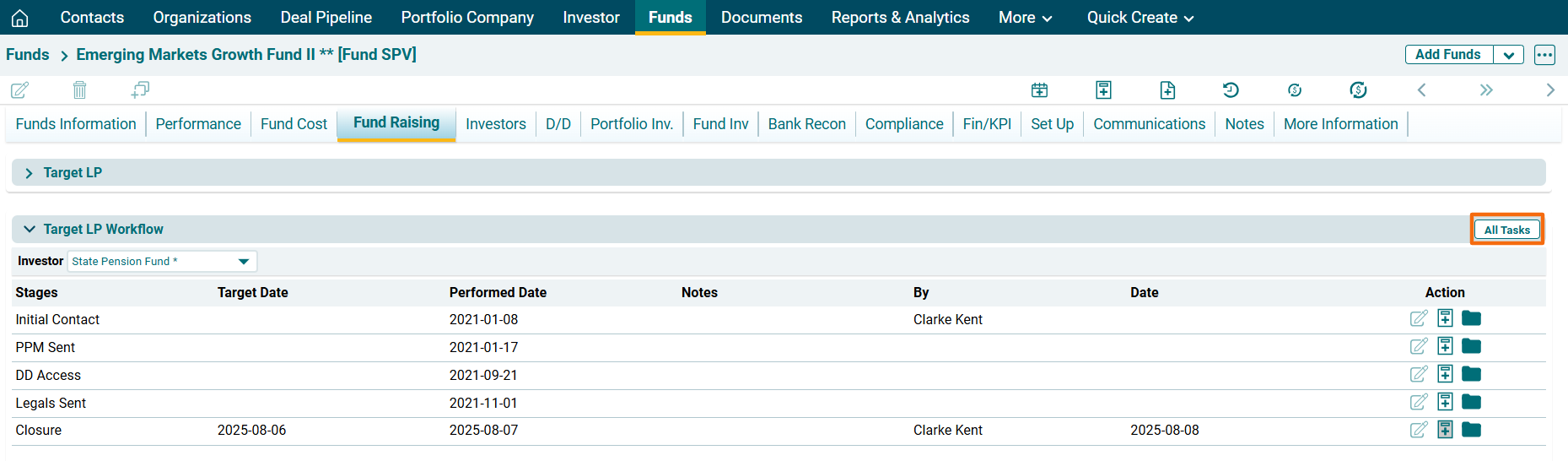
5. The All Task window is displayed.
