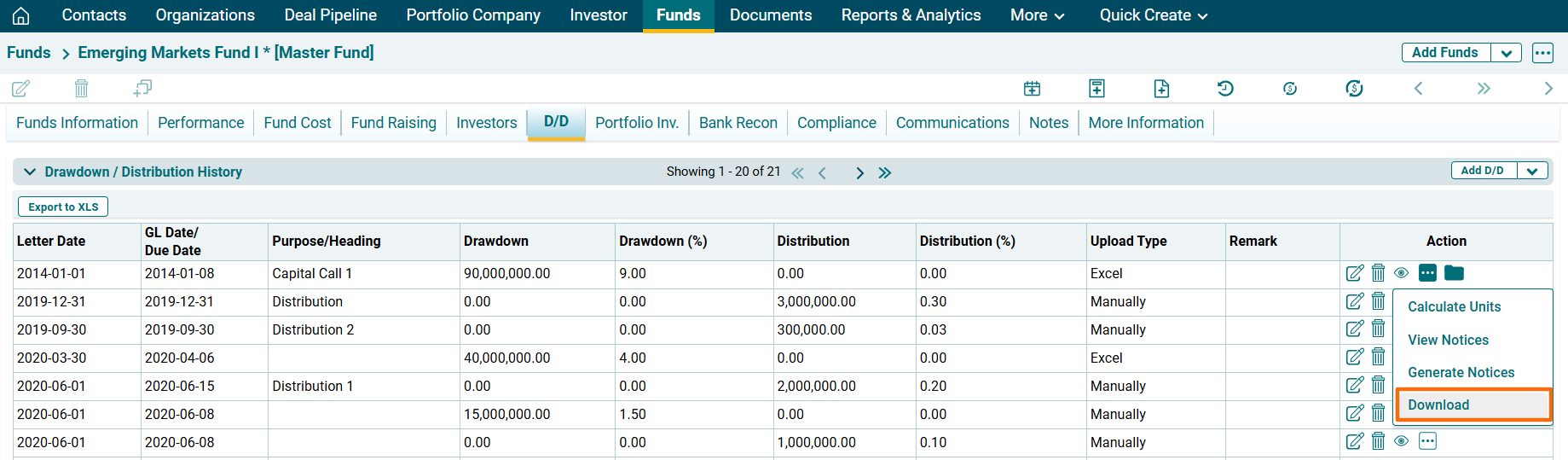
View/ Generate Notices
You can perform different operations by clicking on three dots button in the Action Column.
View Notices
To view notices, follow the below steps:
1. Click on the three dot menu in the Actions Column. Click on View Notices.
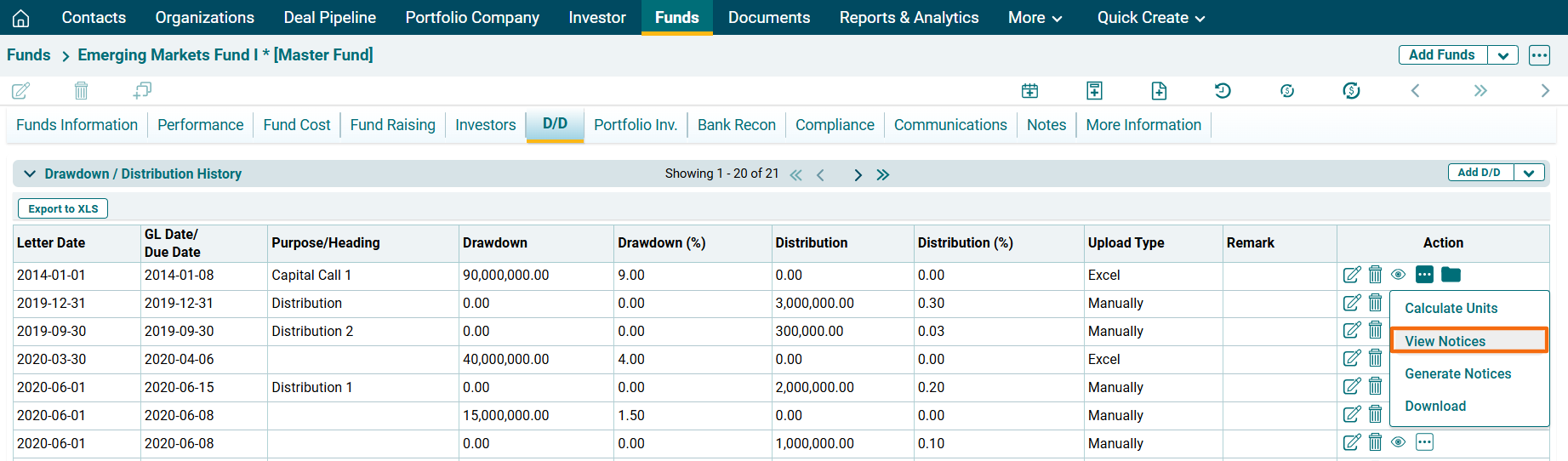
2. A new window is displayed. Choose the template. Specify the file name. Click on View.

3. A zip file will download with notice.
Generate Notices
To generate notices, follow the below steps:
1. Click on the three dot menu in the Actions Column. Click on Generate Notices.
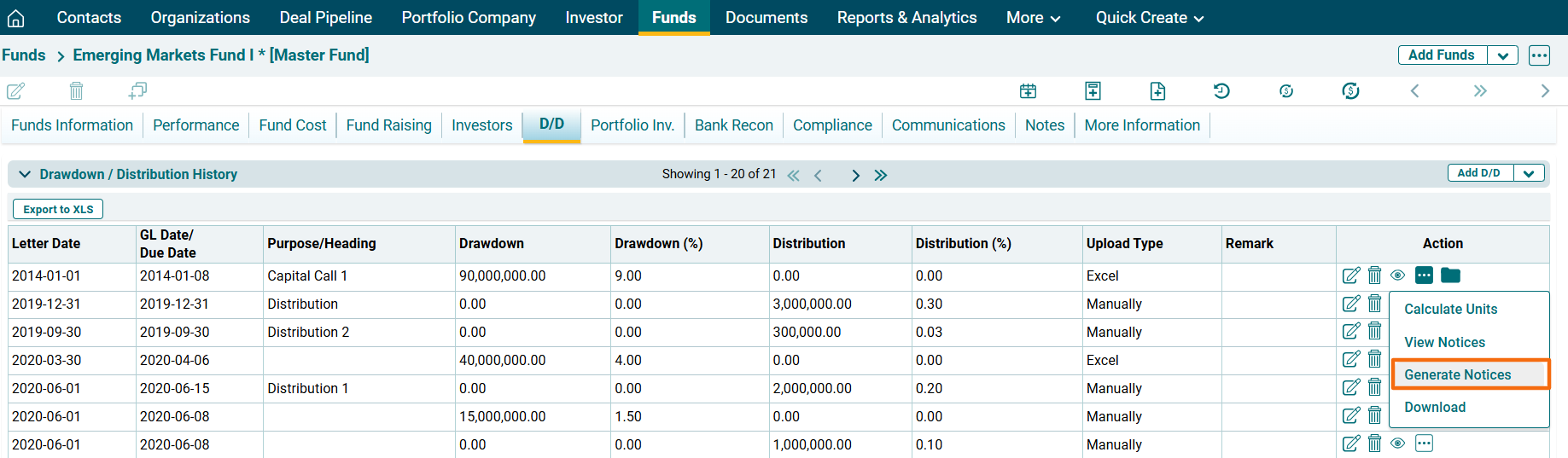
2. A new window is displayed. Choose the template. Specify the folder name and file name. Click on Generate.
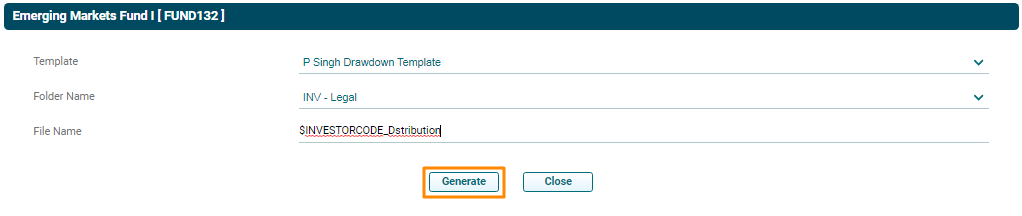
3. The notice will be generated.
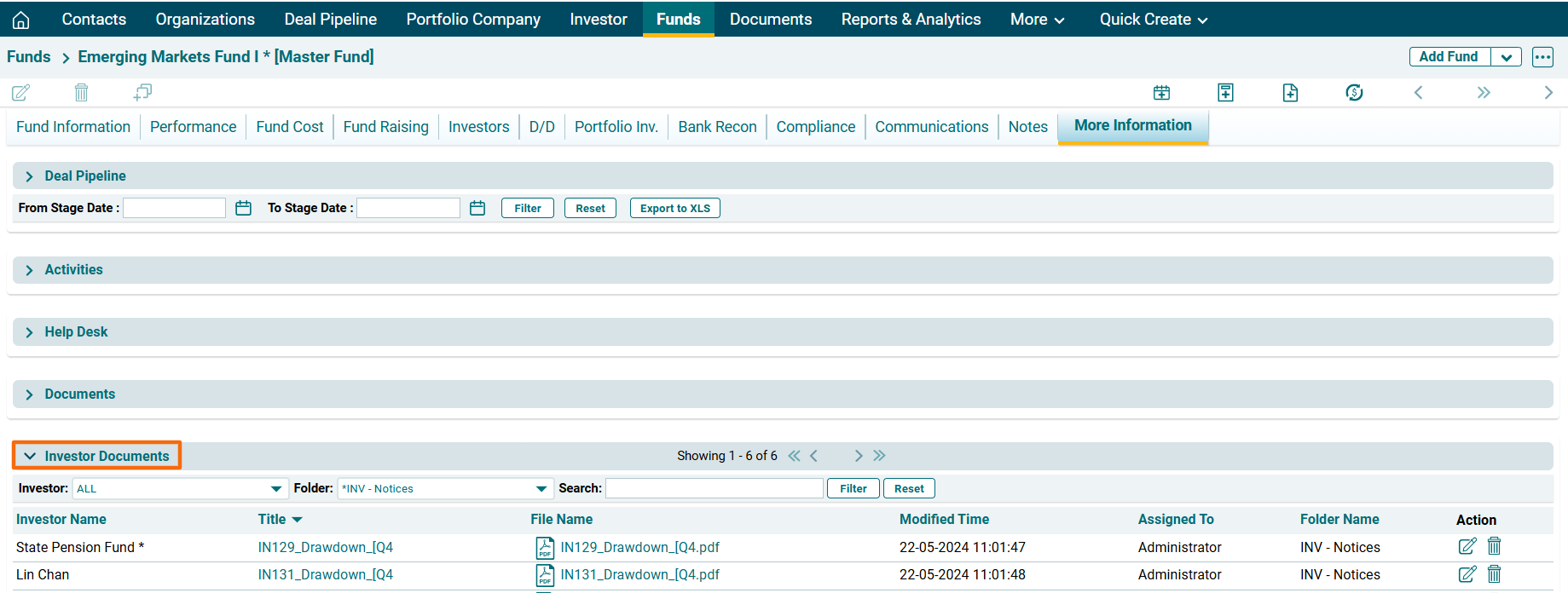
4. Once the notice has been generated, the notice is saved in the Documents folder. To view the document, click on the Document icon ( ) in the Actions column.
You will be redirected to the Investor Documents panel under the More Information tab.
Download
To download Drawdown details, follow the below steps:
Click on the three dot menu in the Actions Column. Click on Download. The excel file will download.