
ESG Master Data
To create ESG Master Data template , follow the below steps:
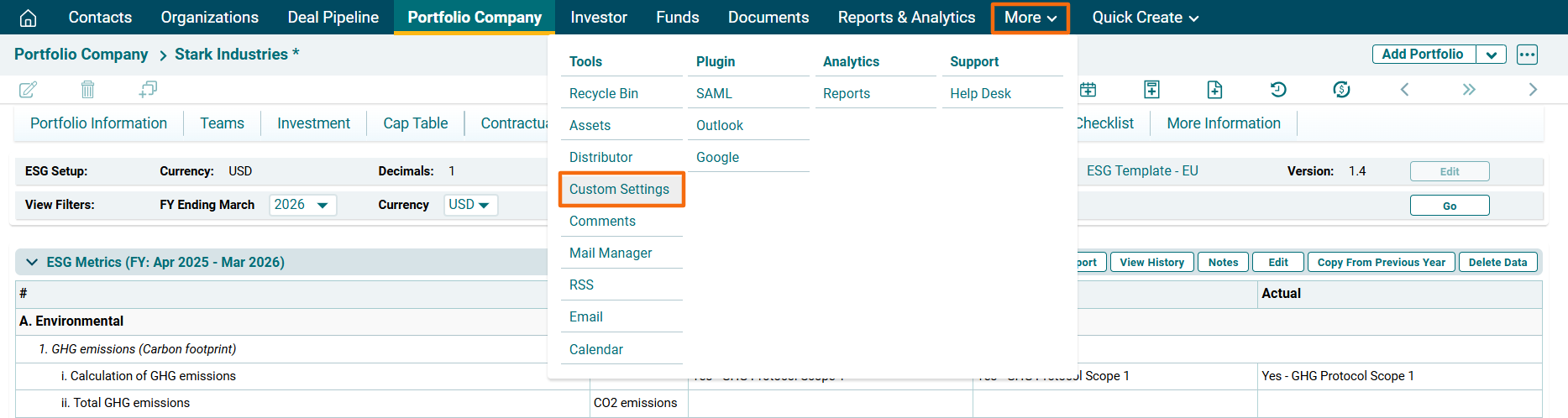
1. Click on More in the main menu. In dropdown menu, click on Custom Settings under Tools Column.
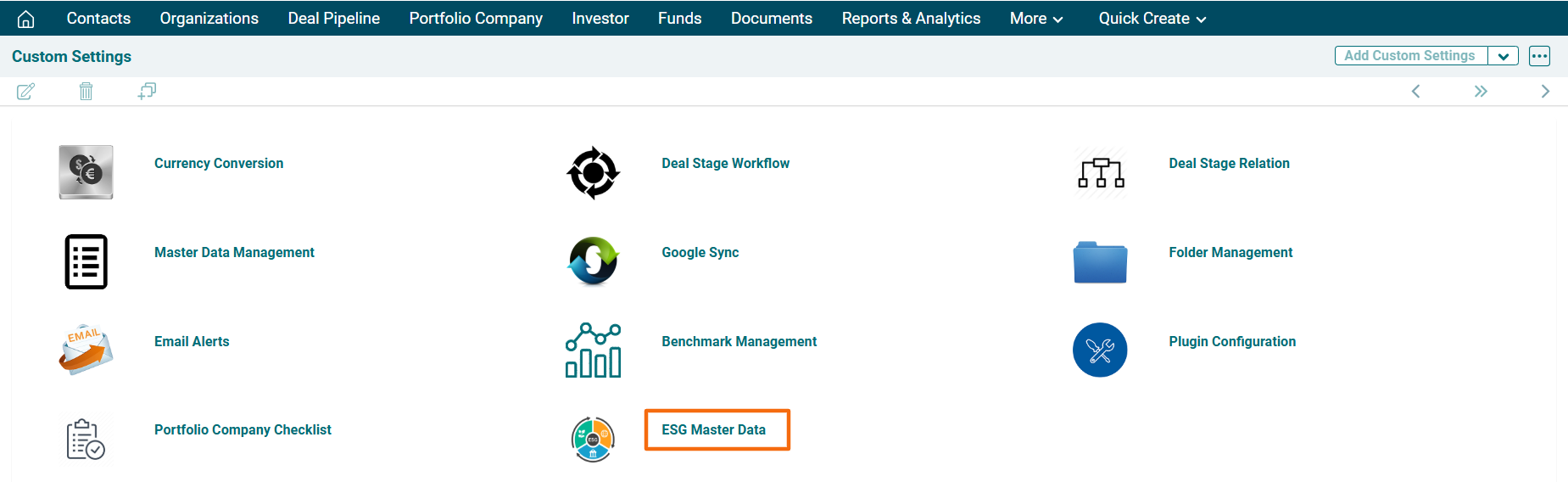
2. Click on ESG Master Data.
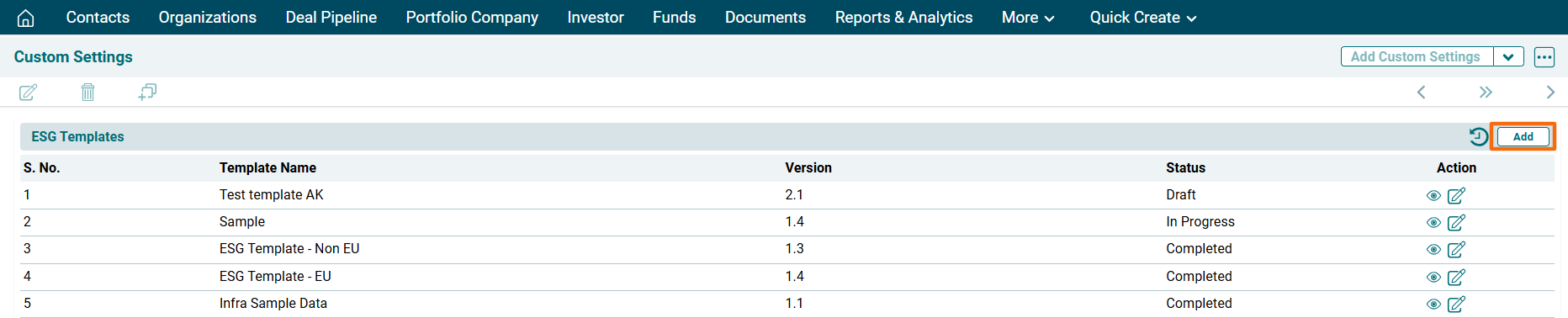
3. Click on Add button in the top right corner of the panel.
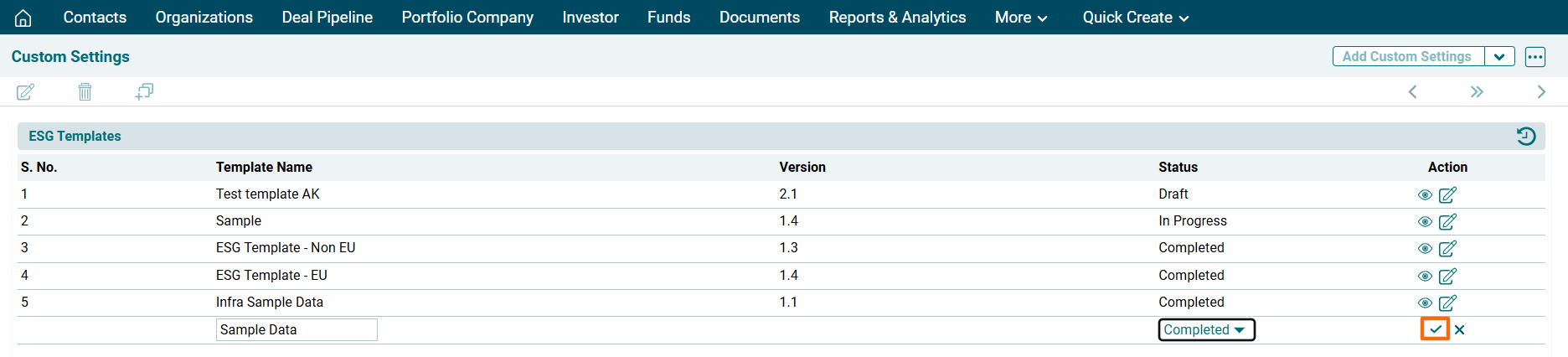
4. The field will be activated. Enter the following details:
- Template Name: To specify the template name.
- Version: It is an auto-generated field.
- Status: To specify whether the template is a Draft, In Progress, Completed, or Archived.
5. Click Check ( ) button to save the details.
Add ESG Master Data
To add ESG Master data, follow the below steps:
1. Click on View ( ) icon under the Action column.
2. The ESG Master Data- [Template Name] panel will be activated.
3. Click on Add ( ) button in the top right corner of the panel.
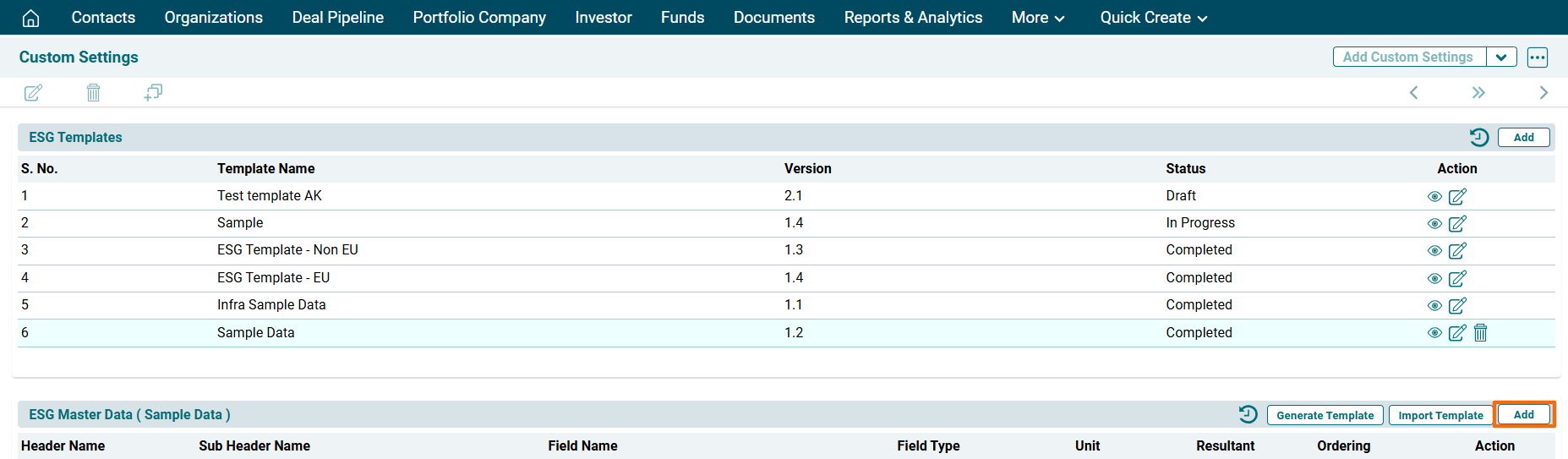
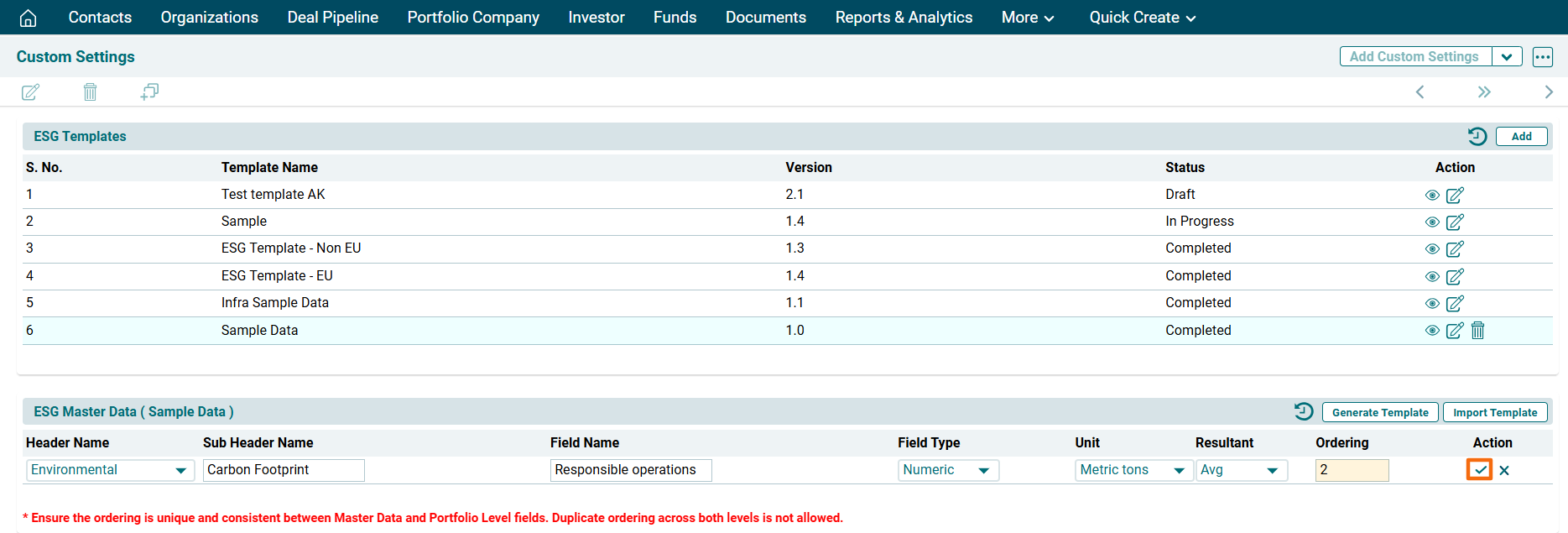
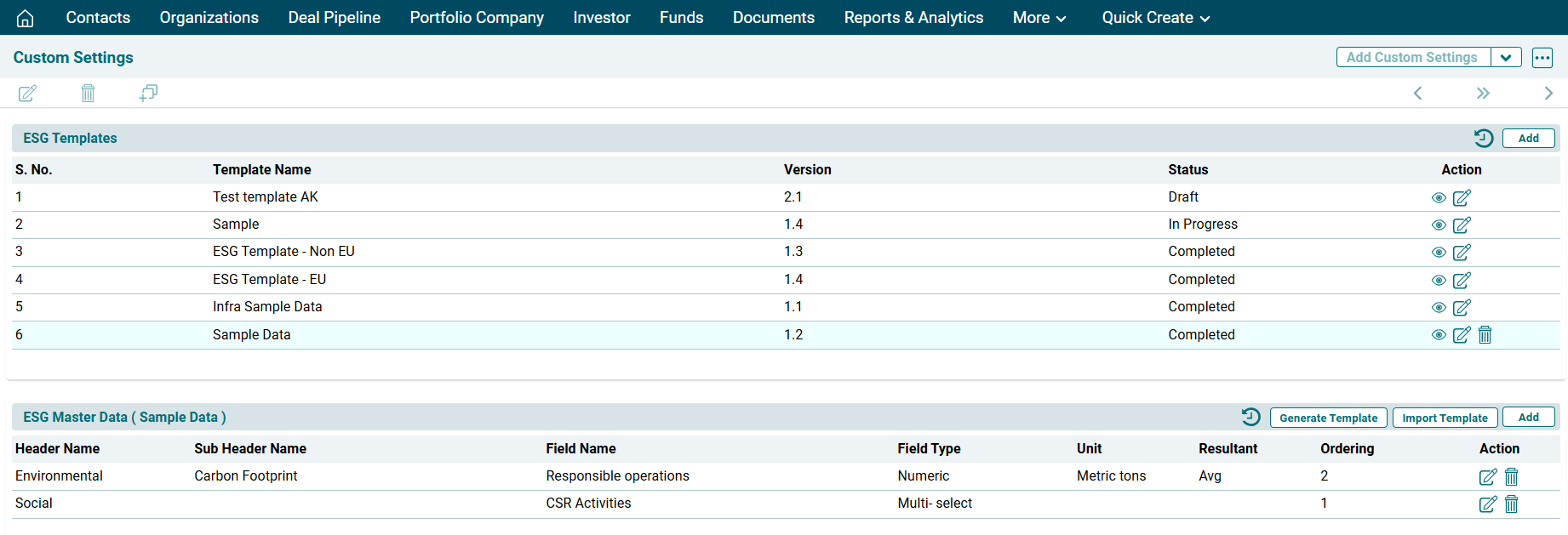
4. The fields will be activated. Enter the following details:
- Header name: To specify the header name.
- Sub Header name: To specify the sub header name.
- Field Name: To specify name of the field.
- Field Type: To specify the field type, i.e. Dropdown, Text, Multi-select, Percentage, Currency, or Numeric.
- Unit: To specify the unit type based on the field type.
- Resultant: To specify the operation, i.e. First Value, Last value, Avg, or Sum.
- Ordering: To specify the ordering.
5. Click Check ( ) button to save the details.
Bulk Import
To bulk import ESG Master Data, follow the below steps:
1. Click on Generate Template button in the top right corner of the panel.
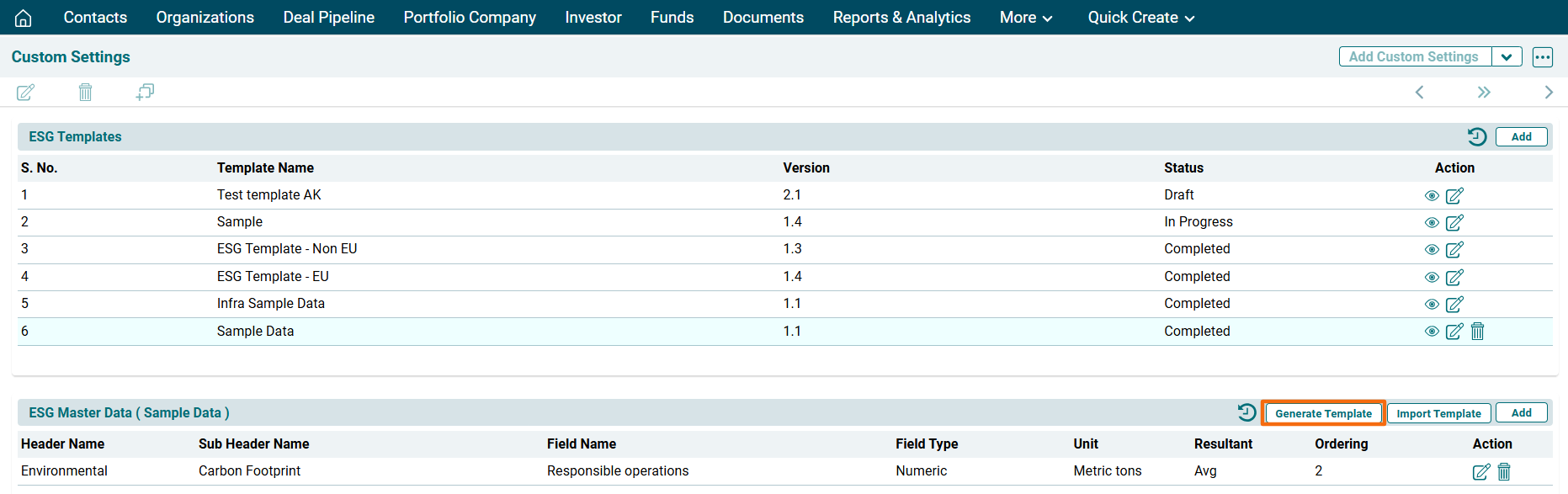
2. The excel file will download. Enter the details and save the file.
3. To bulk import data, click on Import Template button in the top right corner of the panel.
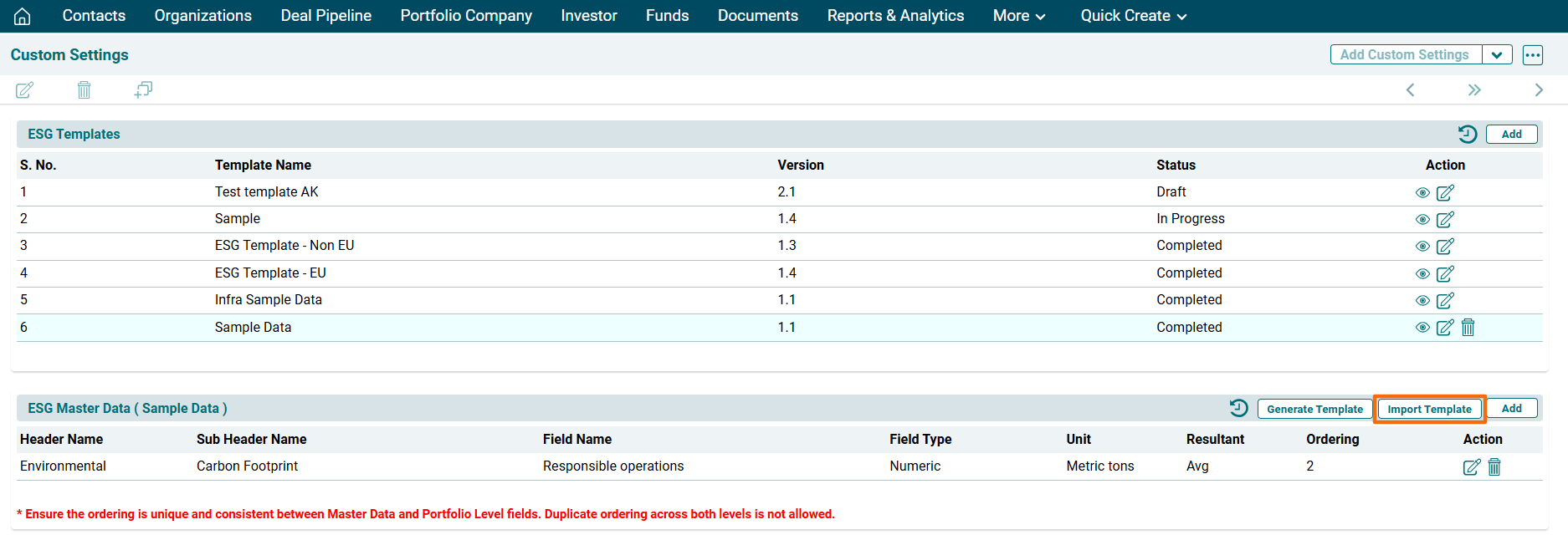
4. A new window is displayed. Click the Choose File button.

5. Choose the template. Click Upload.

6. The data will populate based on the uploaded template.
View History
To view data history of the template, click on View History ( ) icon in the top right corner of the panel.
