Portfolio Performance Report
To view and download reports, follow the below steps:
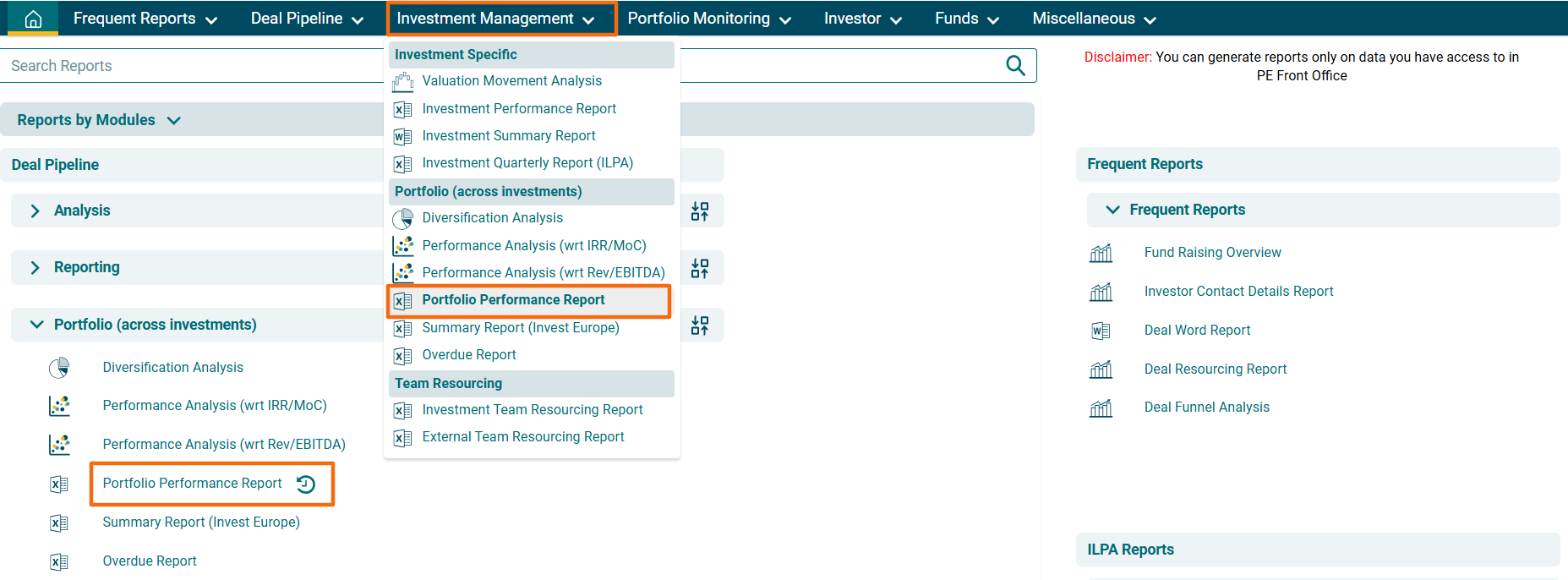
1. Click on Reports & Analytics in the main menu.

2. You can access the report from the dashboard by clicking Portfolio Performance Report in the Investment Management panel or from the Investment Management drop-down menu in the blue vertical bar.
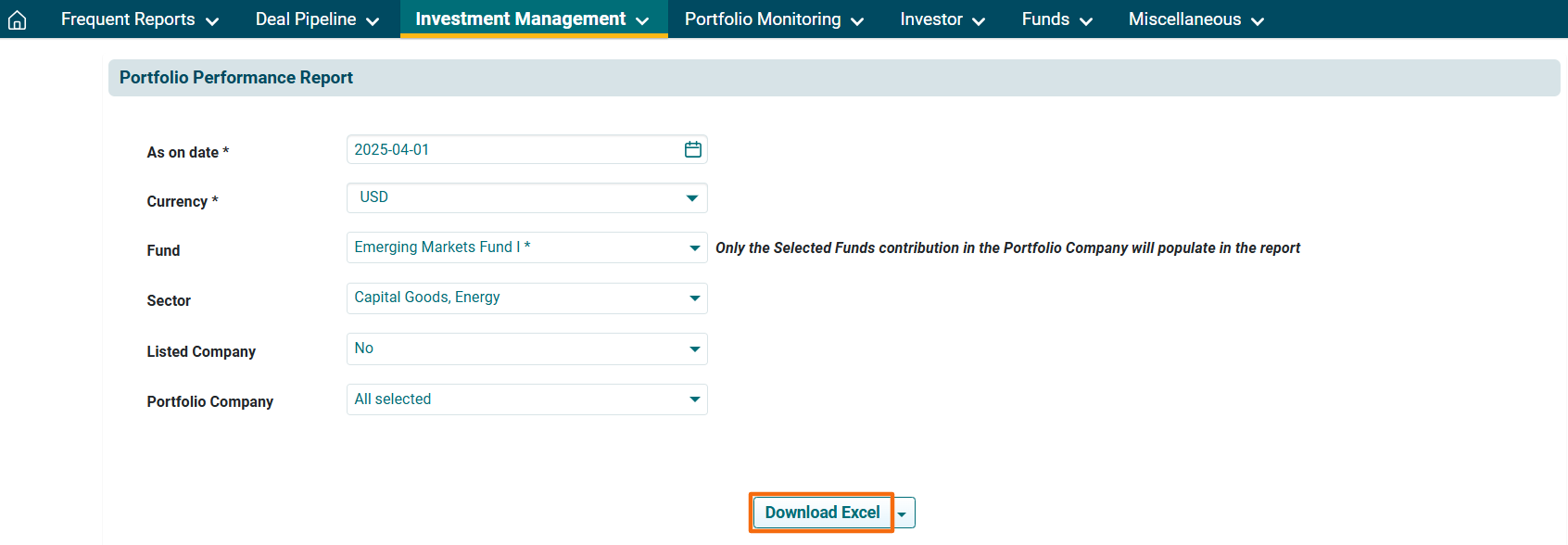
3. The Portfolio Performance Report window is displayed. Apply the following filters-
- As on Date: Choose the date until which time you wish to see the report.
- Currency: Choose the currency from the dropdown list.
- Fund: Choose the fund from the dropdown list.
- Sector: Choose the sector from the dropdown list.
- Listed Company: Select Yes or No whether the selected company is a listed company.
- Portfolio Company: Choose the portfolio company from the dropdown list.
4. Click on Download Excel button. The Excel file will download.
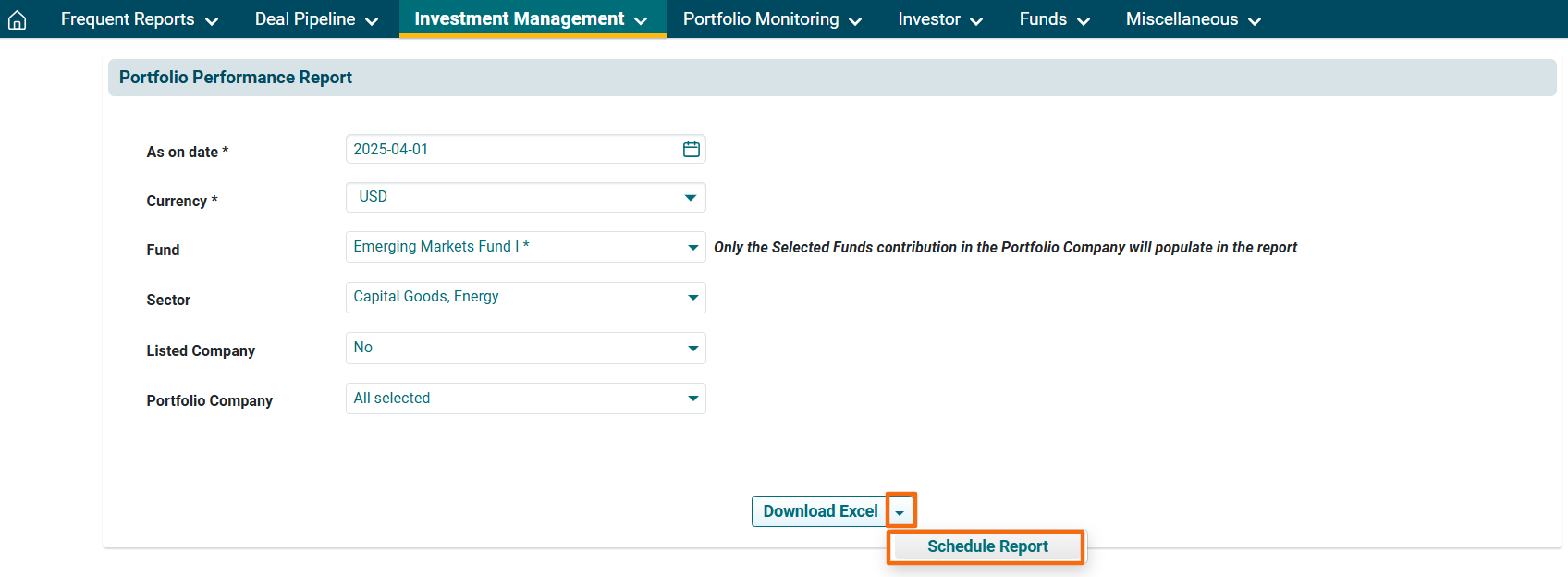
4. To schedule a report via email, click on the down arrow button next to Download Excel button. Click on Schedule Report.
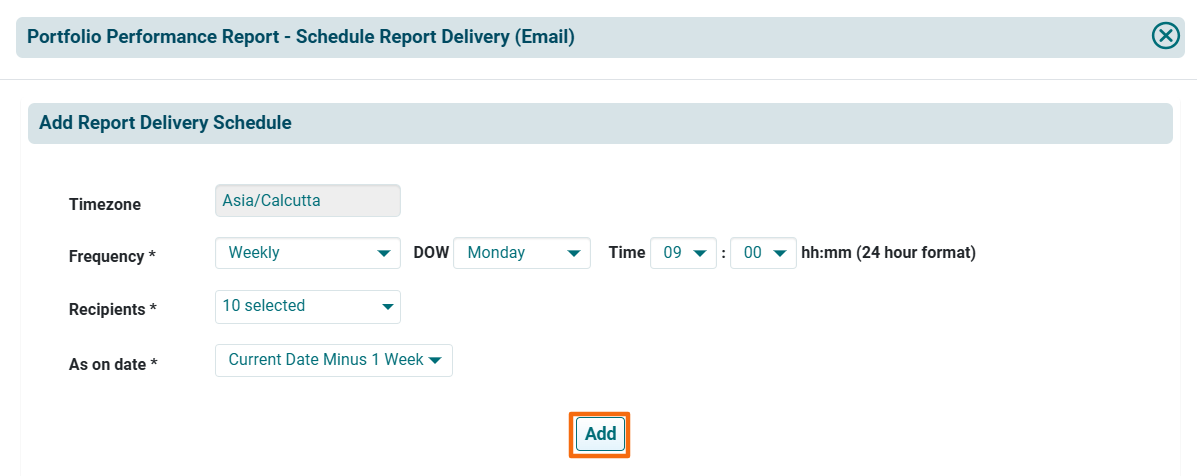
5. The Portfolio Performance Report- Schedule Report Delivery (Email) window is displayed. The details included are:
- Time zone: Shows the time zone. It is an auto-populated field.
- Frequency: Choose the frequency of the report delivery, i.e., Daily, Weekly, Monthly or Annually. Choose Time.
- Recipients: Choose the recipients of the report from the dropdown list.
- Period: Choose the period of the report.
6. Click Add.
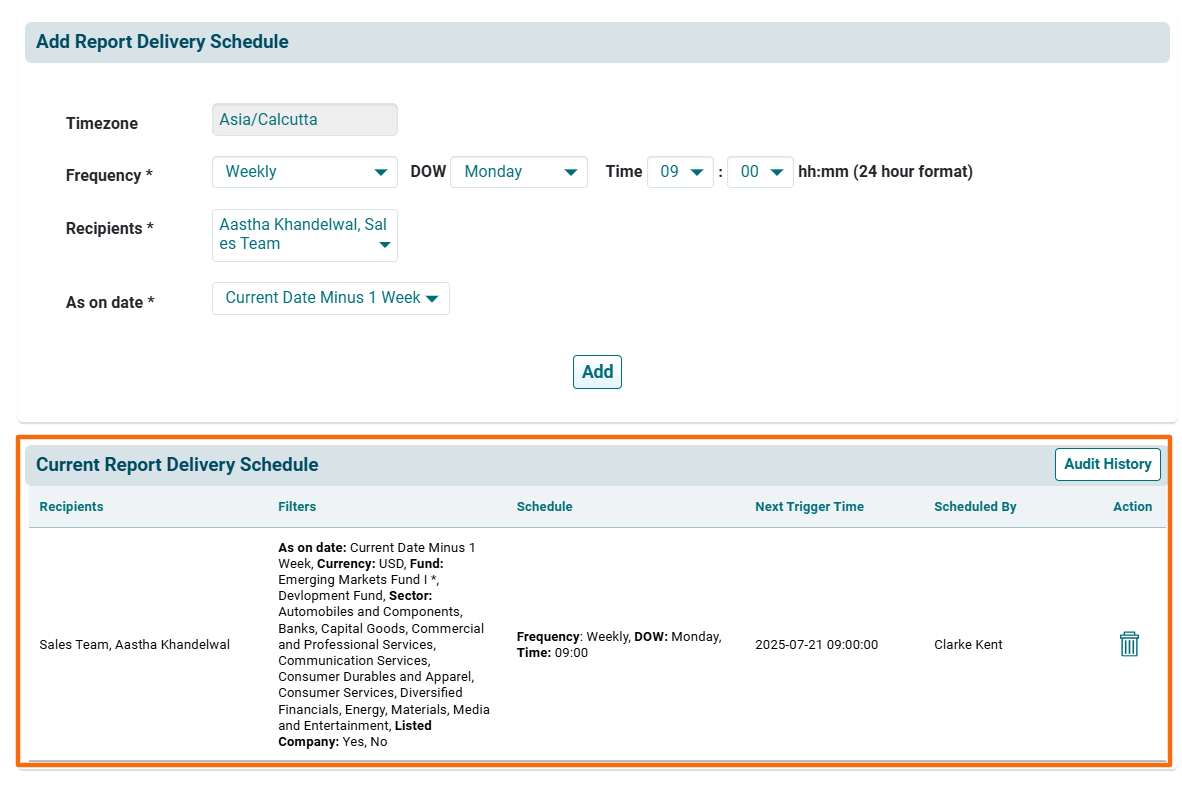
7. You can view the Current Delivery Schedule below.
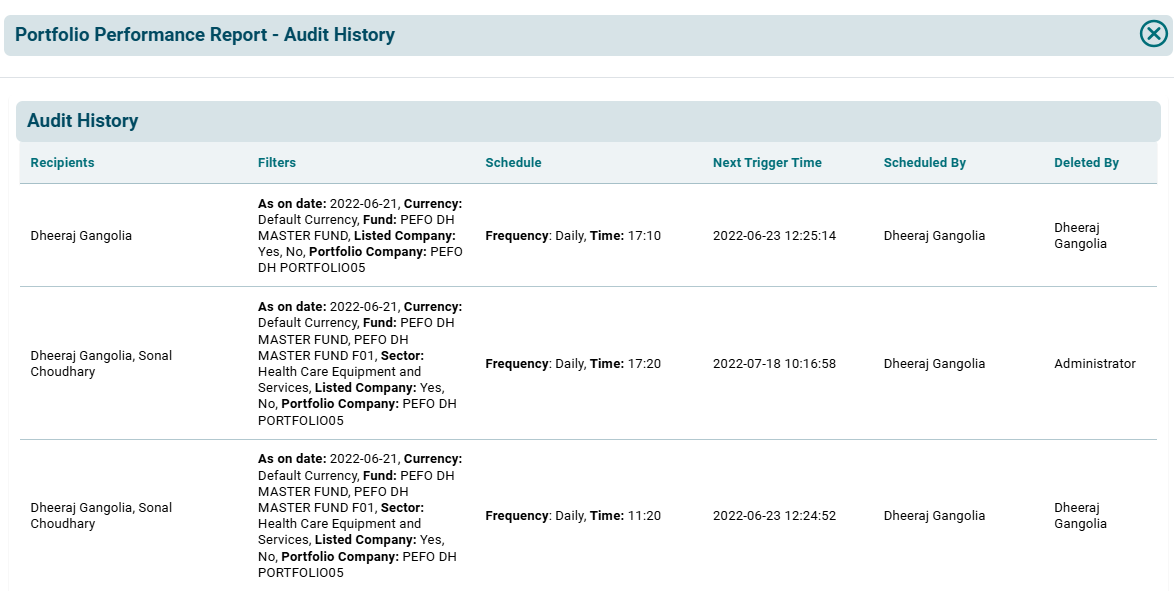
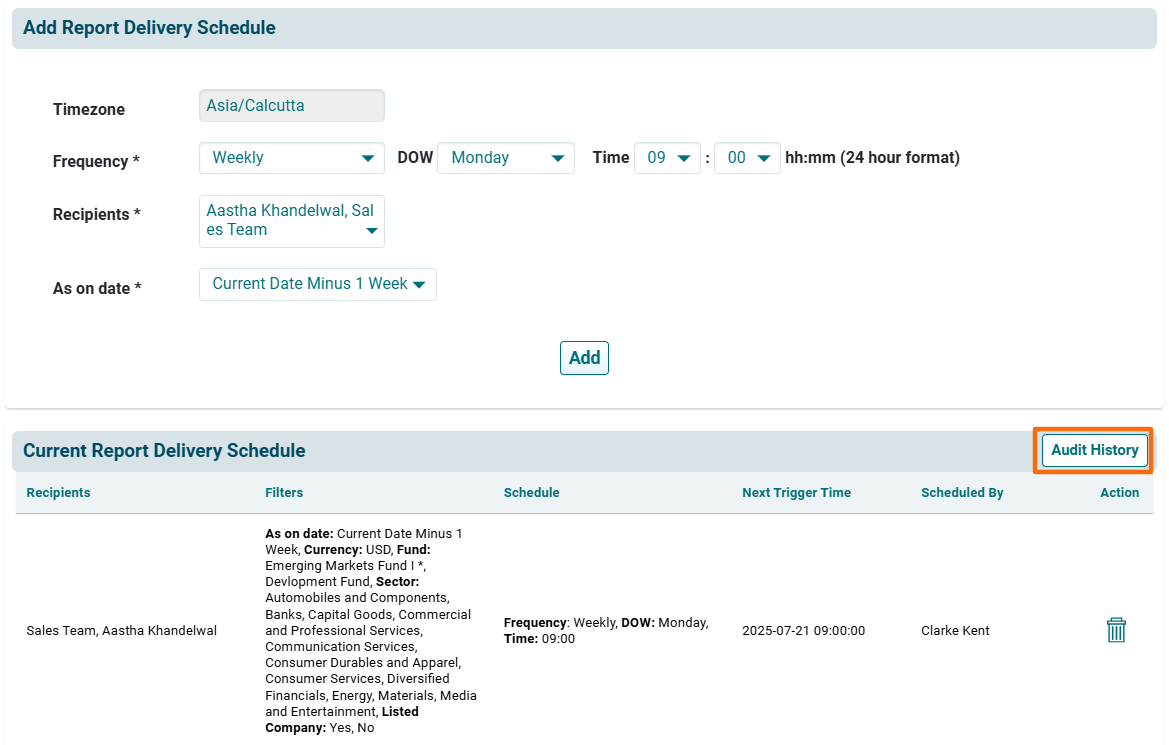
8. To view Audit History, click on Audit History button in the top right corner of the panel.
9. The Portfolio Performance Report-Audit History window is displayed.