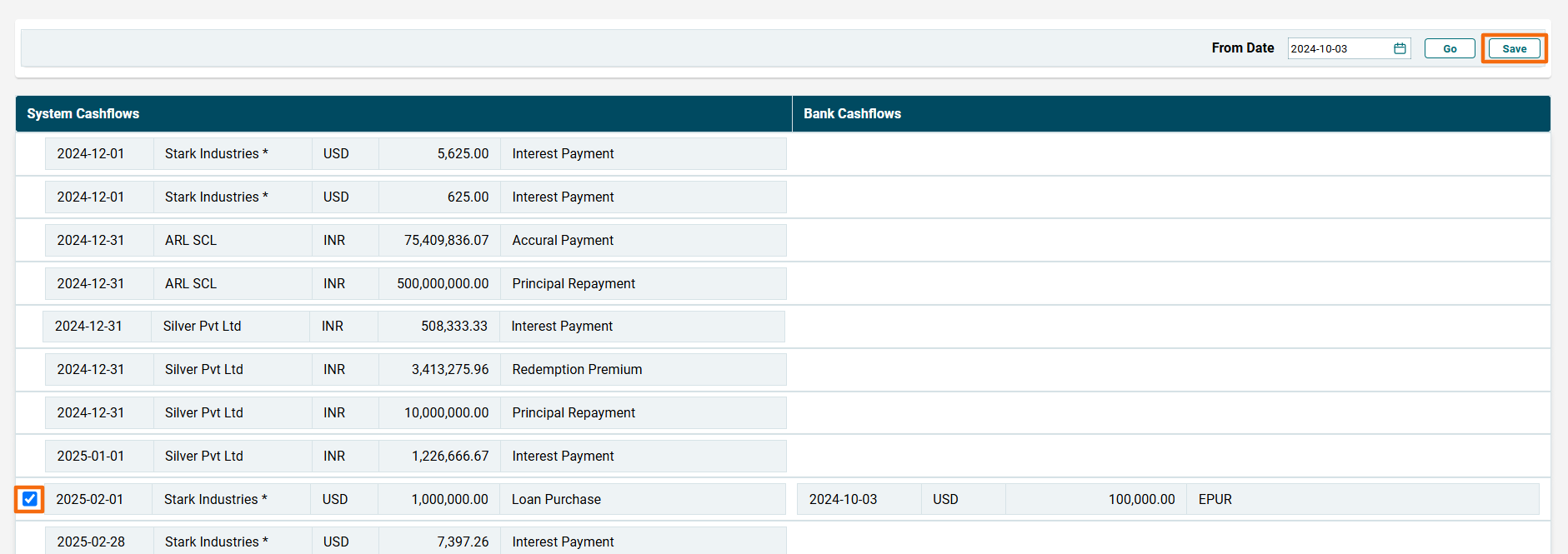
Cashflow Schedule
This panel allows you to add and monitor the cashflows pertaining to the multiple bank accounts. It requires adding an email to the relevant bank account where the account statements shall be uploaded by the bank. You can also upload the CSV file manually. System will process the attachment and upload the bank cashflows in corresponding fund’s bank account.
To reconcile bank statement, follow the below steps:
1. Navigate to Cashflow Schedule panel in the Bank Recon tab. Select a bank to see the cashflows.
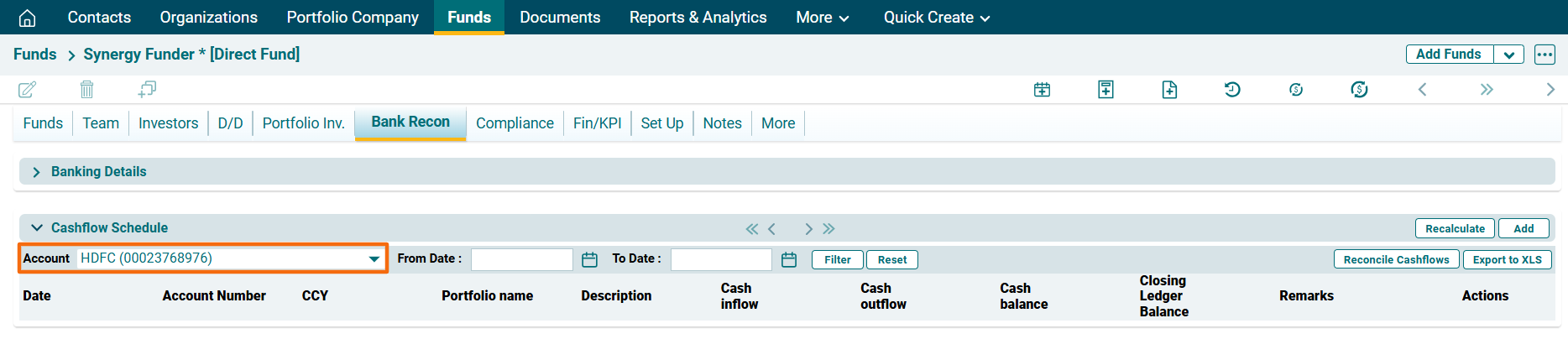
2. Click on the Reconcile Cashflows button in the top right corner of the panel.
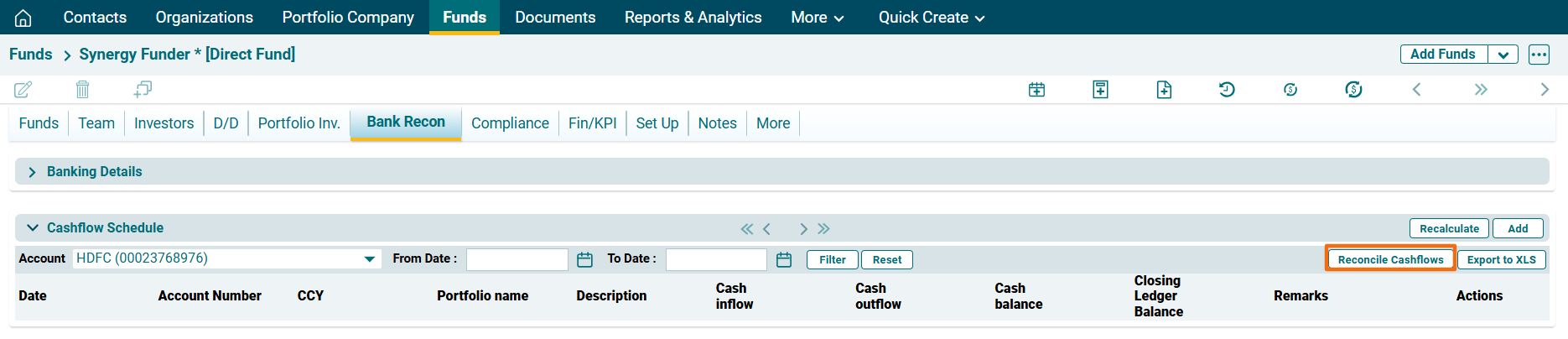
3. A new window is displayed. The default selected date is the last week.

4. Select the date from which onwards cashflows are to be mapped. Click Go.

5. System will fetch both the bank cashflows and unpaid expected PC cashflows and try and match them automatically using the 3 levels of logic:
- Exact Date and Amount match.
- Fuzzy logic to match date and amount with some variance (i.e. tolerance level built in)
- Split and Combined transactions match i.e. a cashflow in one system (bank or PC) matching more than one cashflows (combined) in the other.
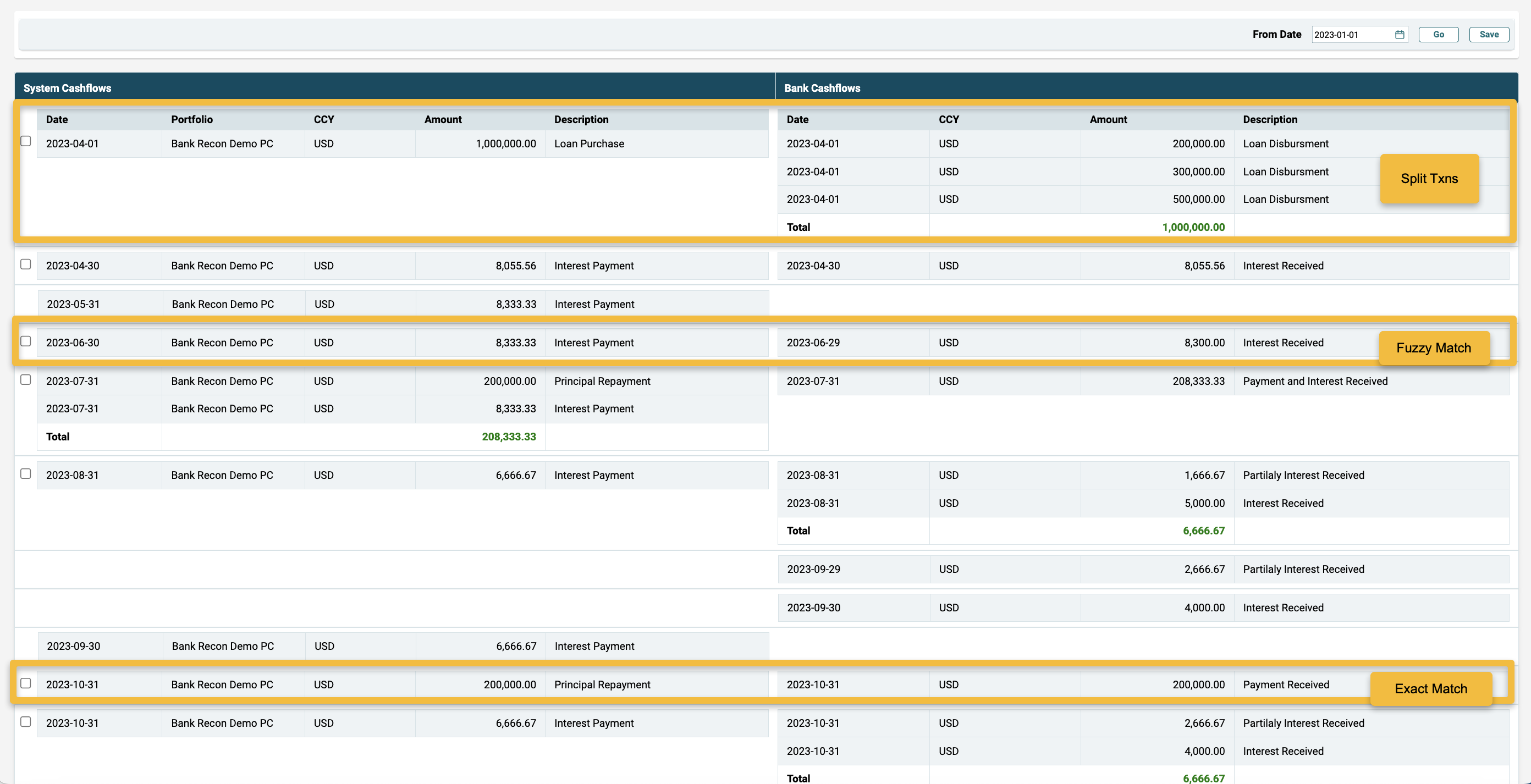
6. You can manually change the automated mapping and also map the unmapped cashflows easily using drag-n-drop. You can then select the checkboxes. Click Save. The cashflow mapping will be saved in PEFO in both bank account panel as well as PC panels.