
Fund Information
This tab contains the primary details pertaining to a fund at the time of creation. The various panels pertaining to the fund are discussed below:
Fund Summary
This panel allows you to capture the basic details of a fund.
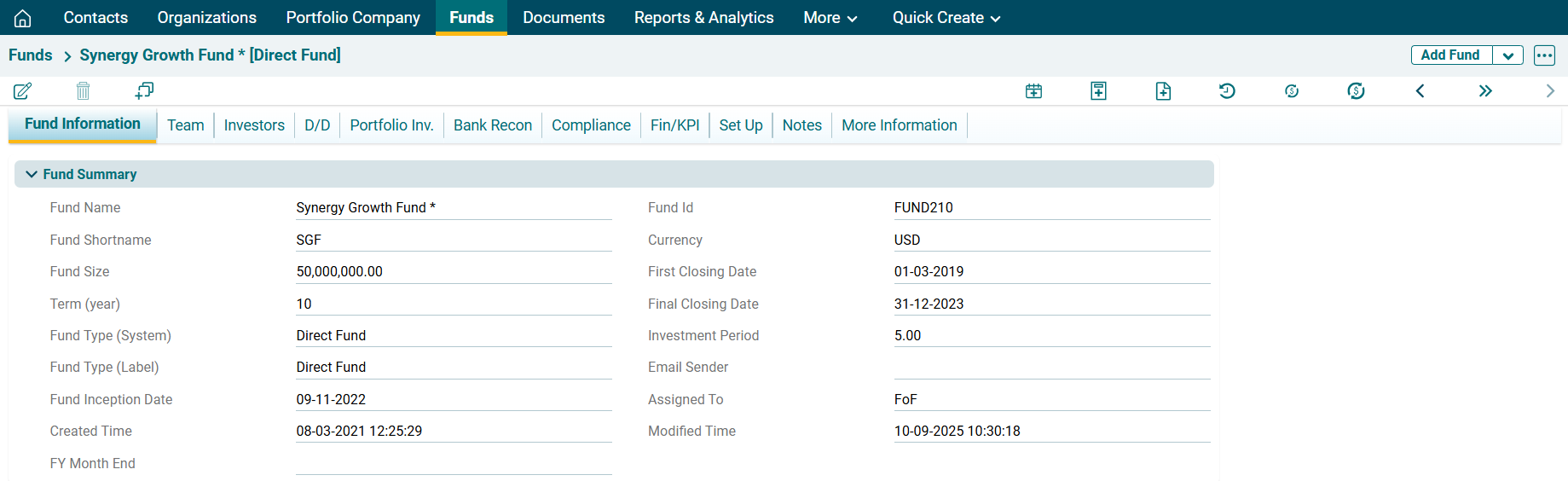
In the above panel, the following are system-generated fields:
- Fund ID
- Assigned To
- Created Time
- Modified Time
The system will auto-fill these details based on your login details and the time.
DD Allocation Setup
This panel allows you to view drawdown distribution details.

Deal Information
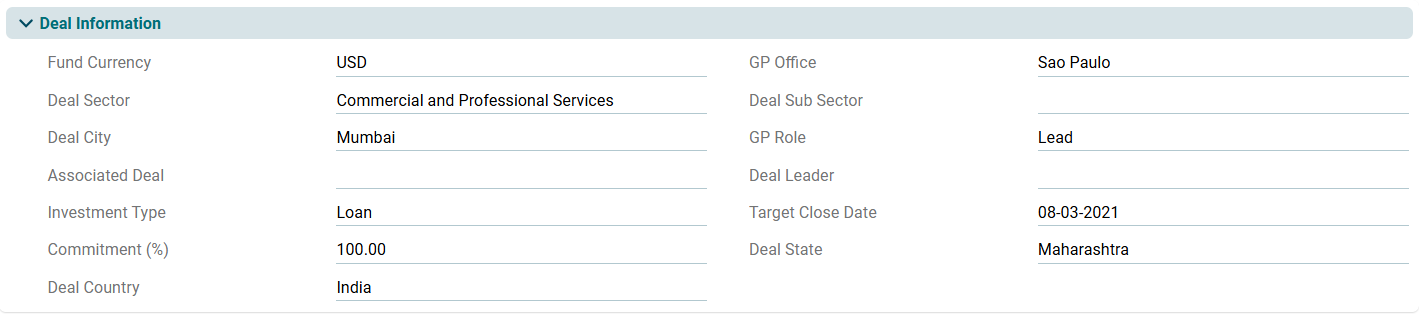
This panel allows you to enter details of the deal associated with the fund.
Investor Summary (FoF)
This panel allows you to view investor summary.

Investor Summary (All Investors)
This panel allows you to view commitment made by all investors.

Fund Of Fund Drawdown Distribution Summary
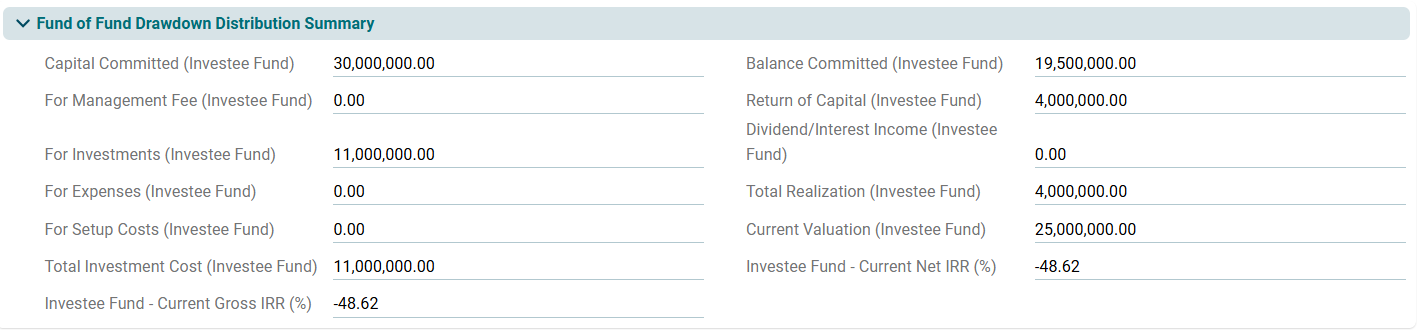
This panel allows you to view the details of total drawdown and distribution with investors. This is an auto-populated panel flowing from D/D tab.
Health Status
This panel allows you to view the health status of the fund financials currently and previously.

Portfolio Investment Summary
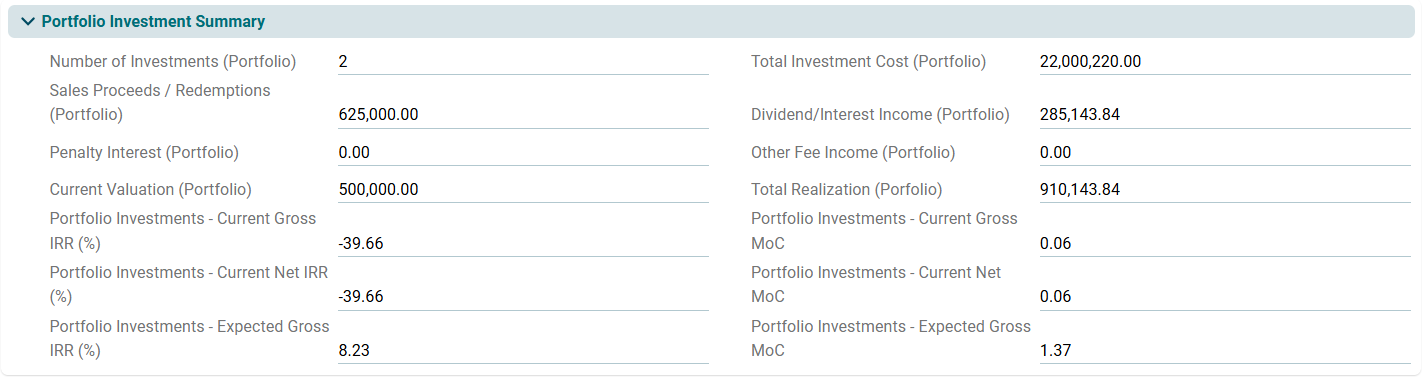
This panel allows you to view details of direct portfolio investment and return on those investments. This is an auto-populated panel flowing from Portfolio Investments tab.
The graph below the panel depicts the summary in a graphical form. It displays the graph based on the set parameters.
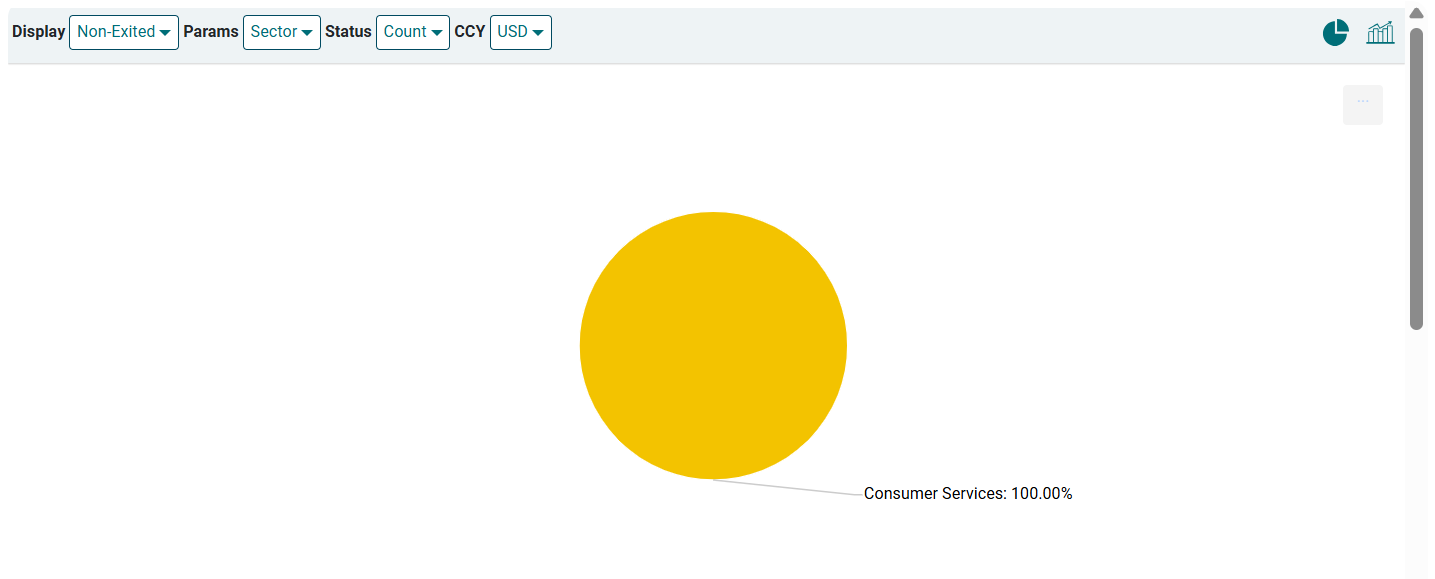
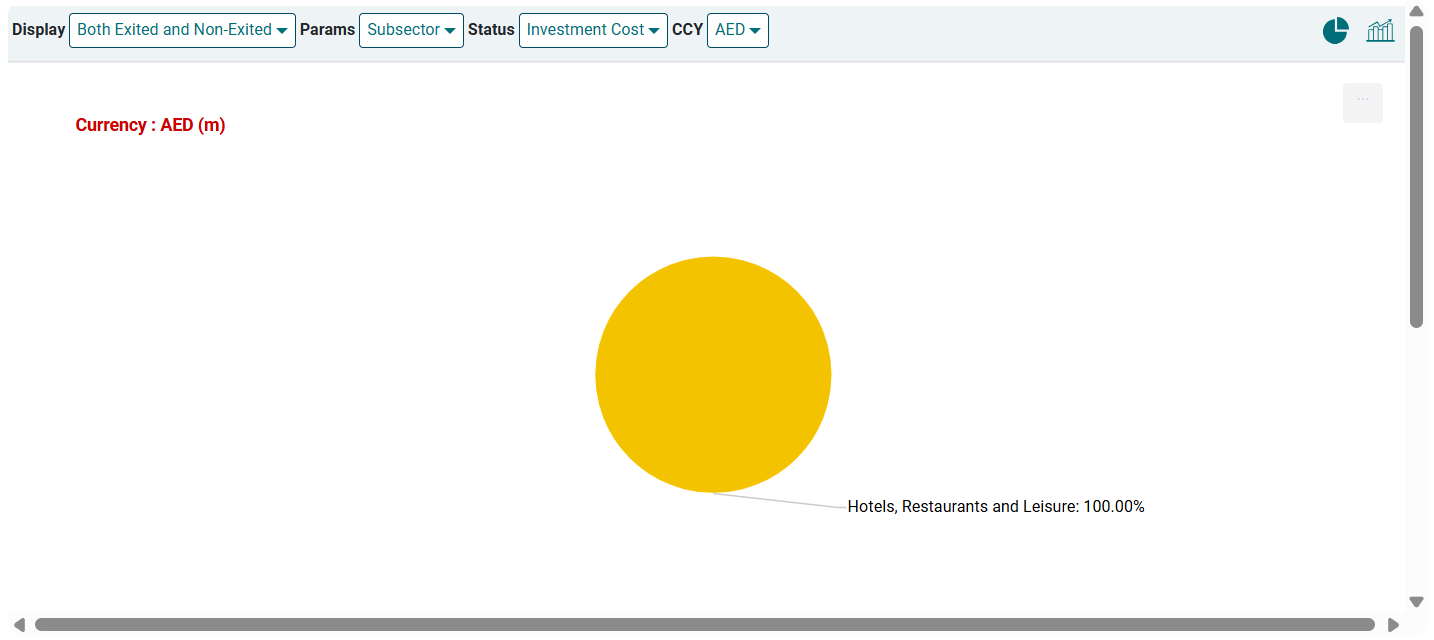
You can also view the graphs using various filters available above the graph:
- Display: To view all the deals including or excluding Exited and Non-exited.
- Params: To view the graph according to different parameters, such as Stage, Sector, Sub-sector, Deal Type, Transaction type, etc.
- Status: To view the graph based on Count, Investment Cost, Current Cost, or Current valuation.
- Currency: To view the charts based on different currencies.
After applying the filters, you can view the chart based on the changed parameters.
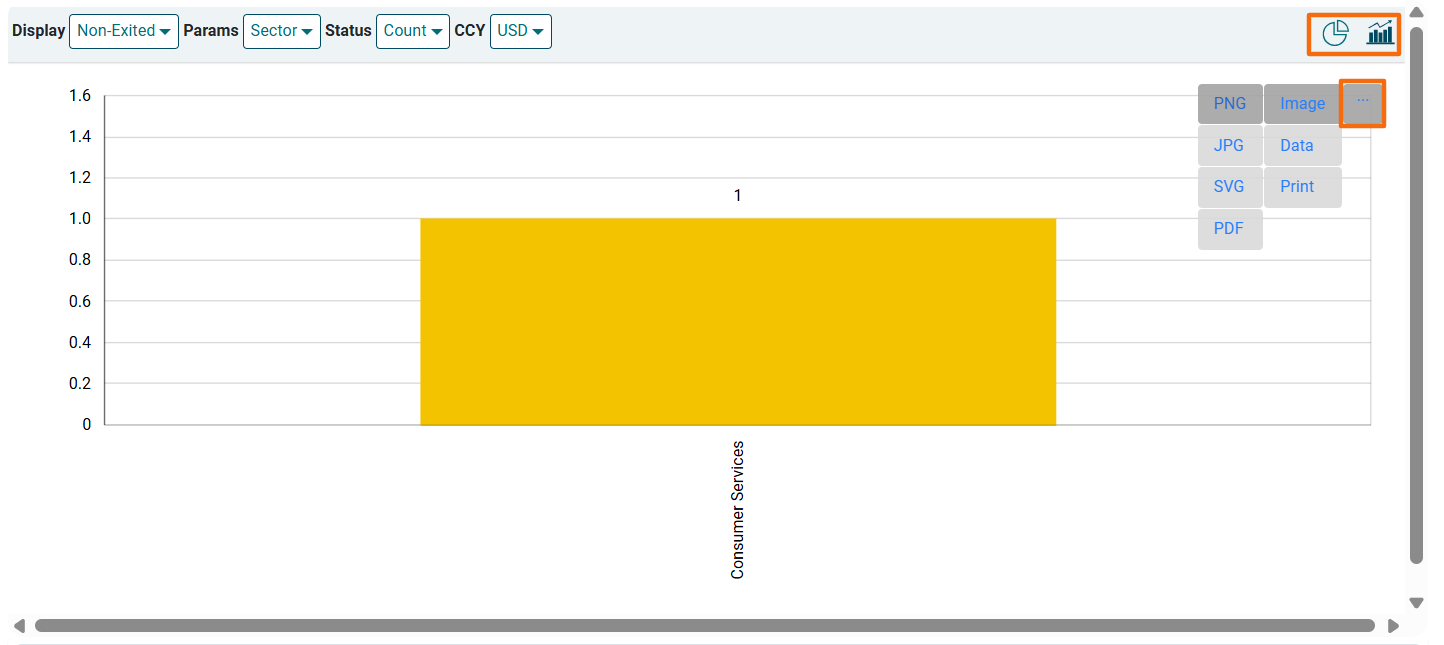
You can view the above data in Bar Graph and Pie chart. Click on the icons below the filters to view the data in the desired format. You can download the report in various formats. Click on the gray square box button in the top right corner near the graph. The report can be downloaded in image formats, such as PNG, SVG, JPG, etc., and data formats, such as JSON, HTML, PDF, CSV, etc. Click on a format and the report will be downloaded.
Financials Set Up
This panel allows you to set up financial parameters.

Note: Once periodicity (i.e. frequency) of different cases has been defined and numbers have been uploaded then it is not allowed to change the periodicity.
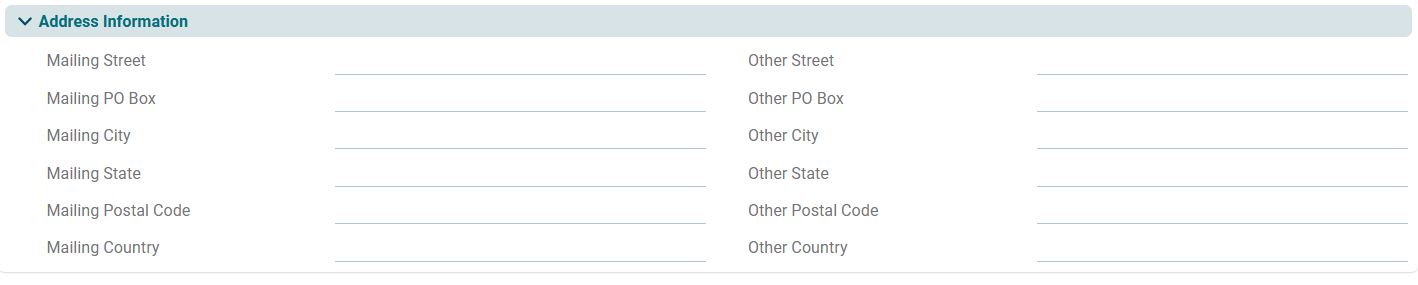
Address Information
This panel is applicable to all fund types. This panel allows you to enter primary mailing address as well as alternate address of the portfolio company
Invoicing
This panel allows you to enter the fund’s invoicing details, including the fund address, WHT rate, tax number, and VAT number.

Grants Summary
This panel provides a summary of grants received either from investors or through the funds provided by the investee companies.
