Grants 

    To add a Grants instrument, follow the below steps:

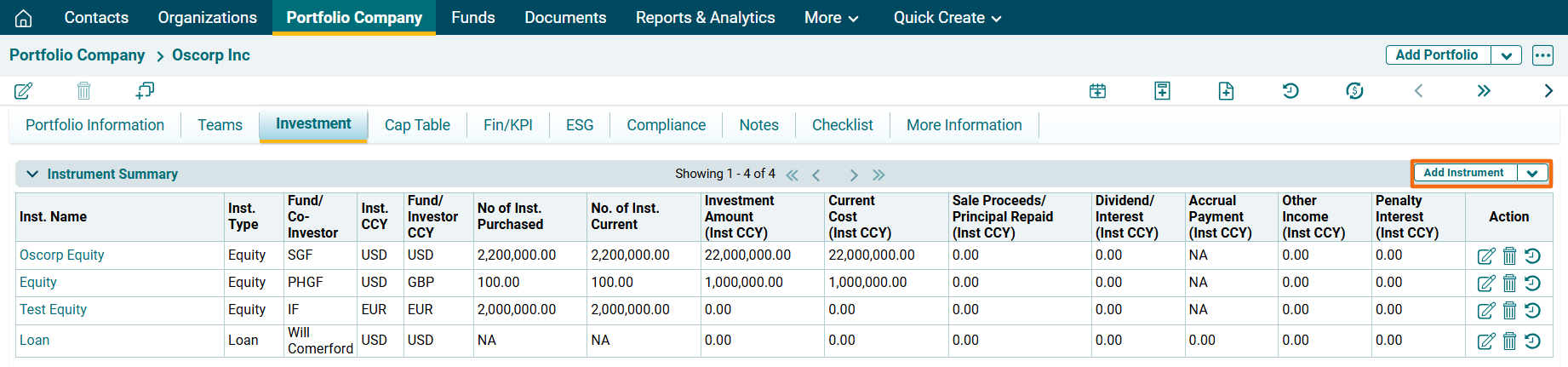
    1. Click on Add Instrument button in the top right corner of the Instrument Summary panel.

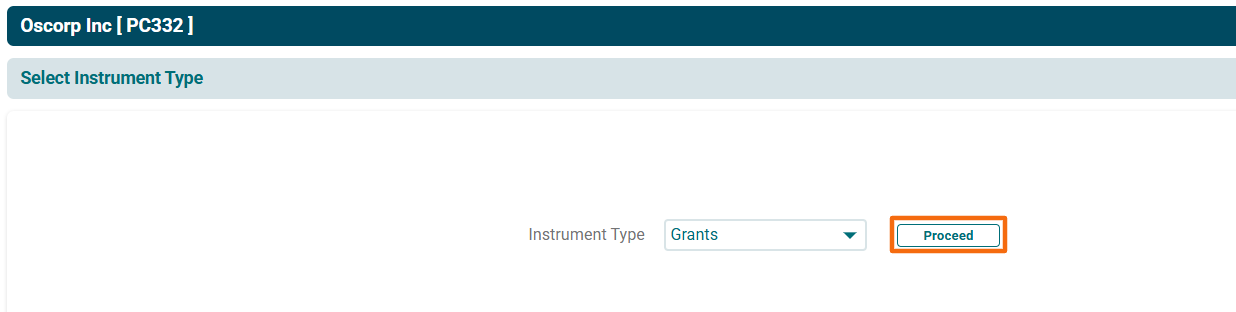
    2. The Instrument Type window is displayed. Select Grants from the Instrument Type dropdown list. Click Proceed.

    3. The Grants Details window is displayed.
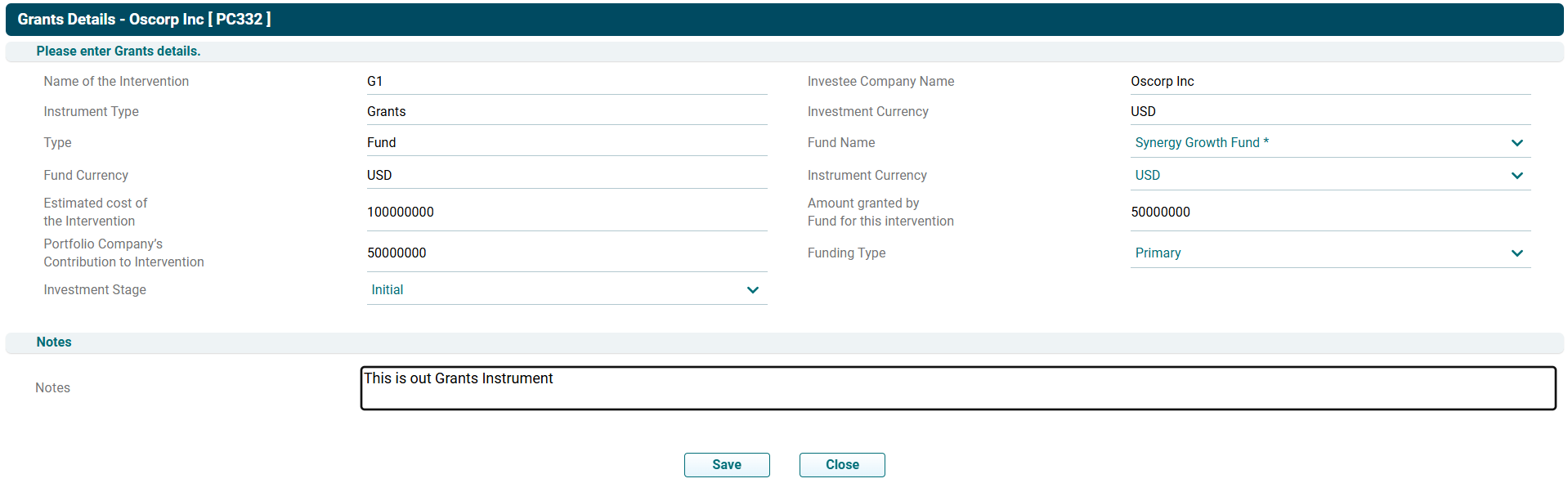
    The details included are:

    • Name of the Intervention: Displays the name of the intervention.
    • Investee Company Name: Displays the name of the portfolio company associated with the instrument. This is an auto-generated field.
    • Instrument Type: This is an auto-generated field.
    • Investment Currency: This is an auto-generated field
    • Type: This is an auto-generated field.
    • Fund Name: Select the Fund name from the dropdown list
    • Fund Currency:  Auto-populated field based on the selected Fund
    • Instrument Currency:  Select the instrument currency
    • Estimated Cost of the Intervention: Displays the estimated cost of the intervention.
    • Amount Granted by Fund for this Intervention: Displays the amount granted for the intervention.
    • Portfolio Company's Contribution to Intervention: Displays the Portfolio company's contribution to the intervention.
    • Funding Type: Choose if it is a Primary or Secondary investment.
    • Investment Stage: Choose the Investment stage form the dropdown list, i.e., Initial, Follow-1,  Follow-2, Follow-3, Follow-4, Follow-5.
    • Notes: Specify any details about the instrument in the Notes section.

    Click Save.


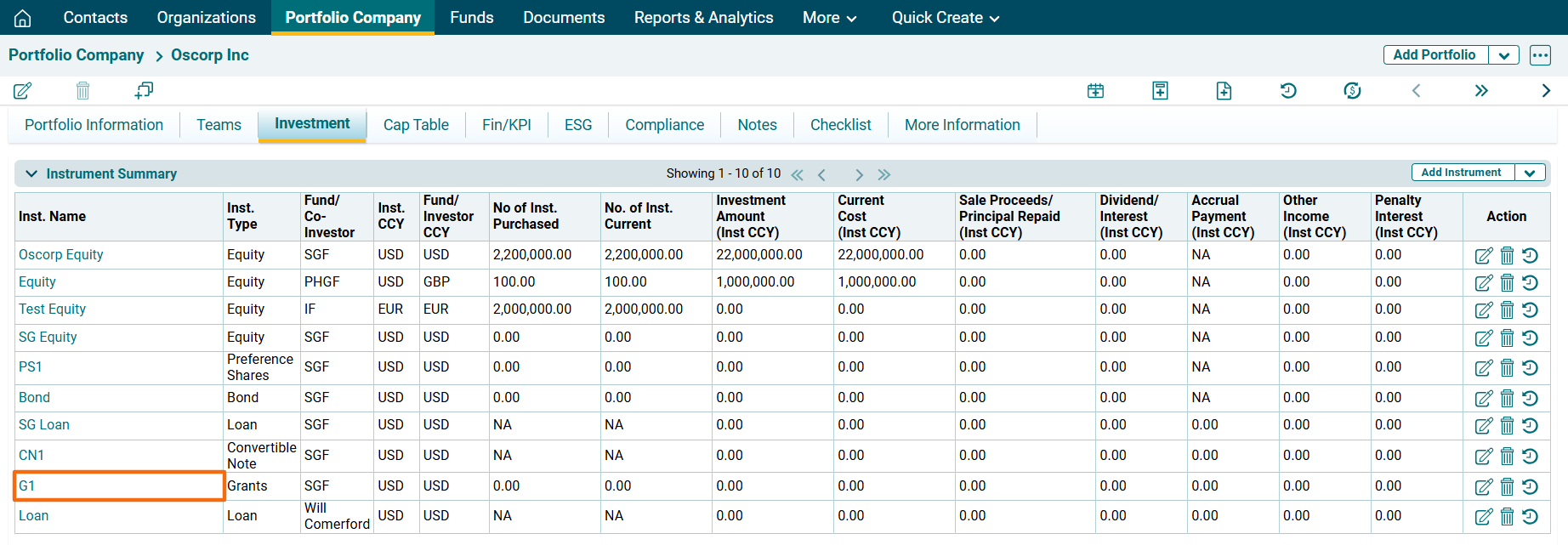
    4. To edit a grant instrument, click the Edit () icon in the Actions column. The Grant Details window is displayed. Update the details and click Save.   

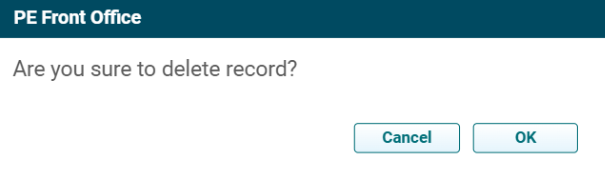
    5. To delete a grant instrument, click the Delete () icon in the Actions column. The delete window is displayed. Click OK to delete the instrument record.  


    6. To view the instrument, click on the Instrument Name.