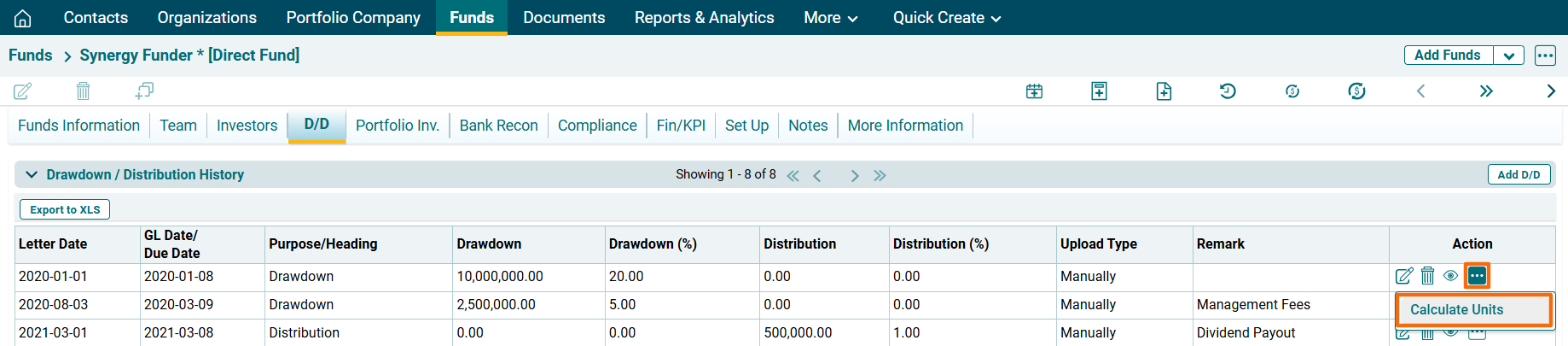
Drawdown/ Distribution History
This panel allows you to capture drawdown and distribution transactions.
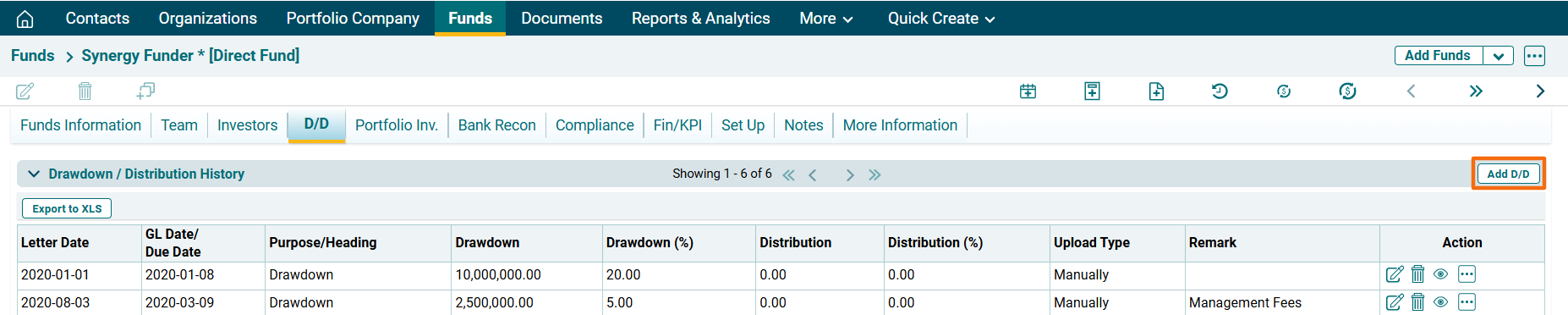
Add D/D
To capture the drawdown distribution details, follow the below steps:
1. Click on Add D/D button in the top right corner of the panel.
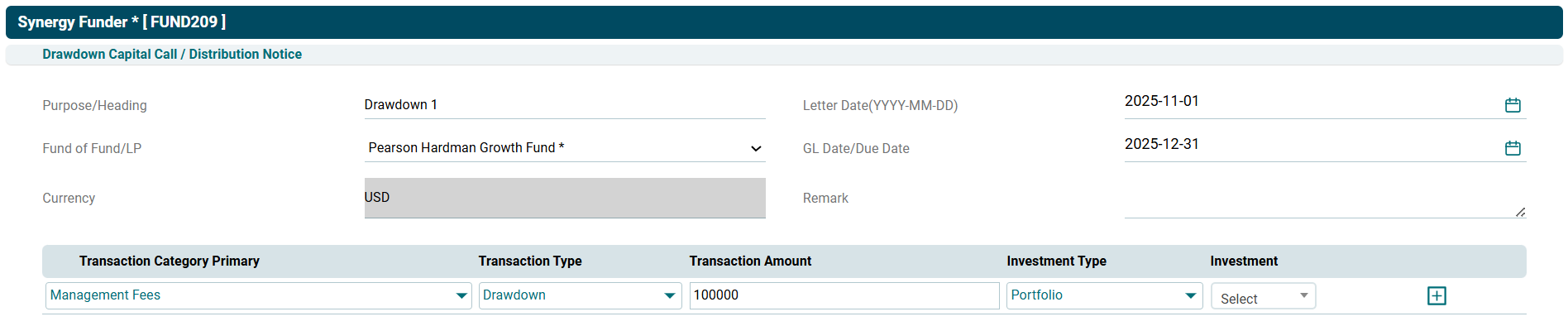
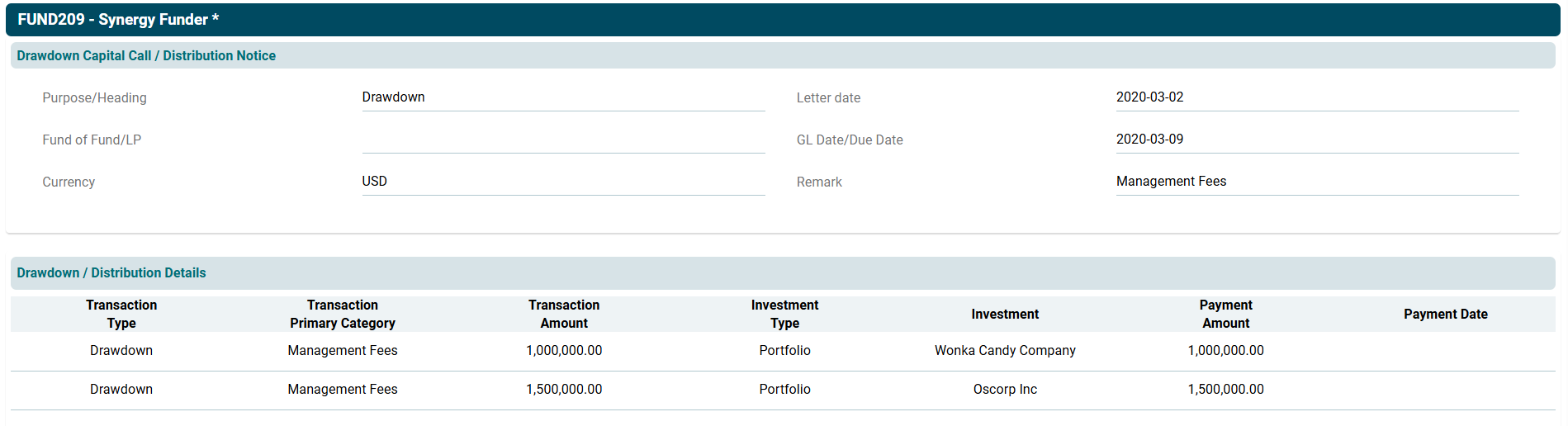
2. The Drawdown Capital call/ Distribution Notice window is displayed. Specify the following details:
- Purpose/ Heading: Specify the purpose.
- Fund of Fund/ LP: Specify the name of Fund of Fund or LP.
- Letter Date: Specify the date for issuing the notice.
- GL Date/ Due Date: Specify the due date for making payment.
- Remarks: Enter remarks, if any.
- Transaction Category primary: Based on the Notice type, choose the transaction category. For Drawdown, choose from Investments, Management Fees, Expenses, Establishment Cost, Equalization Investments, Equalization Expenses, and Equalization Establishment Cost. For Distribution, choose from Realization Proceeds, Dividend Payout, and Interest Payout.
- Transaction Type: Choose transaction type, i.e., Drawdown or Distribution.
- Transaction Amount: Specify the amount.
- Fund CCY Amount: Specify the amount of fund currency
- Investment Type: Choose the investment type.
- Investment: Choose the name of the portfolio company in which investment has been made.
3. Based on the Fund of Fund or LP selected, the following details will be auto-generated. Choose a file for the notice, if any. Click Upload.
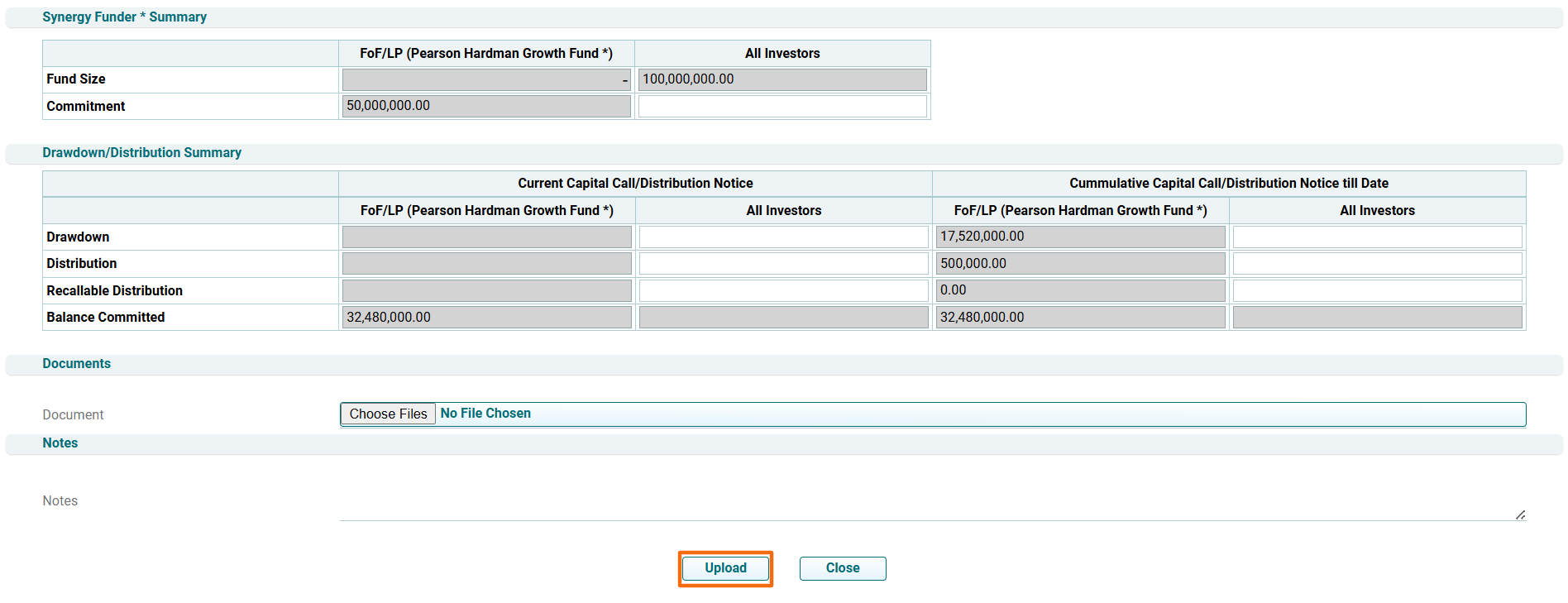
4. The data will populate based on the uploaded details.
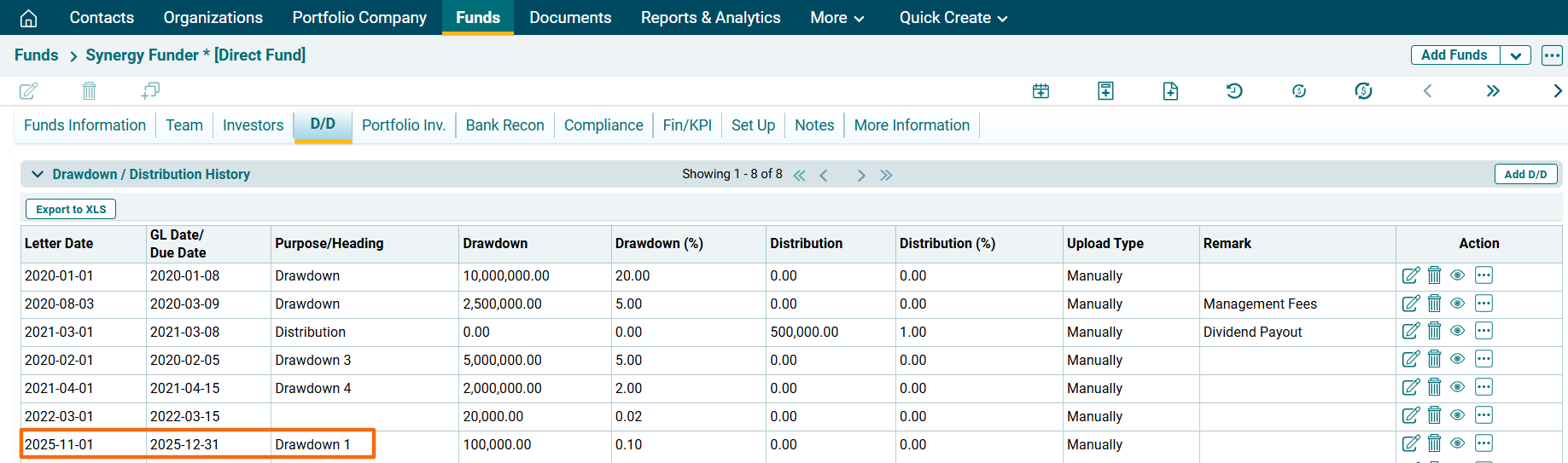
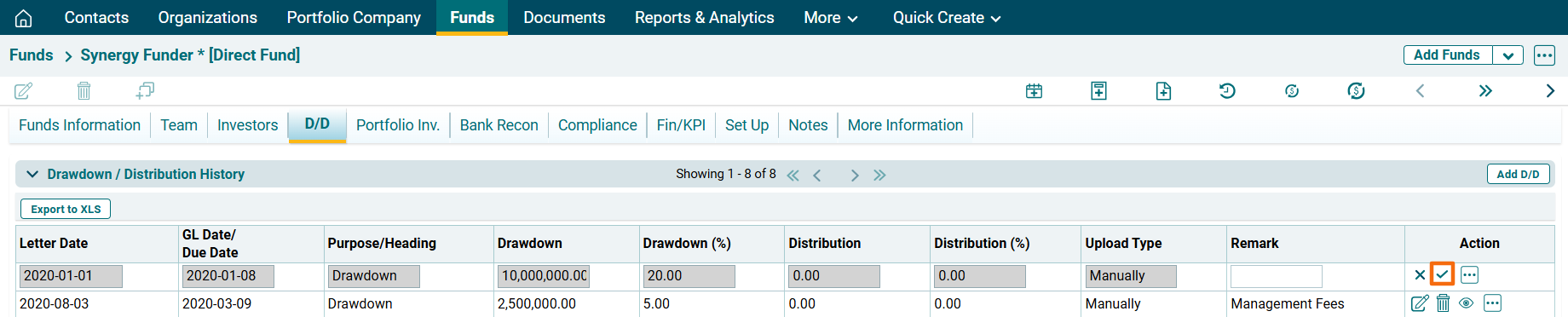
5. To edit notice details, click on the Edit icon ( ) in the Actions column. After making the changes, click on Check (
 ) button to save.
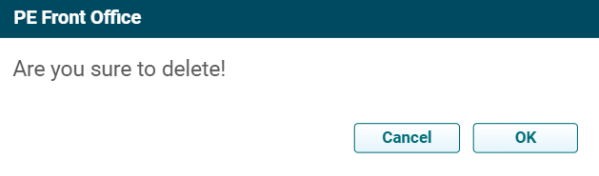
6. To delete notice details, click on the Delete icon ( ) in the Actions column. The delete window is displayed. Click OK to delete the notice details.
7. To view notice details, click on the View button ( ) in the Actions column. A new window is displayed.
Calculate Units
To calculate units issued to/redeemed by investors, for a particular drawdown or distribution transaction follow the below steps:
1. Click on the three dot menu in the Actions Column. Click on Calculate Units. The excel file will download.