ESG Metrics
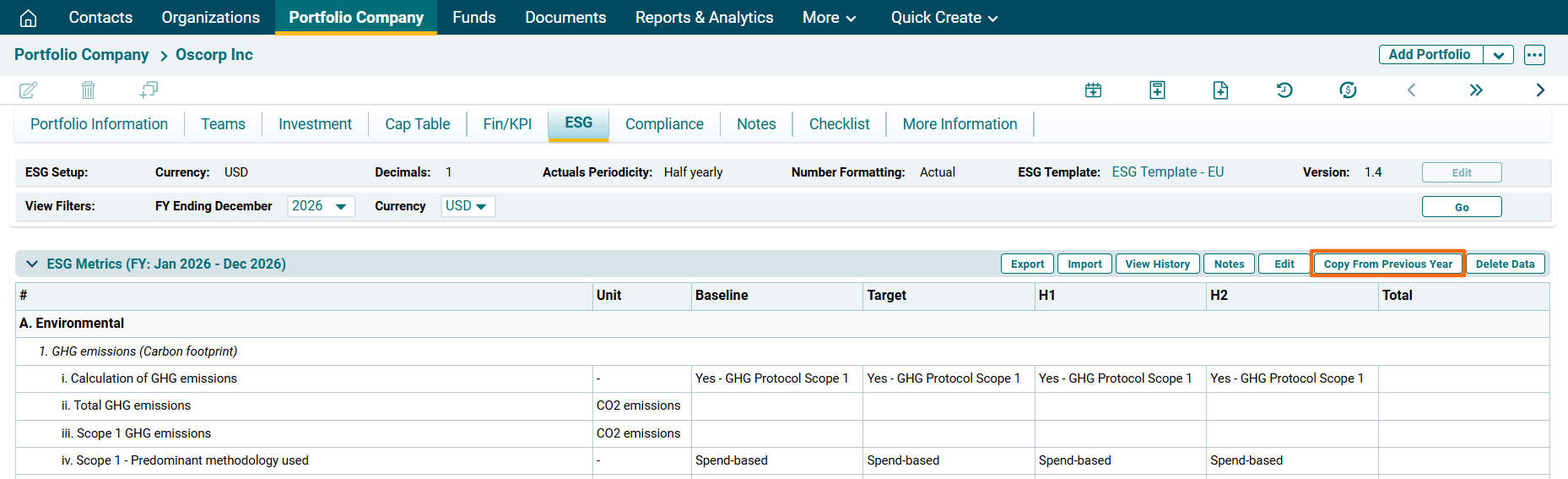
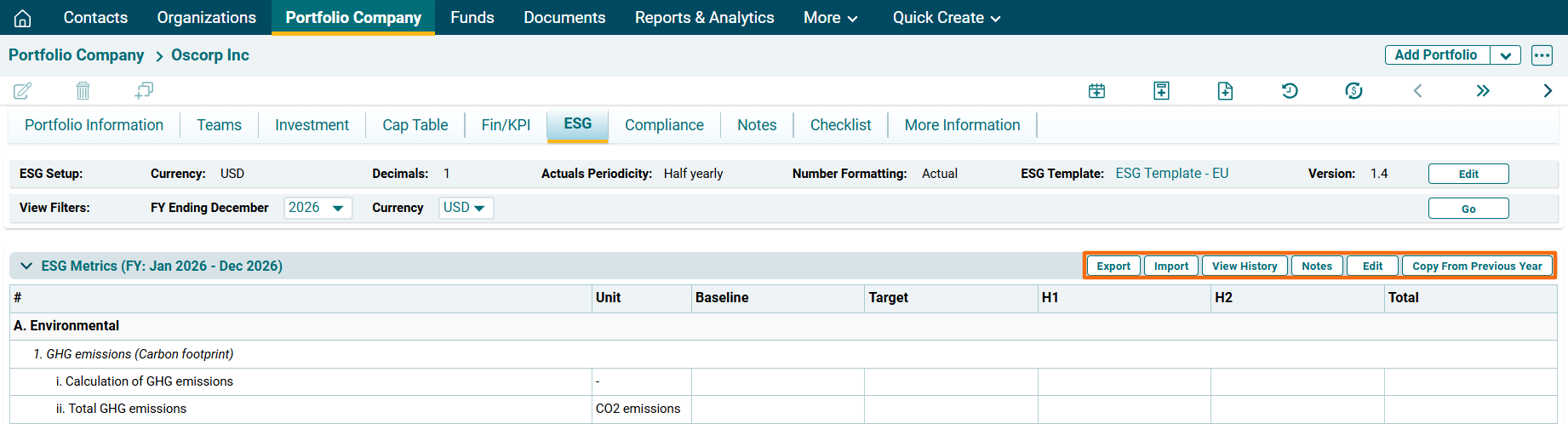
To modify the data, click on the following buttons on the top right corner of the panel:
- Export: To export data in excel format.
- Import: To import data to the fields.
- View History: To view history of updated data.
- Notes: To view or modify notes regarding ESG performance.
- Edit: To manually add data in the fields.
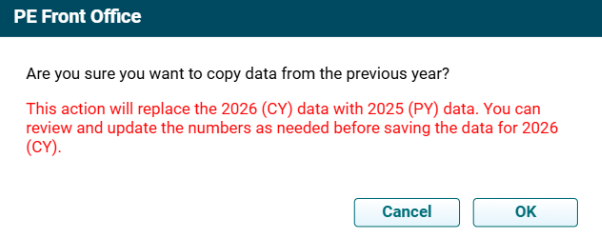
- Copy From Previous Year: To copy ESG data from previous year.
Edit ESG Data
To edit ESG data, follow the below steps:
1. Select Year and Currency. Click Go.

2. Click on Edit ( ) button on the top right corner of the panel.
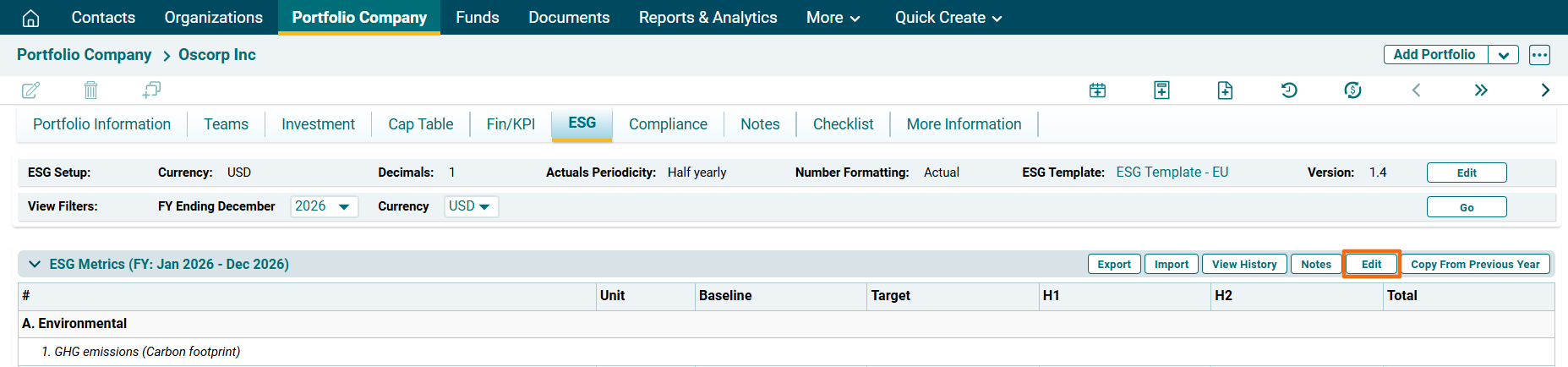
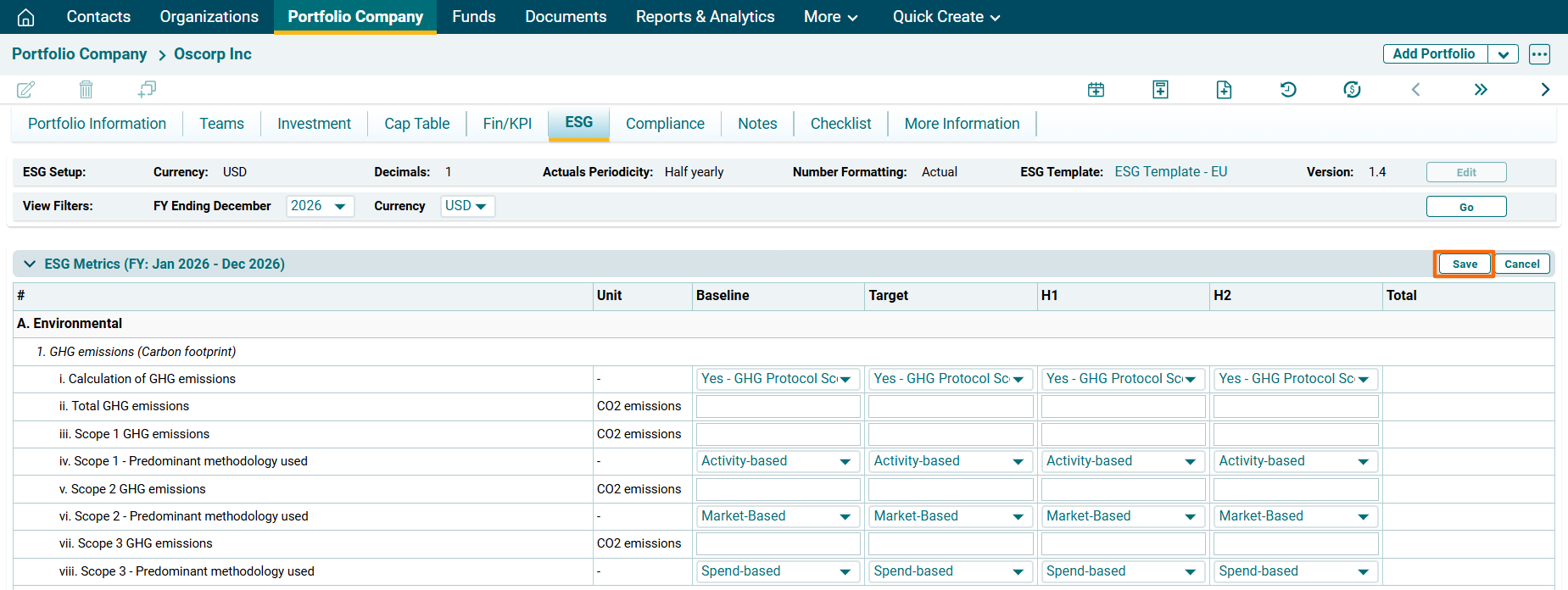
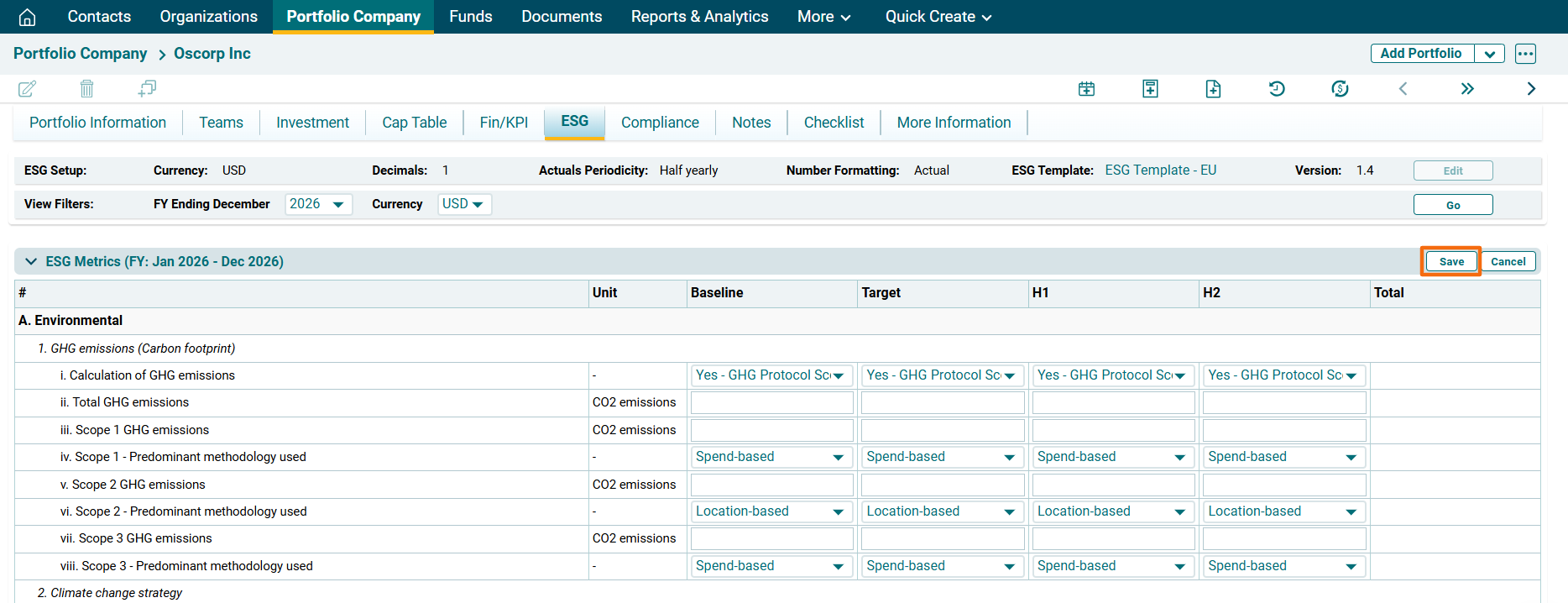
3. Update the details and click Save.
Export ESG Data
To export ESG data, follow the below steps:
1. Click on Export ( ) button on the top right corner of the respective panel.
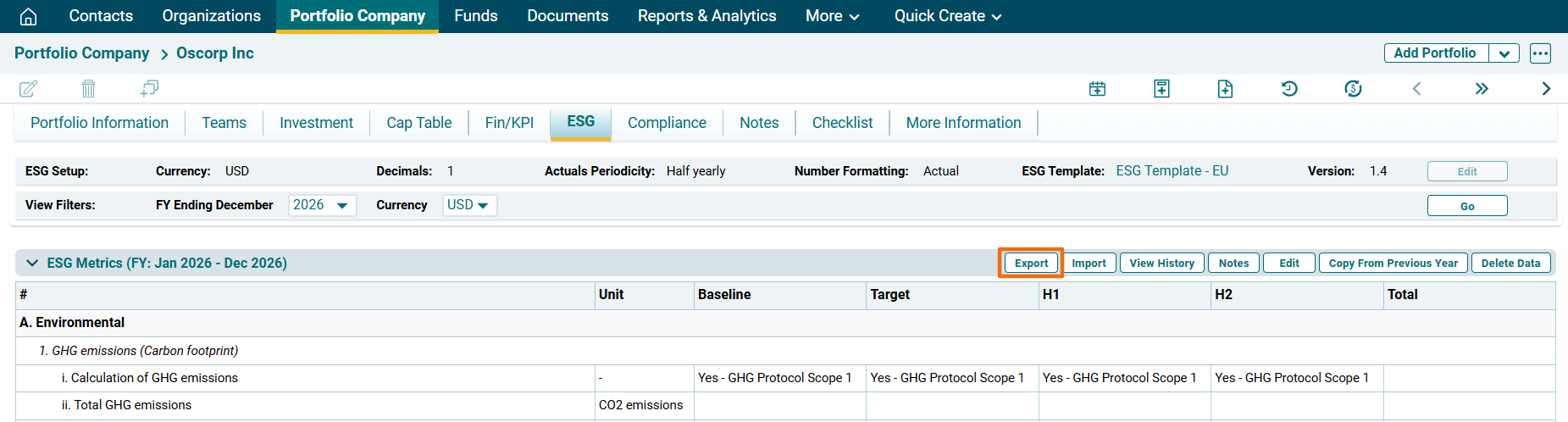
2. The excel file will download.
Delete ESG Data
To delete ESG data, follow the below steps:
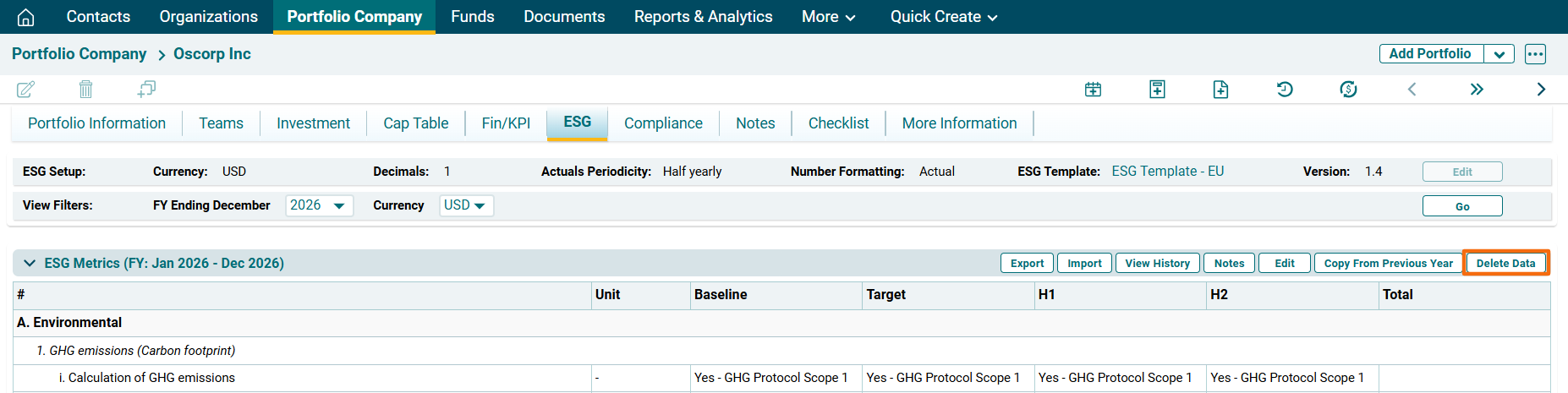
1. Click on Delete Data ( ) button on the top right corner of the respective panel.
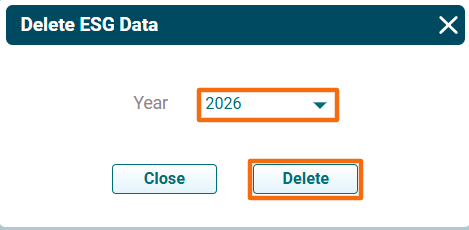
2. The Delete ESG data window is displayed. Select the year for which you wish to delete the data. Click on Delete.
Import ESG Data
To import ESG data, follow the below steps:
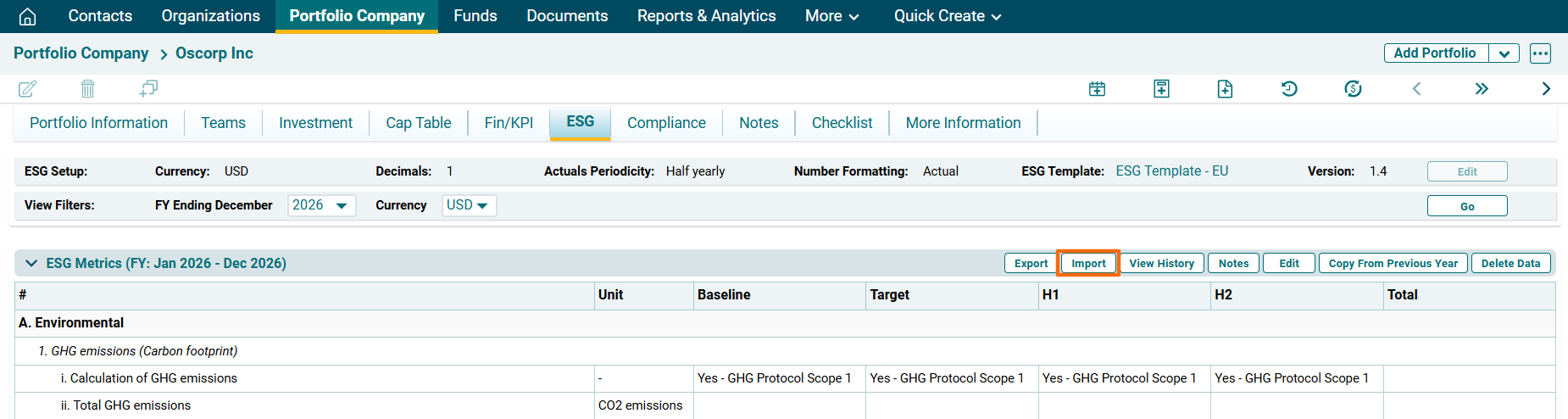
1. Click on Import ( ) button on the top right corner of the respective panel.
2. The Import ESG Actual Data- FY Year- [F.Y.] pop-up is displayed. Click on Choose File.

3. Click Upload. The imported data will auto-populate in the panel.

Bulk Import
To import multi-year ESG data, follow the below steps:
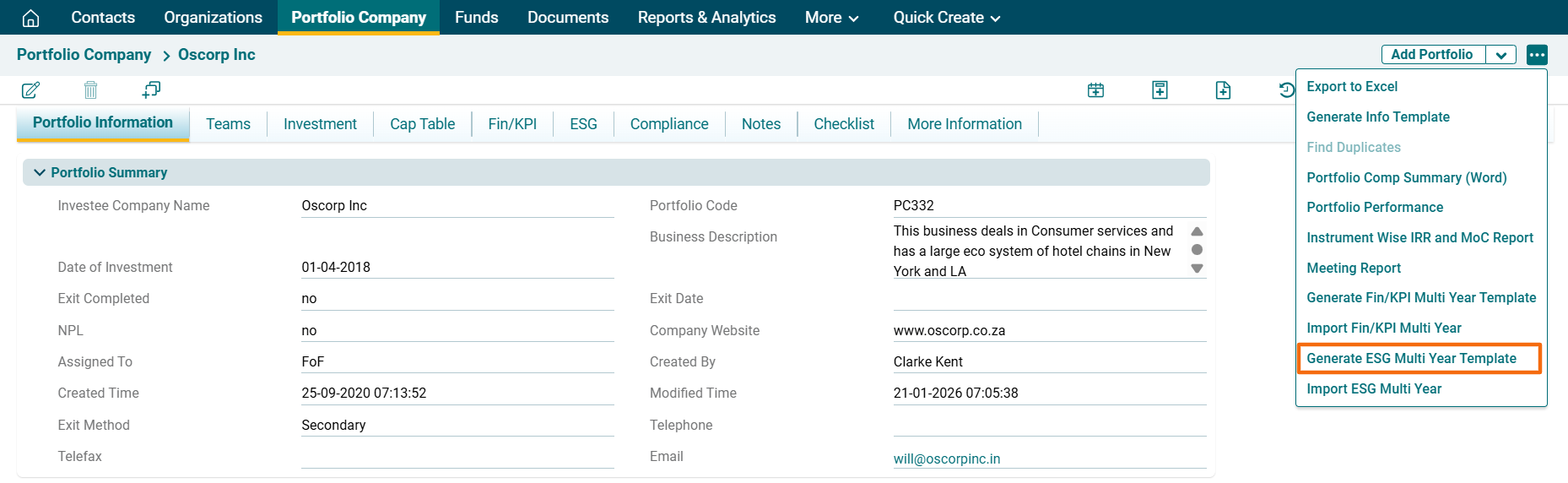
1. Click on the three dot menu in the top right corner. Click on Generate ESG Multi Year Template.
2. A new window is displayed. Select the years from the dropdown for which the data must be imported. Click on Download Template.

3. The excel file will download.
4. Click on the three dot menu in the top right corner. Click on Import ESG Multi Year Template.
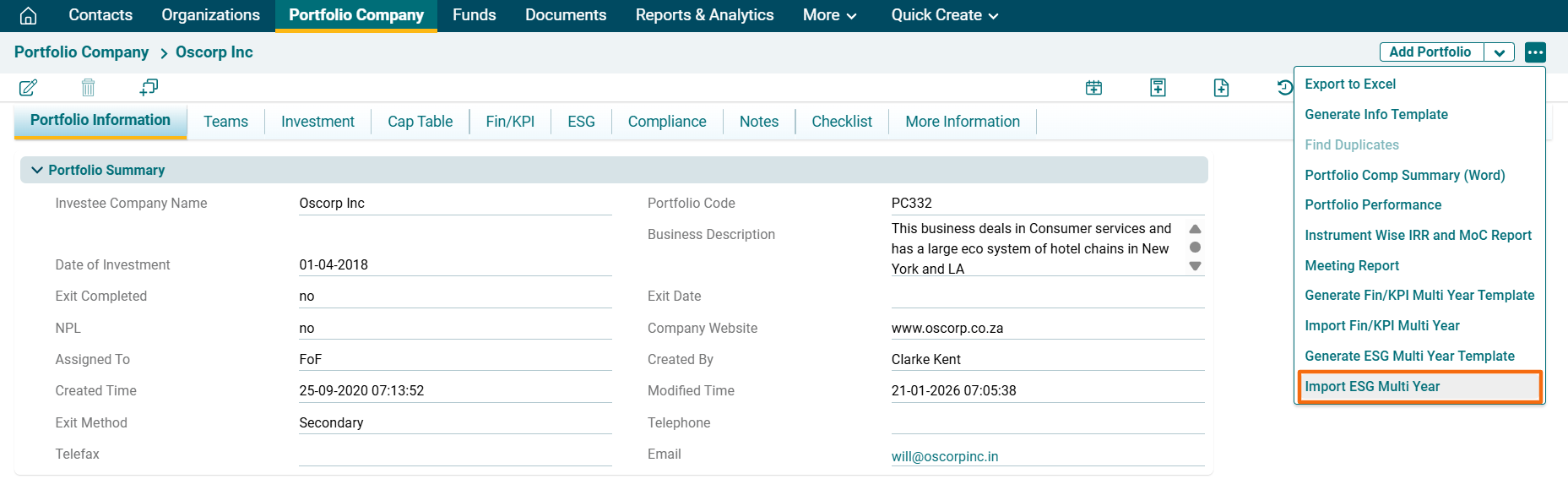
5. A new window is displayed. Select the Status, i.e., CFO Approved/ Work in Progress. Click on Choose File button.

6. Click Upload.

View ESG History
ESG tab allows users to view ESG data for a financial year.
The details included are:
- FY ending March: Displays the financial year for which data is to be displayed.
- Currency: Displays the currency in which data is to be displayed.
You can view the history of all the uploads of the data by clicking on View History ( ) button in top right corner. This will give you a trail of all the updates in ESG Metrics along with the details like Name of the user who has done the operation, Date and Time, Year, Upload type, and Excel File download. You can compare two files to monitor the changes. Select the files and click on Compare Files button. The excel file will download.

Notes
You can view and modify the notes pertaining to the ESG Performance for a specific month of the selected Year by clicking on Notes button in the top right corner.
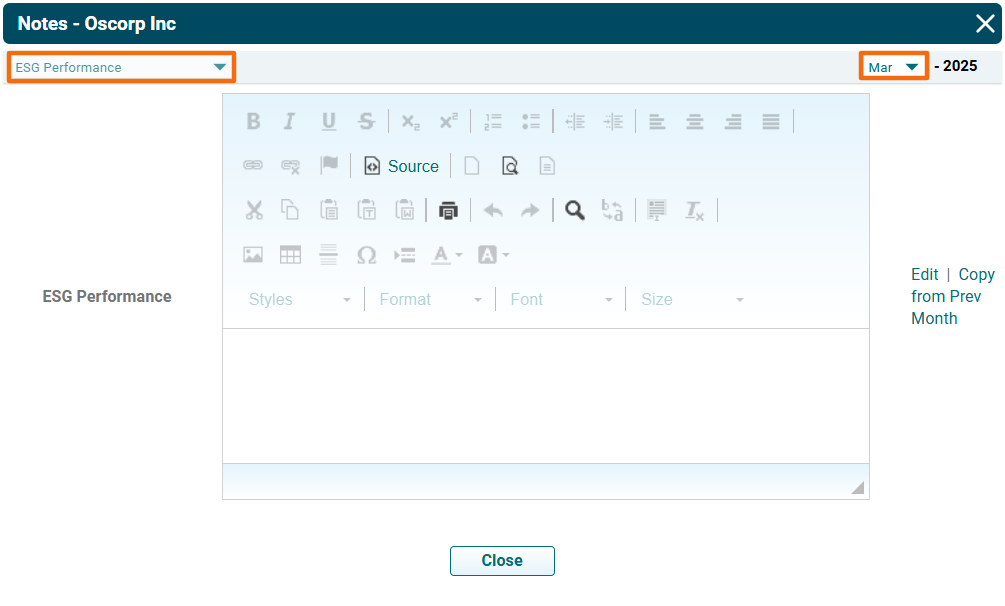
To edit a Note, click on Edit in the Action column. Enter the Note and click Check ( ) button to save.
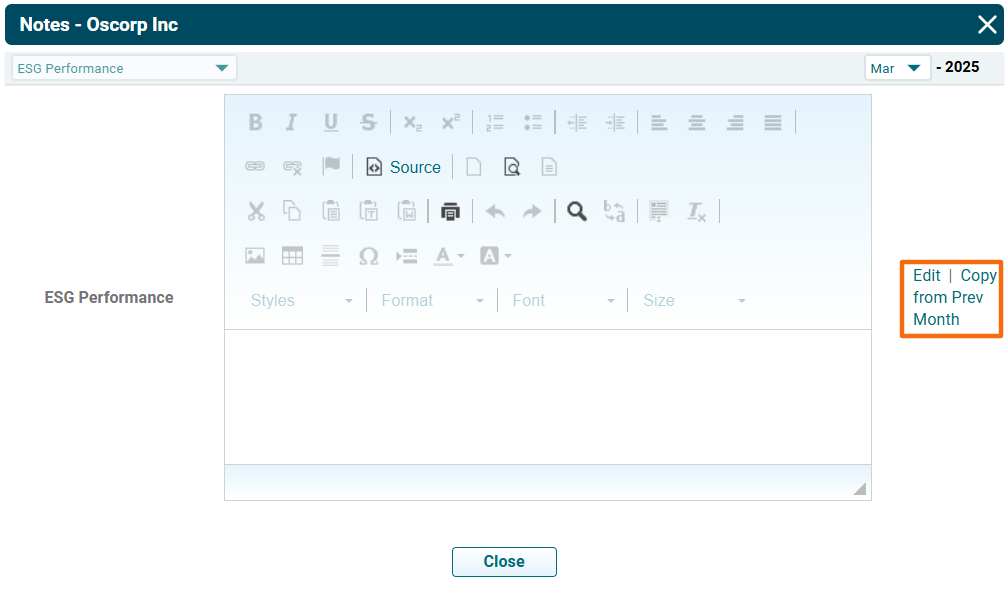
To copy a note from the previous month, click on Copy From Previous Month in the Action column beside the field. Make the changes to the Note, if any, and click check ( ) button to save.
Copy From Previous Year
 ) button in the top left corner of the panel.